# OpenBB Terminal
Table of Contents
- Anaconda & Python Installation
- Docker Installation
- Docker Web UI Installation
- Raspberry-Pi-Installation - Portable GST
- API Keys
---
There are currently four options to install the terminal:
- [Using the Installer](https://openbb-finance.github.io/OpenBBTerminal/#accessing-the-openbb-terminal) (recommended if you just want to use the terminal)
- [Using Python](#anaconda--python) (recommended if you want to develop new features)
- [Using Docker](#docker-installation) (alternative option to the installer if preferred)
- [Using Docker Web UI](#web-ui---docker) (if you want to deploy the web UI for users to access
over your LAN)
First step in all options is to star the project
 ## Anaconda & Python
This installation type supports both Windows and Unix systems (Linux + MacOS). However, on Windows it can become messy
so it is easier to use Windows Subsystem Linux (WSL) on this operating system. WSL emulates a Linux machine inside your
Windows system.
If you are using macOS or other Linux operating systems you can jump the next section
Installing the terminal.
### Installing WSL (Only for Windows users)
If you are using Windows you first you need to install WSL. The process is simple and a tutorial can be found [here](https://www.sitepoint.com/wsl2/).
Once you reach the section **Update Linux** on that tutorial, you should have a linux machine installed and can proceed
to the next steps.
Since WSL installation is headless by default (i.e., you have only access to a terminal running a linux distribution)
you need some extra steps to be able to visualize the charts produced by the terminal (more detailed tutorial [here](https://medium.com/@shaoyenyu/make-matplotlib-works-correctly-with-x-server-in-wsl2-9d9928b4e36a)):
1. Dynamically export the DISPLAY environment variable in WSL2:
```bash
# add to the end of ~/.bashrc file
export DISPLAY=$(cat /etc/resolv.conf | grep nameserver | awk '{print $2}'):0
# source the file
source ~/.bashrc
```
2. Download and install [VcXsrv](https://sourceforge.net/projects/vcxsrv/)
3. When running the program is important to check "Disable access control"
After this, `VcXsrv` should be running successfully and we can proceed to terminal installation.
Although we **extremely** recommend using WSL to run the terminal on windows, if you don't want or can't for some reason,
you can try install the terminal directly on Windows without WSL. If you'd like to see a video recording of the
installation on Windows without WSL, @JohnnyDankseed has made one available [here](https://www.youtube.com/watch?v=-DJJ-cfquDA).
### Installing the terminal
These steps are common in all operating systems (Windows with or without WSL, MacOS or Linux).
This project supports Python 3.8 and 3.9. By default, the newly created virtual environment will use Python 3.9.13
Our current recommendation is to use this project with Anaconda's Python distribution - either full
[**Anaconda3 Latest**](https://www.anaconda.com/products/distribution) or
[**Miniconda3 Latest**](https://docs.conda.io/en/latest/miniconda.html) (recommended).
Several features in this project utilize Machine Learning. Machine Learning Python dependencies are optional. For MacOS systems, the "Miniconda3 MacOSX 64-bit" version that works on both Intel and M1
macs is recommended.
**NOTE:** We recommend using `conda` and `poetry` because it just works. You can use other python
distributions and use raw `pip` instead of `poetry` but you will very likely bump into installation
issues.
1. [Install Anaconda](https://docs.anaconda.com/anaconda/install/index.html) (It's on the AUR as anaconda or miniconda3!)
- Follow the instructions specified on the website above:
- If you are using macOS click [Installing on MacOS](https://docs.anaconda.com/anaconda/install/mac-os/)
- If you are using WSL or Linux click [Installing on Linux](https://docs.anaconda.com/anaconda/install/linux/)
- If you are using Windows click [Installing on Windows](https://docs.anaconda.com/anaconda/install/windows/).
**ONLY REQUIRED IF NOT USING WSL**, you also need to install/update Microsoft C++ Build Tools from here:
- After following the steps, confirm that you have it by opening a terminal and running: `conda -V`. The output
should be something along the lines of: `conda 4.11.0`
2. Install git
```bash
conda install -c anaconda git
```
**For Linux users only, run these additional commands:**
```bash
sudo apt update
sudo apt install -y cmake gcc
pip install cmake
```
3. Clone the Project
- Via HTTPS: `git clone https://github.com/OpenBB-finance/OpenBBTerminal.git`
- via SSH: `git clone git@github.com:OpenBB-finance/OpenBBTerminal.git`
4. Navigate into the project's folder
```bash
cd OpenBBTerminal/
```
5. Create Environment
You can name the environment whatever you want. Although you could use names such as: `welikethestock`, `thisistheway`
or `diamondhands`, we recommend something simple and intuitive like `obb`. This is because this name will be used
from now onwards.
```bash
conda env create -n obb --file build/conda/conda-3-9-env.yaml
```
6. Activate the virtual environment
```bash
conda activate obb
```
Note: At the end, you can deactivate it with: `conda deactivate`.
7. Install dependencies with poetry
Install the main dependencies with
```bash
poetry install
```
To enable the `prediction` menu install additional dependencies after installing main dependencies:
```bash
conda install -c conda-forge tensorflow
```
If you are having trouble with Poetry (e.g. on a non-conda python), simply install requirements.txt with pip
```bash
pip install -r requirements.txt
```
8. You're ready to use the terminal!
```bash
python terminal.py
```
If you are using macOS and if you get SyntaxError, you might need to run this instead
```bash
python3 terminal.py
```
9. (Windows - Optional and **only if you are not using WSL**) Speeding up opening process in the future
After you've installed OpenBB Terminal, you'll find a file named "OpenBB Terminal.bat". You can use this file
to open OpenBB Terminal quicker. This file can be moved to your desktop if you'd like. If you run into issues
while trying to run the batch file. If you run into issues with the batch files, edit the file and check to see if
the directories match up. This file assumes you used the default directories when installing.
10. Jupyter Lab (Optional. Early alpha). User the Terminal from Jupyter Lab
You can install Jupyter Lab extensions that help you manage settings and launch the terminal in a JL bash console
using the commands in the [jupyterlab/README.md](../jupyterlab/README.md)
**NOTE:** When you close the terminal and re-open it, the only command you need to re-call is `conda activate gst`
before you call `python terminal.py` again.
**TROUBLESHOOT:** If you are having troubles to install, check our _newest_
troubleshoot page. You can also reach for help on our [discord](https://discord.gg/Up2QGbMKHY).
## Advanced User Install - Custom installation procedures
By default we advice using `conda` and `poetry` for environment setup and dependency management.
Conda ships binaries for packages like `numpy` and `tensorflow` so these dependencies are
not built from source locally by `pip`.
Poetry solves the dependency tree in a way that the dependencies of dependencies of dependencies
use versions that are compatible with each other.
If you are using a conda environment the `build/conda` folder contains multiple `.yaml` configuration
files that you can choose from.
If you are using other python distributions we highly recommend that you use some virtual
environment like `virtualenv` or `pyenv` for installing the terminal dependency libraries.
Requirements files that you can find in the project root:
- `requirements.txt` list all the dependencies without Machine Learning libraries
- `requirements-full.txt` list all the dependencies without Machine Learning libraries
The dependency tree is solved by poetry.
Note: The libraries specified in the requirements files have been tested and work for
the purpose of this project, however, these may be older versions. Hence, it is recommended
for the user to set up a virtual python environment prior to installing these. This allows
to keep dependencies required by different projects in separate places.
## Update Terminal
The terminal is constantly being updated with new features and bug fixes, hence, for your terminal to be update,
you can run:
```bash
git pull
```
to get the latest changes.
If this fails due to the fact that you had modified some python files, and there's a conflict with the updates, you can use:
```bash
git stash
```
Then, re-run `poetry install` or `pip install -r requirements.txt` to get any new dependencies.
Once installation is finished, you're ready to openbb.
If you `stashed` your changes previously, you can un-stash them with:
```bash
git stash pop
```
## Docker Installation
1. Make sure docker desktop is installed. Install links can be found [here](https://www.docker.com/products/docker-desktop).
To confirm that your docker desktop is downloaded and running, open a command prompt or terminal and enter
`docker info`. If you get the following you are not running the docker desktop:
```text
Server:
ERROR: Cannot connect to the Docker daemon at unix:///var/run/docker.sock.
Is the docker daemon running?
```
Open the docker desktop app in this case.
2. Download the latest docker image.
```bash
docker pull ghcr.io/openbb-finance/openbbterminal-poetry:latest
```
Upon running this the first time, you should see the various layers downloading (note the random series of letters
numbers will vary). The first time this is run, it will take a few minutes. Subsequent updates will be much faster,
as the changes will be in the MB instead of GB.
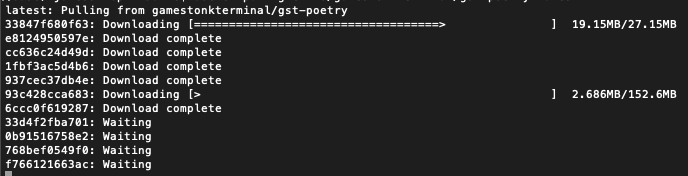
Once the download is complete, confirm that the image has been created by doing `docker images`. You should see
something similar to
```text
REPOSITORY TAG IMAGE ID CREATED SIZE
ghcr.io/openbb-finance/openbbterminal-poetry latest b1409a304750 42 hours ago 2.29GB
```
3. Run a container
You are now ready to run the terminal (every time you want to use the terminal you need to run this command):
`docker run -it --rm ghcr.io/openbb-finance/openbbterminal-poetry:latest`
This will open up the terminal in your command prompt or terminal. Note that this has provided now environment file,
so you will not be able to view plots or use keys at this stage.
At this point, you should be able to use the majority of the features using Docker. To read more on adding the
environment keys and how to configure your X-server to show plots, hop over to the
[Advanced Docker Setup](/DOCKER_ADVANCED.md).
## Web UI - Docker
1. Ensure Docker is installed.
2. Navigate to the location of the Dockerfile in the repo (`cd openbb_terminal_web`)
3. Ensure the launcher is executable with `chmod +x ./launch`
4. Launch it with `./launch`. If you get a permission denied error, do `sudo ./launch` instead
5. Once it's launched, you will be able to access it by going to `http://host-ip:8080` in a browser, or
`http://localhost:8080` if you are running it on your local machine.
For API keys, create the `setenv` file if it doesn't already exist.
It will automatically get created on the first launch, and won't get committed to Git because it is on the `.gitignore`.
Set the API keys [as explained here](https://github.com/OpenBB-finance/OpenBBTerminal/blob/main/DOCKER_ADVANCED.md#environment-variables).
Once you've put the API keys in that file, re-run the launch script, and it will use your API keys.
There are a few things that still don't work, and you can see what works and what doesn't [here](https://github.com/CoconutMacaroon/OpenBBTerminal/blob/main/openbb_terminal_web/README.md#todo).
## Local Installation of GST on Raspberry Pi
1. Running raspbian lite(headless) or desktop (both 64bit) we should first start off with an update/upgrade.
```bash
sudo apt update && sudo apt upgrade
```
Once completed reboot and lets reopen.
2. [Install Miniforge](https://github.com/conda-forge/miniforge) The community version of anaconda/miniconda that has
Arm support.
- Follow the on screen prompts to install miniforge(conda).
```bash
wget https://github.com/conda-forge/miniforge/releases/latest/download/Miniforge3-Linux-aarch64.sh
```
- After following the steps, confirm that you have it by opening a terminal and running: `conda -V`. The output
should be something along the lines of: `conda 4.9.2`
3. Install git
```bash
conda install -c anaconda git
```
4. Install Cmake
```bash
sudo apt update
sudo apt install -y cmake
pip install cmake
```
5. Clone the Project
- Via HTTPS: `git clone https://github.com/OpenBB-finance/OpenBBTerminal.git`
- via SSH: `git clone git@github.com:OpenBB-finance/OpenBBTerminal.git`
6. Navigate into the project's folder
```bash
cd OpenBB/
```
7. Create Environment
You can name the environment whatever you want. Although you could use names such as: `welikethestock`, `thisistheway`
or `diamondhands`, we recommend something simple and intuitive like `gst`. This is because this name will be used
from now onwards.
```bash
conda env create -n openbb python=3.8.13
```
8. Activate the virtual environment
```bash
conda activate openbb
```
Note: At the end, you can deactivate it with: `conda deactivate`.
9. Update all poetry dependencies
```bash
poetry update --lock
```
Note: This is done to solve any issues with poetry dependencies for the arm architecture of the rpi
10. Install using our updated poetry installation
```bash
poetry install
```
11. Ready to rock on a Raspberry Pi!
```bash
python terminal.py
```
Note: For a headless installation using raspbian lite also follow the Jupyter Lab installation
12. Jupyter Lab (Optional. Early alpha). User the Terminal from Jupyter Lab
You can install Jupyter Lab extensions that help you manage settings and launch the terminal in a JL bash console
using the commands in the [jupyterlab/README.md](jupyterlab/README.md)
**NOTE:** When you close the terminal and re-open it, the only command you need to re-call is `conda activate gst`
before you call `python terminal.py` again.
### API Keys
The project is build around several different API calls, whether it is to access historical data or financials.
The table below shows the ones where a key is necessary. The easiest way is of updating the keys is by using the
terminal, see [this guide](https://openbb-finance.github.io/OpenBBTerminal/terminal/#accessing-other-sources-of-data-via-api-keys).
You can also use the environment variable to set your API Keys directly instead of using the Terminal, for the variable
name in the code one just needs to remove the "GT\_", this can be found in [config_terminal.py](/openbb_terminal/config_terminal.py).
| Website | Environment Variables |
| :--------------------------------------------------------------------------------- | :-------------------------------------------------------------------------------------------------------------------------------------------------------------------- |
| [Alpha Vantage](https://www.alphavantage.co) | OPENBB_API_KEY_ALPHAVANTAGE |
| [Binance](https://binance.com) | OPENBB_API_BINANCE_KEY
## Anaconda & Python
This installation type supports both Windows and Unix systems (Linux + MacOS). However, on Windows it can become messy
so it is easier to use Windows Subsystem Linux (WSL) on this operating system. WSL emulates a Linux machine inside your
Windows system.
If you are using macOS or other Linux operating systems you can jump the next section
Installing the terminal.
### Installing WSL (Only for Windows users)
If you are using Windows you first you need to install WSL. The process is simple and a tutorial can be found [here](https://www.sitepoint.com/wsl2/).
Once you reach the section **Update Linux** on that tutorial, you should have a linux machine installed and can proceed
to the next steps.
Since WSL installation is headless by default (i.e., you have only access to a terminal running a linux distribution)
you need some extra steps to be able to visualize the charts produced by the terminal (more detailed tutorial [here](https://medium.com/@shaoyenyu/make-matplotlib-works-correctly-with-x-server-in-wsl2-9d9928b4e36a)):
1. Dynamically export the DISPLAY environment variable in WSL2:
```bash
# add to the end of ~/.bashrc file
export DISPLAY=$(cat /etc/resolv.conf | grep nameserver | awk '{print $2}'):0
# source the file
source ~/.bashrc
```
2. Download and install [VcXsrv](https://sourceforge.net/projects/vcxsrv/)
3. When running the program is important to check "Disable access control"
After this, `VcXsrv` should be running successfully and we can proceed to terminal installation.
Although we **extremely** recommend using WSL to run the terminal on windows, if you don't want or can't for some reason,
you can try install the terminal directly on Windows without WSL. If you'd like to see a video recording of the
installation on Windows without WSL, @JohnnyDankseed has made one available [here](https://www.youtube.com/watch?v=-DJJ-cfquDA).
### Installing the terminal
These steps are common in all operating systems (Windows with or without WSL, MacOS or Linux).
This project supports Python 3.8 and 3.9. By default, the newly created virtual environment will use Python 3.9.13
Our current recommendation is to use this project with Anaconda's Python distribution - either full
[**Anaconda3 Latest**](https://www.anaconda.com/products/distribution) or
[**Miniconda3 Latest**](https://docs.conda.io/en/latest/miniconda.html) (recommended).
Several features in this project utilize Machine Learning. Machine Learning Python dependencies are optional. For MacOS systems, the "Miniconda3 MacOSX 64-bit" version that works on both Intel and M1
macs is recommended.
**NOTE:** We recommend using `conda` and `poetry` because it just works. You can use other python
distributions and use raw `pip` instead of `poetry` but you will very likely bump into installation
issues.
1. [Install Anaconda](https://docs.anaconda.com/anaconda/install/index.html) (It's on the AUR as anaconda or miniconda3!)
- Follow the instructions specified on the website above:
- If you are using macOS click [Installing on MacOS](https://docs.anaconda.com/anaconda/install/mac-os/)
- If you are using WSL or Linux click [Installing on Linux](https://docs.anaconda.com/anaconda/install/linux/)
- If you are using Windows click [Installing on Windows](https://docs.anaconda.com/anaconda/install/windows/).
**ONLY REQUIRED IF NOT USING WSL**, you also need to install/update Microsoft C++ Build Tools from here:
- After following the steps, confirm that you have it by opening a terminal and running: `conda -V`. The output
should be something along the lines of: `conda 4.11.0`
2. Install git
```bash
conda install -c anaconda git
```
**For Linux users only, run these additional commands:**
```bash
sudo apt update
sudo apt install -y cmake gcc
pip install cmake
```
3. Clone the Project
- Via HTTPS: `git clone https://github.com/OpenBB-finance/OpenBBTerminal.git`
- via SSH: `git clone git@github.com:OpenBB-finance/OpenBBTerminal.git`
4. Navigate into the project's folder
```bash
cd OpenBBTerminal/
```
5. Create Environment
You can name the environment whatever you want. Although you could use names such as: `welikethestock`, `thisistheway`
or `diamondhands`, we recommend something simple and intuitive like `obb`. This is because this name will be used
from now onwards.
```bash
conda env create -n obb --file build/conda/conda-3-9-env.yaml
```
6. Activate the virtual environment
```bash
conda activate obb
```
Note: At the end, you can deactivate it with: `conda deactivate`.
7. Install dependencies with poetry
Install the main dependencies with
```bash
poetry install
```
To enable the `prediction` menu install additional dependencies after installing main dependencies:
```bash
conda install -c conda-forge tensorflow
```
If you are having trouble with Poetry (e.g. on a non-conda python), simply install requirements.txt with pip
```bash
pip install -r requirements.txt
```
8. You're ready to use the terminal!
```bash
python terminal.py
```
If you are using macOS and if you get SyntaxError, you might need to run this instead
```bash
python3 terminal.py
```
9. (Windows - Optional and **only if you are not using WSL**) Speeding up opening process in the future
After you've installed OpenBB Terminal, you'll find a file named "OpenBB Terminal.bat". You can use this file
to open OpenBB Terminal quicker. This file can be moved to your desktop if you'd like. If you run into issues
while trying to run the batch file. If you run into issues with the batch files, edit the file and check to see if
the directories match up. This file assumes you used the default directories when installing.
10. Jupyter Lab (Optional. Early alpha). User the Terminal from Jupyter Lab
You can install Jupyter Lab extensions that help you manage settings and launch the terminal in a JL bash console
using the commands in the [jupyterlab/README.md](../jupyterlab/README.md)
**NOTE:** When you close the terminal and re-open it, the only command you need to re-call is `conda activate gst`
before you call `python terminal.py` again.
**TROUBLESHOOT:** If you are having troubles to install, check our _newest_
troubleshoot page. You can also reach for help on our [discord](https://discord.gg/Up2QGbMKHY).
## Advanced User Install - Custom installation procedures
By default we advice using `conda` and `poetry` for environment setup and dependency management.
Conda ships binaries for packages like `numpy` and `tensorflow` so these dependencies are
not built from source locally by `pip`.
Poetry solves the dependency tree in a way that the dependencies of dependencies of dependencies
use versions that are compatible with each other.
If you are using a conda environment the `build/conda` folder contains multiple `.yaml` configuration
files that you can choose from.
If you are using other python distributions we highly recommend that you use some virtual
environment like `virtualenv` or `pyenv` for installing the terminal dependency libraries.
Requirements files that you can find in the project root:
- `requirements.txt` list all the dependencies without Machine Learning libraries
- `requirements-full.txt` list all the dependencies without Machine Learning libraries
The dependency tree is solved by poetry.
Note: The libraries specified in the requirements files have been tested and work for
the purpose of this project, however, these may be older versions. Hence, it is recommended
for the user to set up a virtual python environment prior to installing these. This allows
to keep dependencies required by different projects in separate places.
## Update Terminal
The terminal is constantly being updated with new features and bug fixes, hence, for your terminal to be update,
you can run:
```bash
git pull
```
to get the latest changes.
If this fails due to the fact that you had modified some python files, and there's a conflict with the updates, you can use:
```bash
git stash
```
Then, re-run `poetry install` or `pip install -r requirements.txt` to get any new dependencies.
Once installation is finished, you're ready to openbb.
If you `stashed` your changes previously, you can un-stash them with:
```bash
git stash pop
```
## Docker Installation
1. Make sure docker desktop is installed. Install links can be found [here](https://www.docker.com/products/docker-desktop).
To confirm that your docker desktop is downloaded and running, open a command prompt or terminal and enter
`docker info`. If you get the following you are not running the docker desktop:
```text
Server:
ERROR: Cannot connect to the Docker daemon at unix:///var/run/docker.sock.
Is the docker daemon running?
```
Open the docker desktop app in this case.
2. Download the latest docker image.
```bash
docker pull ghcr.io/openbb-finance/openbbterminal-poetry:latest
```
Upon running this the first time, you should see the various layers downloading (note the random series of letters
numbers will vary). The first time this is run, it will take a few minutes. Subsequent updates will be much faster,
as the changes will be in the MB instead of GB.

Once the download is complete, confirm that the image has been created by doing `docker images`. You should see
something similar to
```text
REPOSITORY TAG IMAGE ID CREATED SIZE
ghcr.io/openbb-finance/openbbterminal-poetry latest b1409a304750 42 hours ago 2.29GB
```
3. Run a container
You are now ready to run the terminal (every time you want to use the terminal you need to run this command):
`docker run -it --rm ghcr.io/openbb-finance/openbbterminal-poetry:latest`
This will open up the terminal in your command prompt or terminal. Note that this has provided now environment file,
so you will not be able to view plots or use keys at this stage.
At this point, you should be able to use the majority of the features using Docker. To read more on adding the
environment keys and how to configure your X-server to show plots, hop over to the
[Advanced Docker Setup](/DOCKER_ADVANCED.md).
## Web UI - Docker
1. Ensure Docker is installed.
2. Navigate to the location of the Dockerfile in the repo (`cd openbb_terminal_web`)
3. Ensure the launcher is executable with `chmod +x ./launch`
4. Launch it with `./launch`. If you get a permission denied error, do `sudo ./launch` instead
5. Once it's launched, you will be able to access it by going to `http://host-ip:8080` in a browser, or
`http://localhost:8080` if you are running it on your local machine.
For API keys, create the `setenv` file if it doesn't already exist.
It will automatically get created on the first launch, and won't get committed to Git because it is on the `.gitignore`.
Set the API keys [as explained here](https://github.com/OpenBB-finance/OpenBBTerminal/blob/main/DOCKER_ADVANCED.md#environment-variables).
Once you've put the API keys in that file, re-run the launch script, and it will use your API keys.
There are a few things that still don't work, and you can see what works and what doesn't [here](https://github.com/CoconutMacaroon/OpenBBTerminal/blob/main/openbb_terminal_web/README.md#todo).
## Local Installation of GST on Raspberry Pi
1. Running raspbian lite(headless) or desktop (both 64bit) we should first start off with an update/upgrade.
```bash
sudo apt update && sudo apt upgrade
```
Once completed reboot and lets reopen.
2. [Install Miniforge](https://github.com/conda-forge/miniforge) The community version of anaconda/miniconda that has
Arm support.
- Follow the on screen prompts to install miniforge(conda).
```bash
wget https://github.com/conda-forge/miniforge/releases/latest/download/Miniforge3-Linux-aarch64.sh
```
- After following the steps, confirm that you have it by opening a terminal and running: `conda -V`. The output
should be something along the lines of: `conda 4.9.2`
3. Install git
```bash
conda install -c anaconda git
```
4. Install Cmake
```bash
sudo apt update
sudo apt install -y cmake
pip install cmake
```
5. Clone the Project
- Via HTTPS: `git clone https://github.com/OpenBB-finance/OpenBBTerminal.git`
- via SSH: `git clone git@github.com:OpenBB-finance/OpenBBTerminal.git`
6. Navigate into the project's folder
```bash
cd OpenBB/
```
7. Create Environment
You can name the environment whatever you want. Although you could use names such as: `welikethestock`, `thisistheway`
or `diamondhands`, we recommend something simple and intuitive like `gst`. This is because this name will be used
from now onwards.
```bash
conda env create -n openbb python=3.8.13
```
8. Activate the virtual environment
```bash
conda activate openbb
```
Note: At the end, you can deactivate it with: `conda deactivate`.
9. Update all poetry dependencies
```bash
poetry update --lock
```
Note: This is done to solve any issues with poetry dependencies for the arm architecture of the rpi
10. Install using our updated poetry installation
```bash
poetry install
```
11. Ready to rock on a Raspberry Pi!
```bash
python terminal.py
```
Note: For a headless installation using raspbian lite also follow the Jupyter Lab installation
12. Jupyter Lab (Optional. Early alpha). User the Terminal from Jupyter Lab
You can install Jupyter Lab extensions that help you manage settings and launch the terminal in a JL bash console
using the commands in the [jupyterlab/README.md](jupyterlab/README.md)
**NOTE:** When you close the terminal and re-open it, the only command you need to re-call is `conda activate gst`
before you call `python terminal.py` again.
### API Keys
The project is build around several different API calls, whether it is to access historical data or financials.
The table below shows the ones where a key is necessary. The easiest way is of updating the keys is by using the
terminal, see [this guide](https://openbb-finance.github.io/OpenBBTerminal/terminal/#accessing-other-sources-of-data-via-api-keys).
You can also use the environment variable to set your API Keys directly instead of using the Terminal, for the variable
name in the code one just needs to remove the "GT\_", this can be found in [config_terminal.py](/openbb_terminal/config_terminal.py).
| Website | Environment Variables |
| :--------------------------------------------------------------------------------- | :-------------------------------------------------------------------------------------------------------------------------------------------------------------------- |
| [Alpha Vantage](https://www.alphavantage.co) | OPENBB_API_KEY_ALPHAVANTAGE |
| [Binance](https://binance.com) | OPENBB_API_BINANCE_KEY
OPENBB_API_BINANCE_SECRET |
| [BitQuery](https://bitquery.io/pricing) | OPENBB_API_BITQUERY_KEY |
| [Coinbase](https://docs.pro.coinbase.com/) | OPENBB_API_COINBASE_KEY
OPENBB_API_COINBASE_SECRET
OPENBB_API_COINBASE_PASS_PHRASE |
| [Coinglass](https://coinglass.github.io/API-Reference/#api-key) | OPENBB_API_COINGLASS_KEY |
| [CoinMarketCap](https://coinmarketcap.com) | OPENBB_API_CMC_KEY
|
| [Cryptopanic](https://cryptopanic.com/developers/api/) | OPENBB_API_CRYPTO_PANIC_KEY |
| [DEGIRO](https://www.degiro.fr) | OPENBB_DG_USERNAME
OPENBB_DG_PASSWORD
OPENBB_DG_TOTP_SECRET |
| [Ethplorer](https://github.com/EverexIO/Ethplorer/wiki/Ethplorer-API) | OPENBB_API_ETHPLORER_KEY |
| [Financial Modeling Prep](https://financialmodelingprep.com) | OPENBB_API_KEY_FINANCIALMODELINGPREP |
| [Finnhub](https://finnhub.io) | OPENBB_API_FINNHUB_KEY |
| [FRED](https://fred.stlouisfed.org) | OPENBB_API_FRED_KEY |
| [GitHub](https://docs.github.com/en/rest/guides/getting-started-with-the-rest-api) | OPENBB_API_GITHUB_KEY |
| [Glassnode](https://docs.glassnode.com/basic-api/api-key#how-to-get-an-api-key) | OPENBB_API_GLASSNODE_KEY |
| [News](https://newsapi.org) | OPENBB_API_NEWS_TOKEN |
| [Oanda](https://developer.oanda.com) | OPENBB_OANDA_TOKEN
OPENBB_OANDA_ACCOUNT |
| [Polygon](https://polygon.io) | OPENBB_API_POLYGON_KEY |
| [Quandl](https://www.quandl.com) | OPENBB_API_KEY_QUANDL |
| [Reddit](https://www.reddit.com) | OPENBB_API_REDDIT_CLIENT_ID
OPENBB_API_REDDIT_CLIENT_SECRET
OPENBB_API_REDDIT_USERNAME
OPENBB_API_REDDIT_USER_AGENT
OPENBB_API_REDDIT_PASSWORD |
| [SentimentInvestor](https://sentimentinvestor.com) | OPENBB_API_SENTIMENTINVESTOR_TOKEN
OPENBB_API_SENTIMENTINVESTOR_KEY |
| [Tradier](https://developer.tradier.com) | OPENBB_TRADIER_TOKEN |
| [Twitter](https://developer.twitter.com) | OPENBB_API_TWITTER_KEY
OPENBB_API_TWITTER_SECRET_KEY
OPENBB_API_TWITTER_BEARER_TOKEN |
| [Whale Alert](https://docs.whale-alert.io/) | OPENBB_API_WHALE_ALERT_KEY |
Example:
```bash
export OPENBB_API_REDDIT_USERNAME=SexyYear
```
Environment variables can also be set in a `.env` file at the top of the repo. This file is ignored by git so your API
keys will stay secret. The above example stored in `.env` would be:
```bash
OPENBB_API_REDDIT_USERNAME=SexyYear
```
Note that the `OPENBB_API_REDDIT_USER_AGENT` is the name of the script that you set when obtained the Reddit API key.
Note that it is not necessary to have a valid Alpha Vantage key to get daily OHLC values.