Set API keys
Accessing the keys menu
Within the keys menu you can define your, often free, API key from various platforms like Alpha Vantage, FRED, IEX, Twitter, DeGiro, Binance and Coinglass. An API key is a set of random characters provided to you by a third party vendor that allows you to access data via their API endpoints.
You can access this menu from the homepage with keys which will open the menu as shown below:
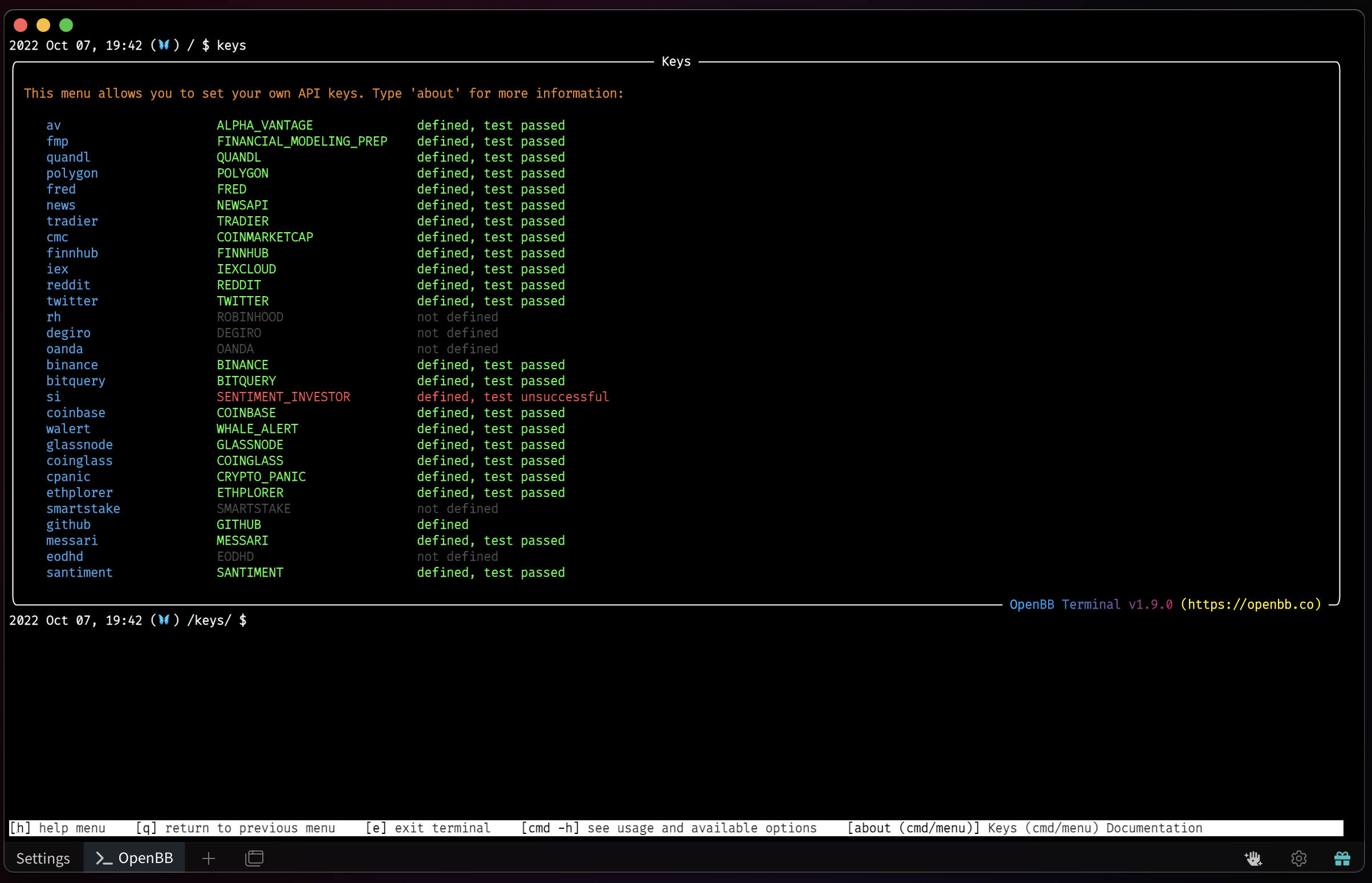
Within this menu you are able to set your API keys to access the commands that require that key. You can do so by typing the command followed by the API key, for example: fred a215egade08a8d47cfd49c849658a2be. When you press ENTER (⏎) the terminal will test whether this API key works. If it does, you receive the message defined, test passed and if it does not, you receive the message defined, test failed.
To figure out where you can obtain the API key, you can enter the command (e.g. av) and press ENTER (⏎) or use the table below. We recommend that you gradually obtain and set keys whenever you wish to use features that require an API key. For example, if you are interested in viewing recent news about a company, you should set the API key from the 'News API'.
Summary of API Key Providers
How to obtain the API Key from each source
This section covers all API keys listed above and include detailed instructions how to obtain each API key. By clicking on each name, the section will expand and instructions are provided.
AlphaVantage
Go to https://www.alphavantage.co/support/#api-key. You will be greeted with the following screen:

Once you enter the type of investor you are, the organization you work at and your email address pressing "GET FREE API KEY" gets you the key that you can submit into the OpenBB Terminal with /keys/av KEY
Binance
Go to https://www.binance.com/en/support/faq/how-to-create-api-360002502072. You will be greeted with the following screen:
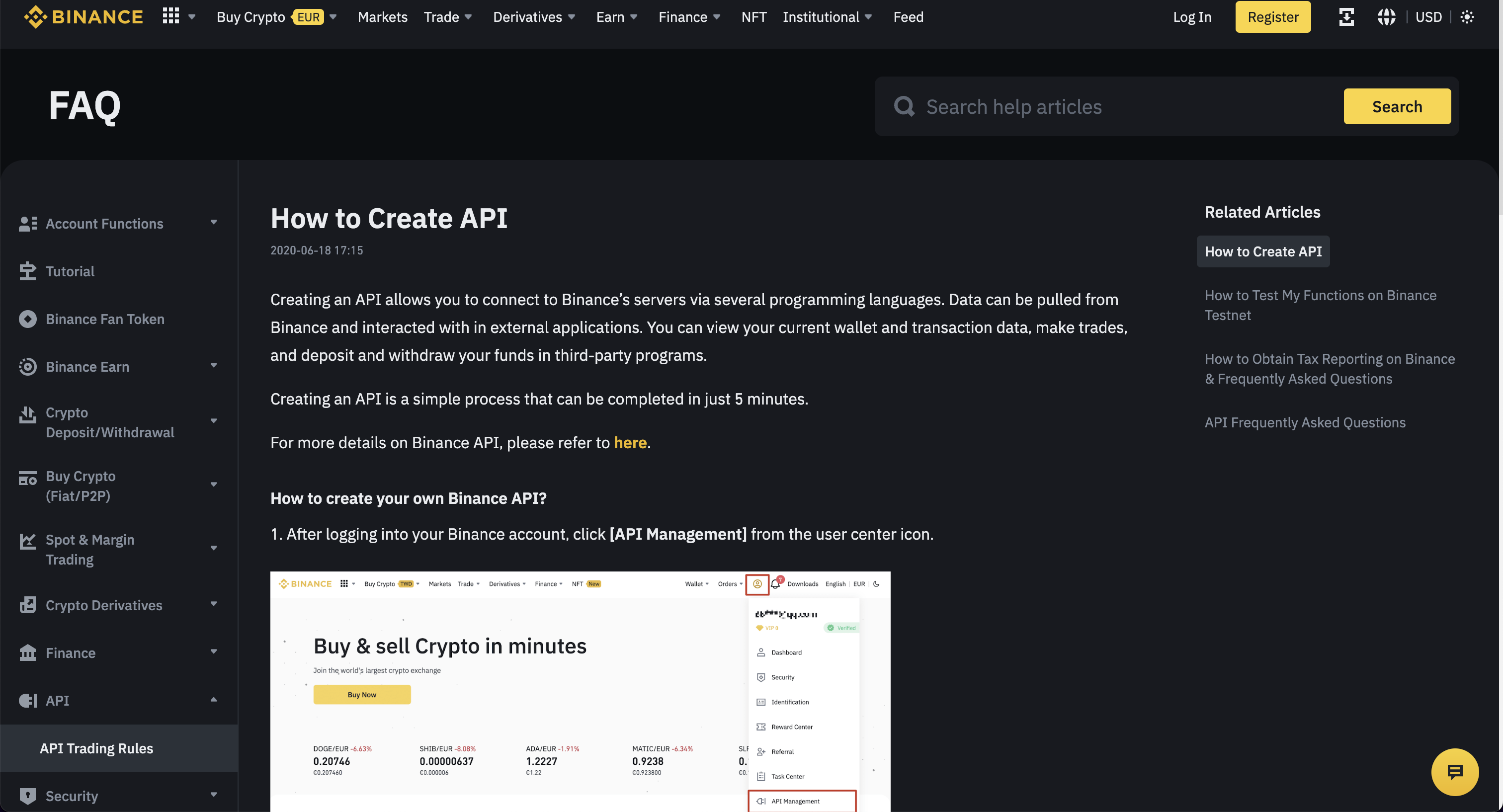
These instructions should provide clear guidance how to set up an API Key. Enter this API key into the OpenBB Terminal by typing /keys/binance -k KEY -s SECRET.
Bitquery
Go to https://bitquery.io/. You will be greeted with the following screen:

Click "Try GraphQL API". This opens the following screen:

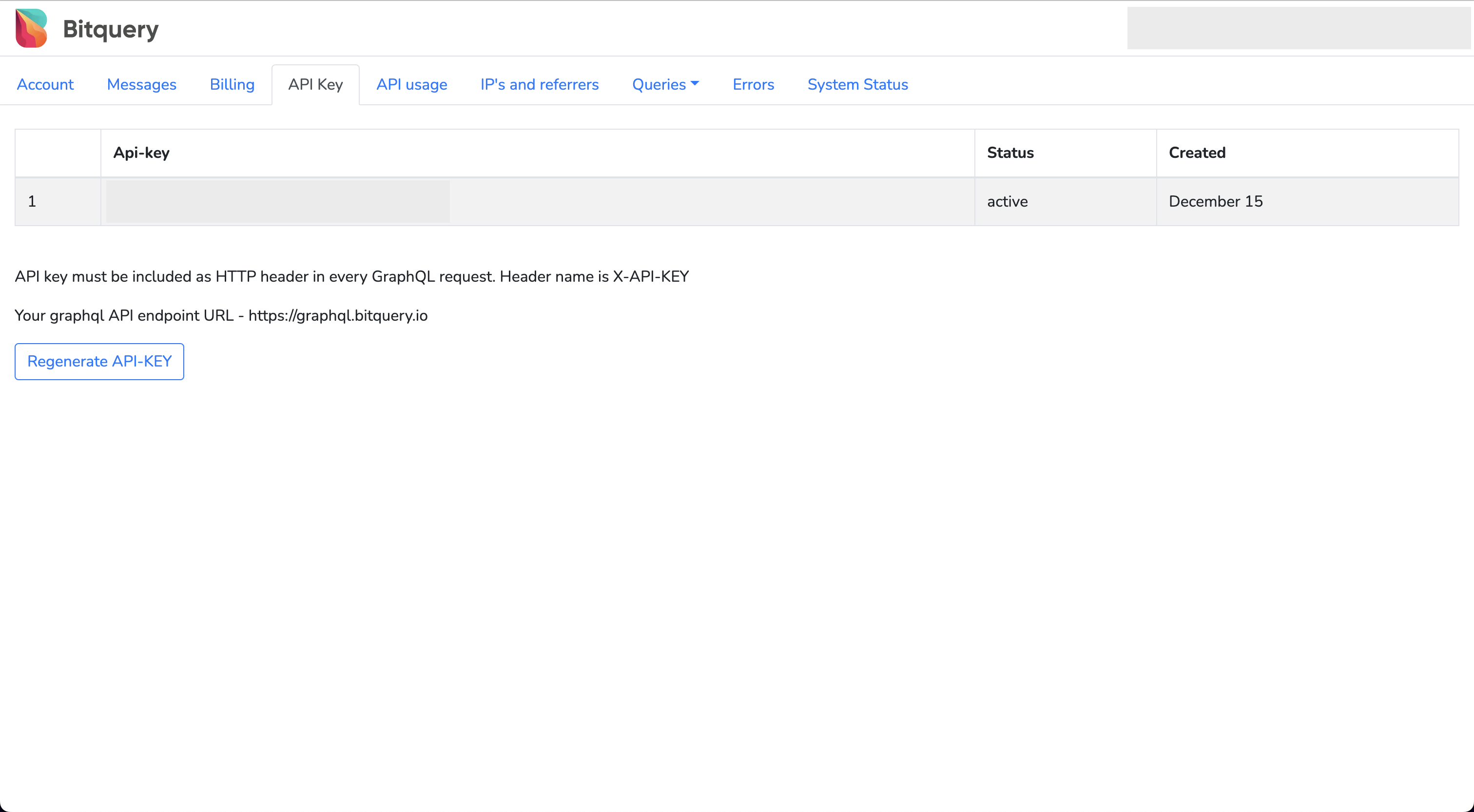
After creating an account and verifying your email address, you will be able to access your API Key by clicking "Api Key". Enter this API key into the OpenBB Terminal by typing /keys/bitquery KEY.
CoinMarketCap
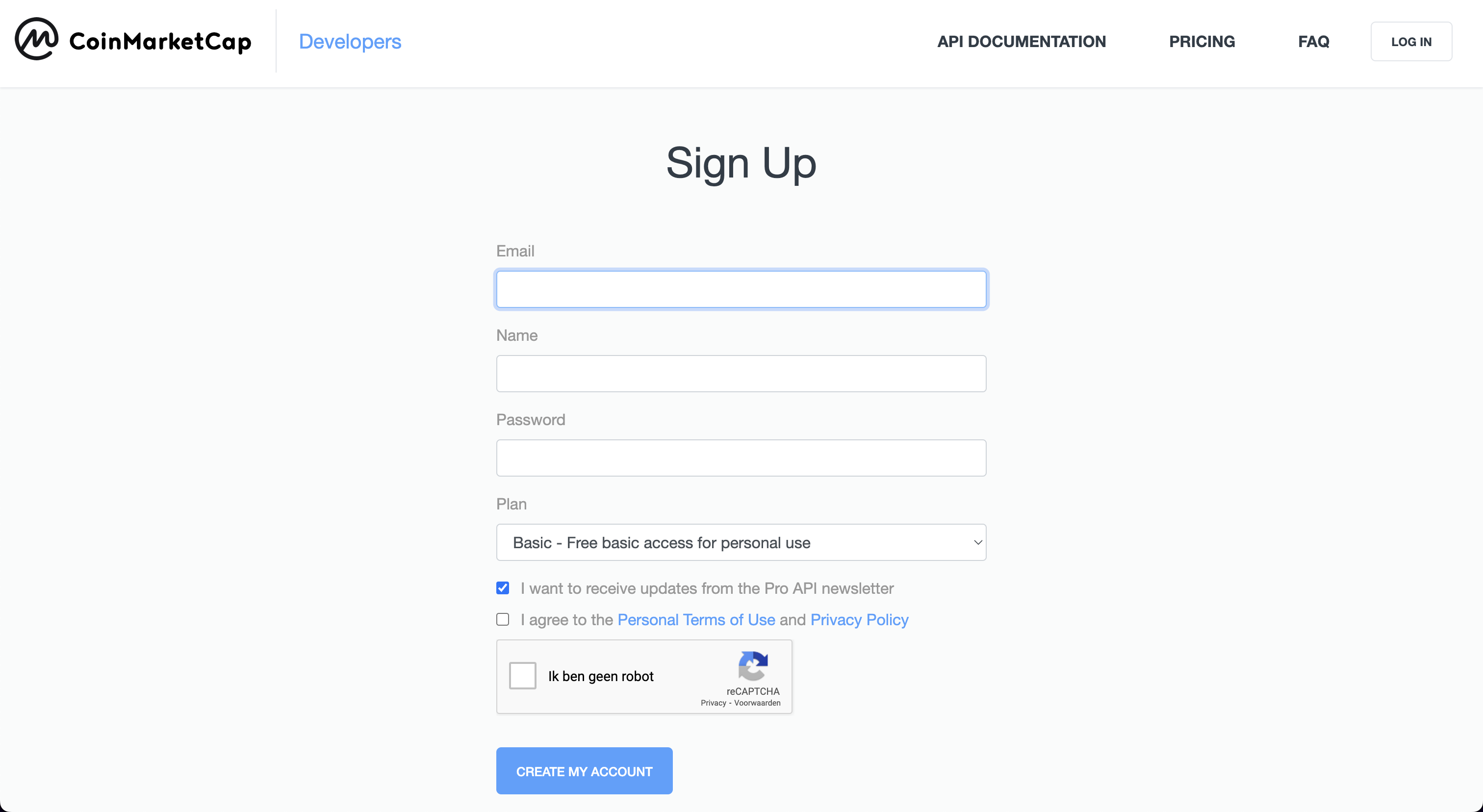
Go to https://coinmarketcap.com/api. You will be greeted with the following screen:
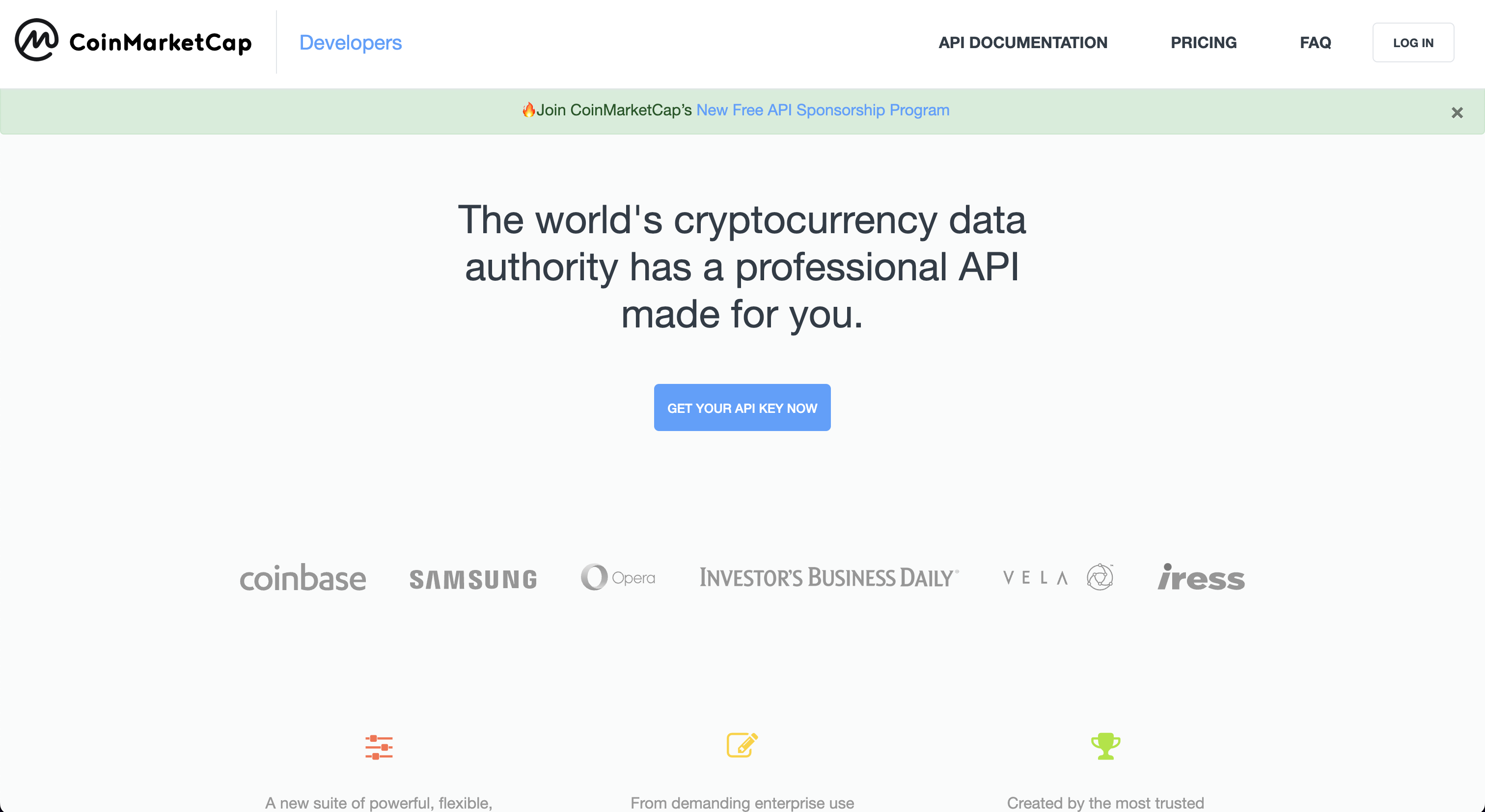
From here, click "Get Your Free API Key Now". This opens up the following screen:
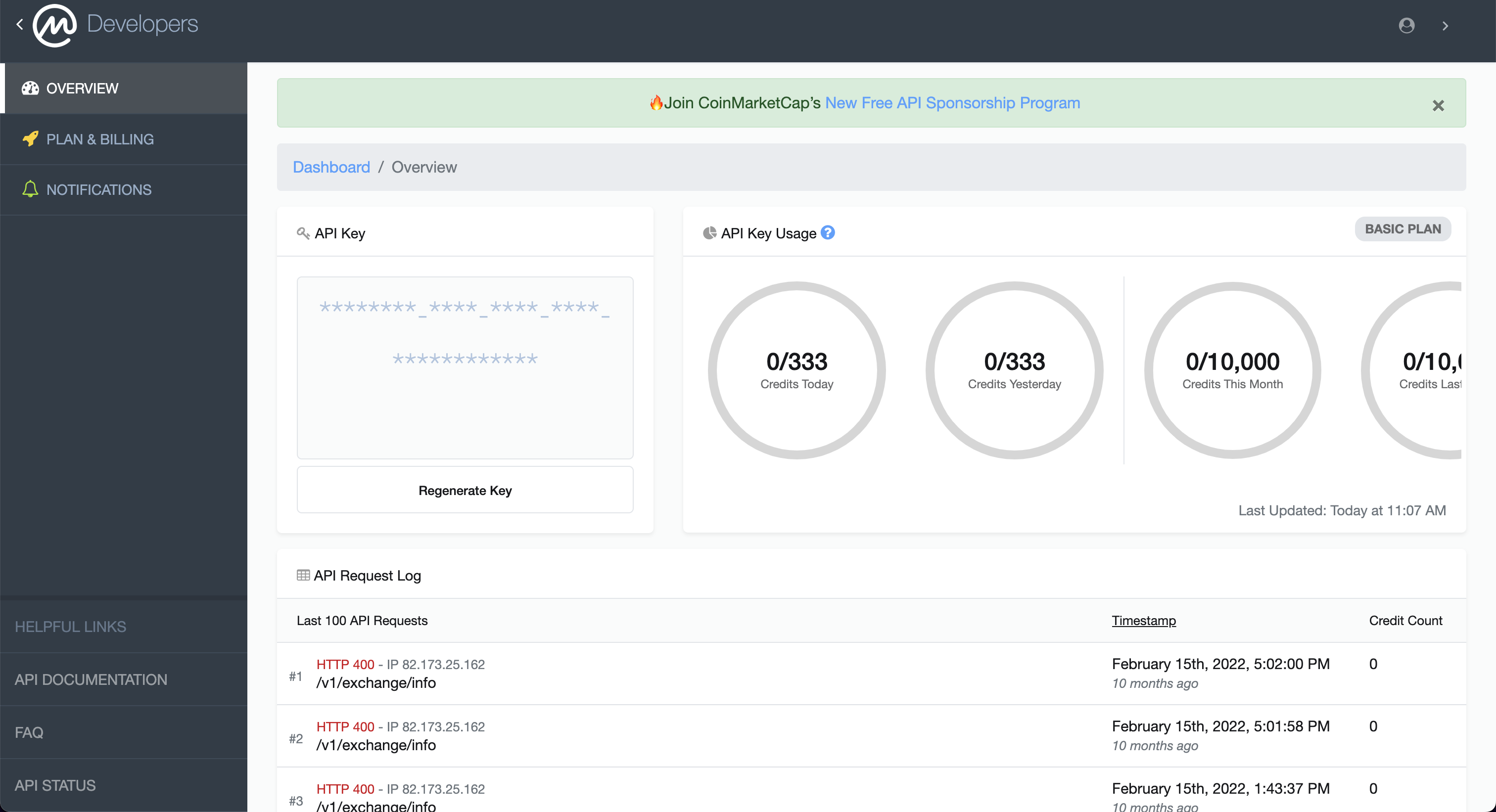
Once you have created an account, you will be able to find your API key in the following screen. Enter this API key into the OpenBB Terminal by typing /keys/cmc KEY
CoinBase
Go to https://help.coinbase.com/en/exchange/managing-my-account/how-to-create-an-api-key. You will be greeted with the following screen:
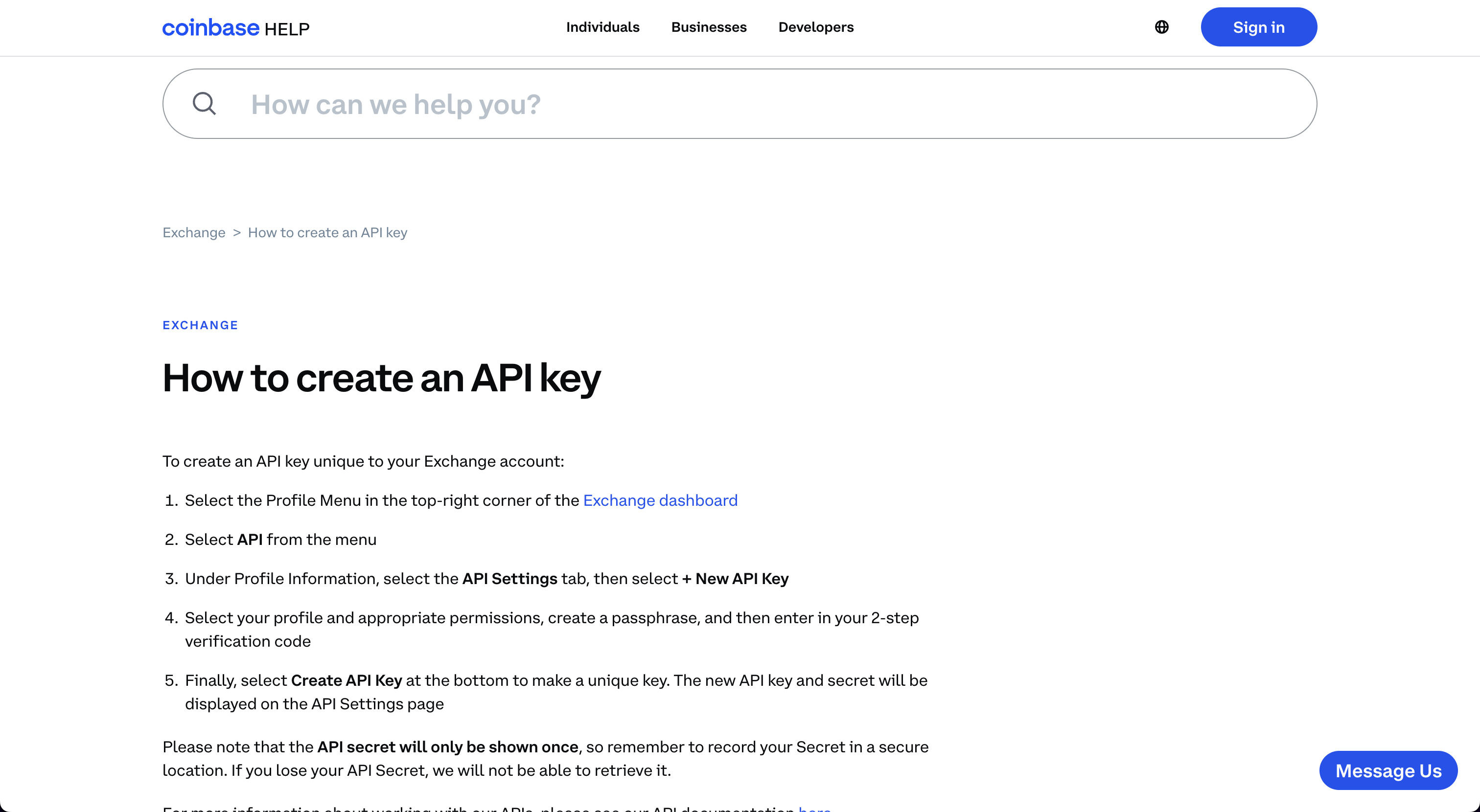
By following these instructions you should be able to set-up an API Key. Enter this API key into the OpenBB Terminal by typing /keys/coinbase -k KEY -s SECRET -p PASSPHRASE.
Coinglass
Go to https://www.coinglass.com/. You will be greeted with the following screen:

Click "Log in" and sign up for an account. This opens up the following screen:

Once you created your account, you will be able to find the API Key on your profile. Enter this API key into the OpenBB Terminal by typing /keys/coinglass KEY.
Crypto Panic
Go to https://cryptopanic.com/developers/api/. You will be greeted with the following screen:
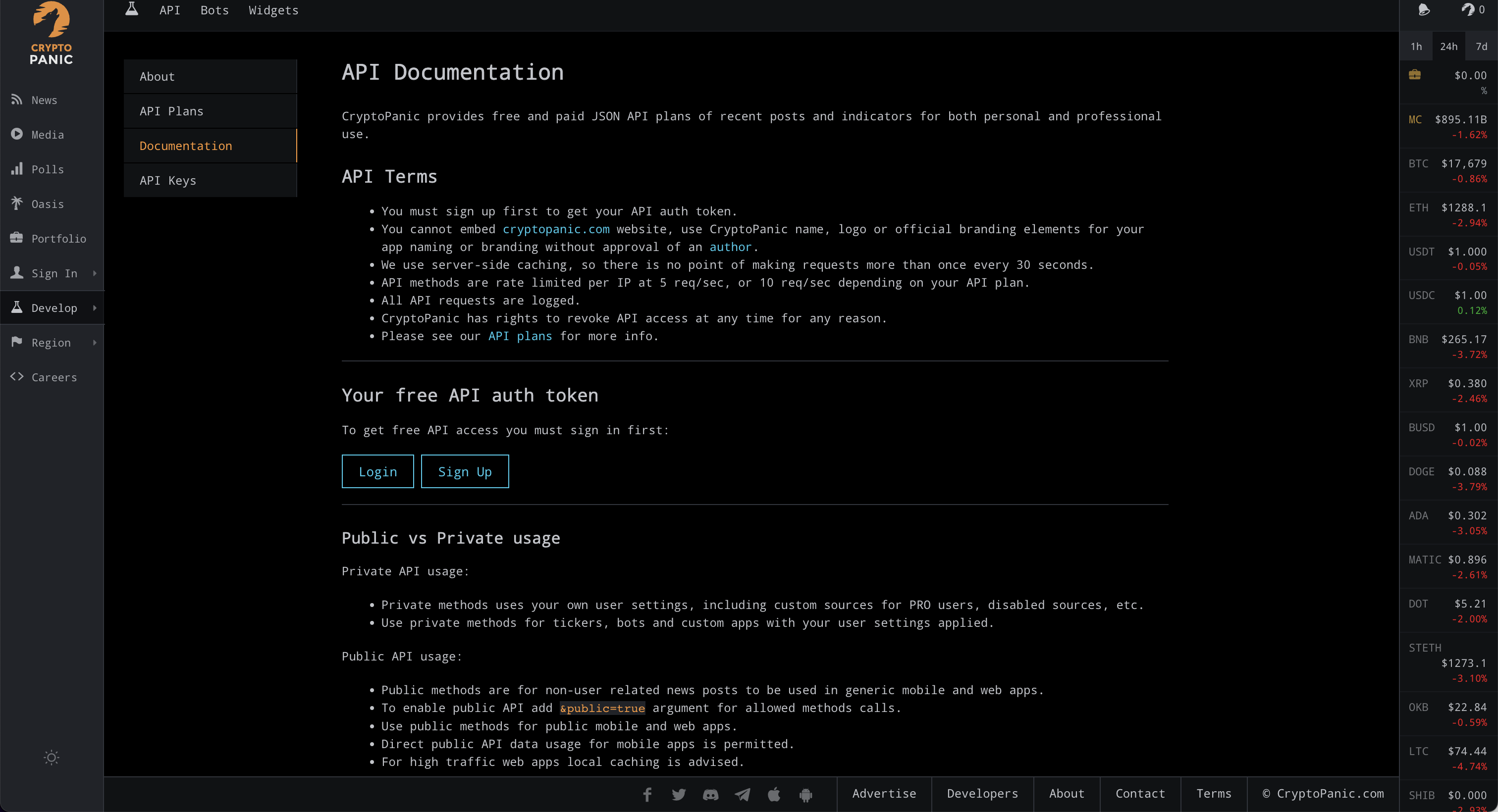
Click "Sign up" under "Your free API auth token". This opens up the following screen:
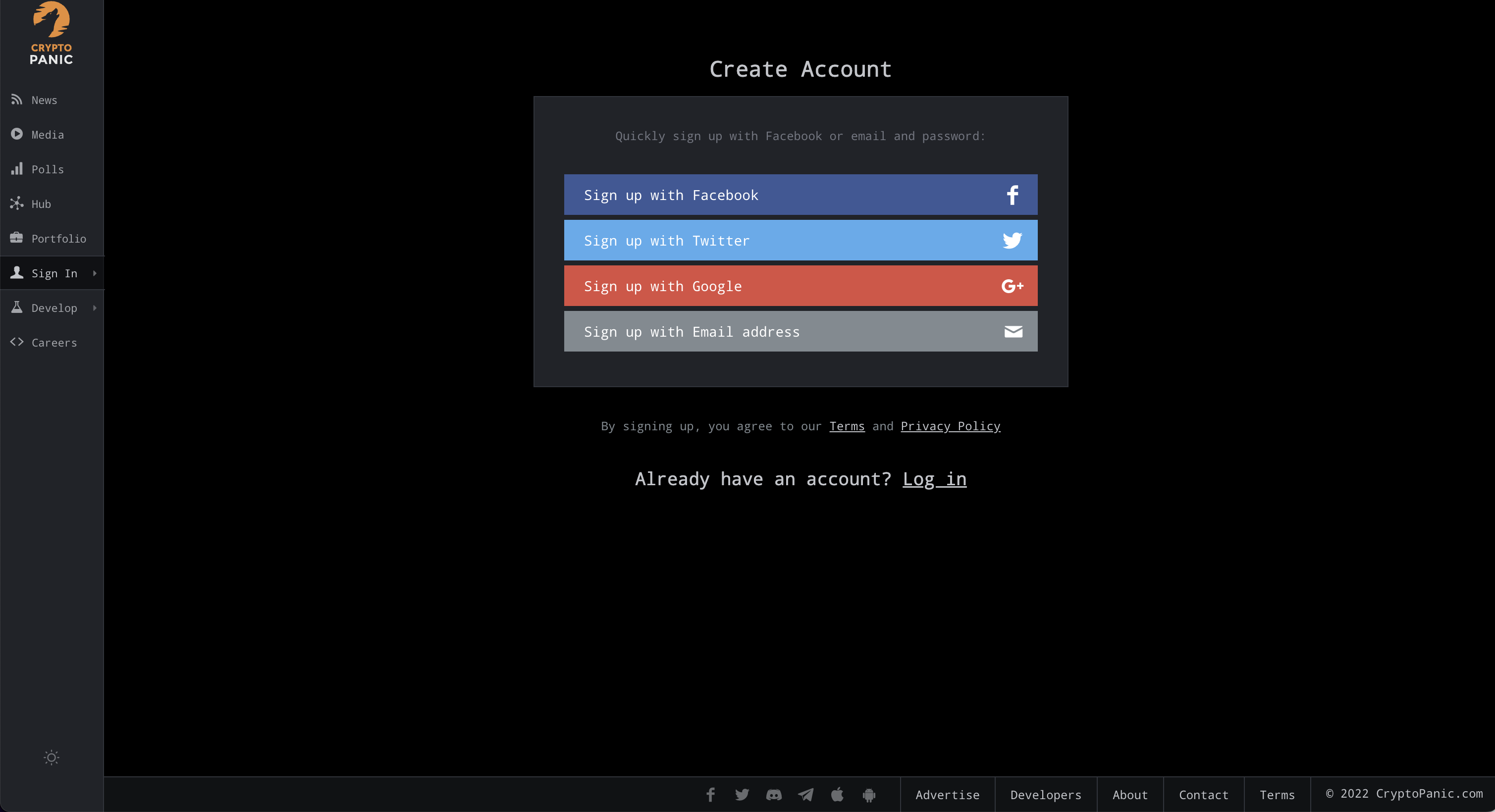
Once you have created your account, your API Key will be displayed under "Your free API auth token". Enter this API key into the OpenBB Terminal by typing /keys/cpanic KEY.

DeGiro
Go to https://www.degiro.com/. You will be greeted with the following screen:

Click "Sign up" and go to the registrations process. After setting up your account you will be able to use this broker by entering your username and password in the OpenBB Terminal as follows /keys/degiro -u USERNAME -p PASSWORD. We also support 2FA, you can find more information about that here.
EODHD
Go to https://eodhistoricaldata.com/. You will be greeted with the following screen:
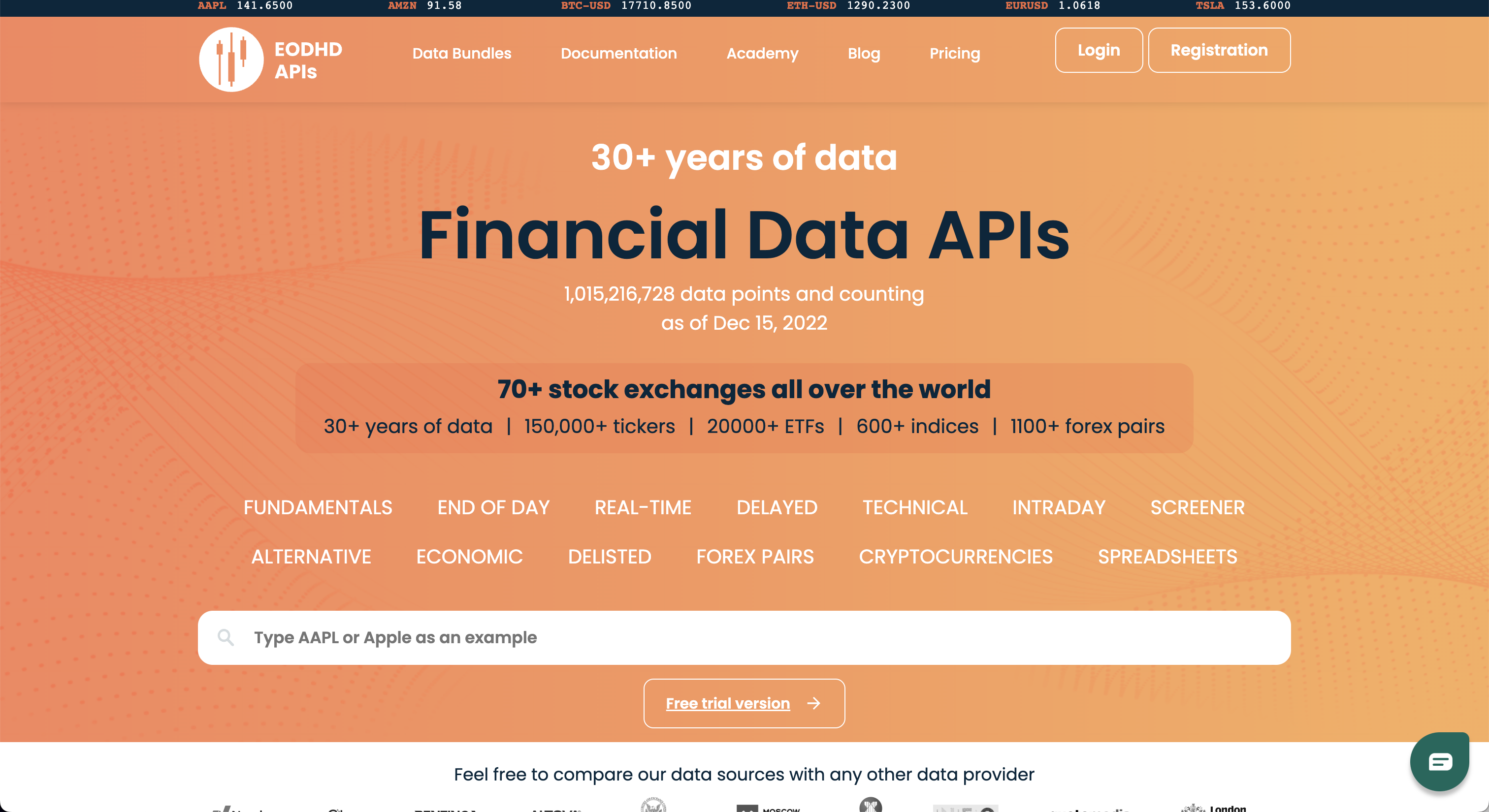
Click "Registration". This opens up the following screen:

Once you have registered, you can find the API Key next to "API TOKEN". Enter this API key into the OpenBB Terminal by typing /keys/cpanic KEY.

Finnhub
Go to https://finnhub.io/. You will be greeted with the following screen:

Press "Get free api key". This opens up the following screen:

Once you have created an account, you will be able to find your API key in the following screen. Enter this API key into the OpenBB Terminal by typing /keys/finnhub KEY
Financial Modelling Prep
Go to https://site.financialmodelingprep.com/developer/docs/. You will be greeted with the following screen:
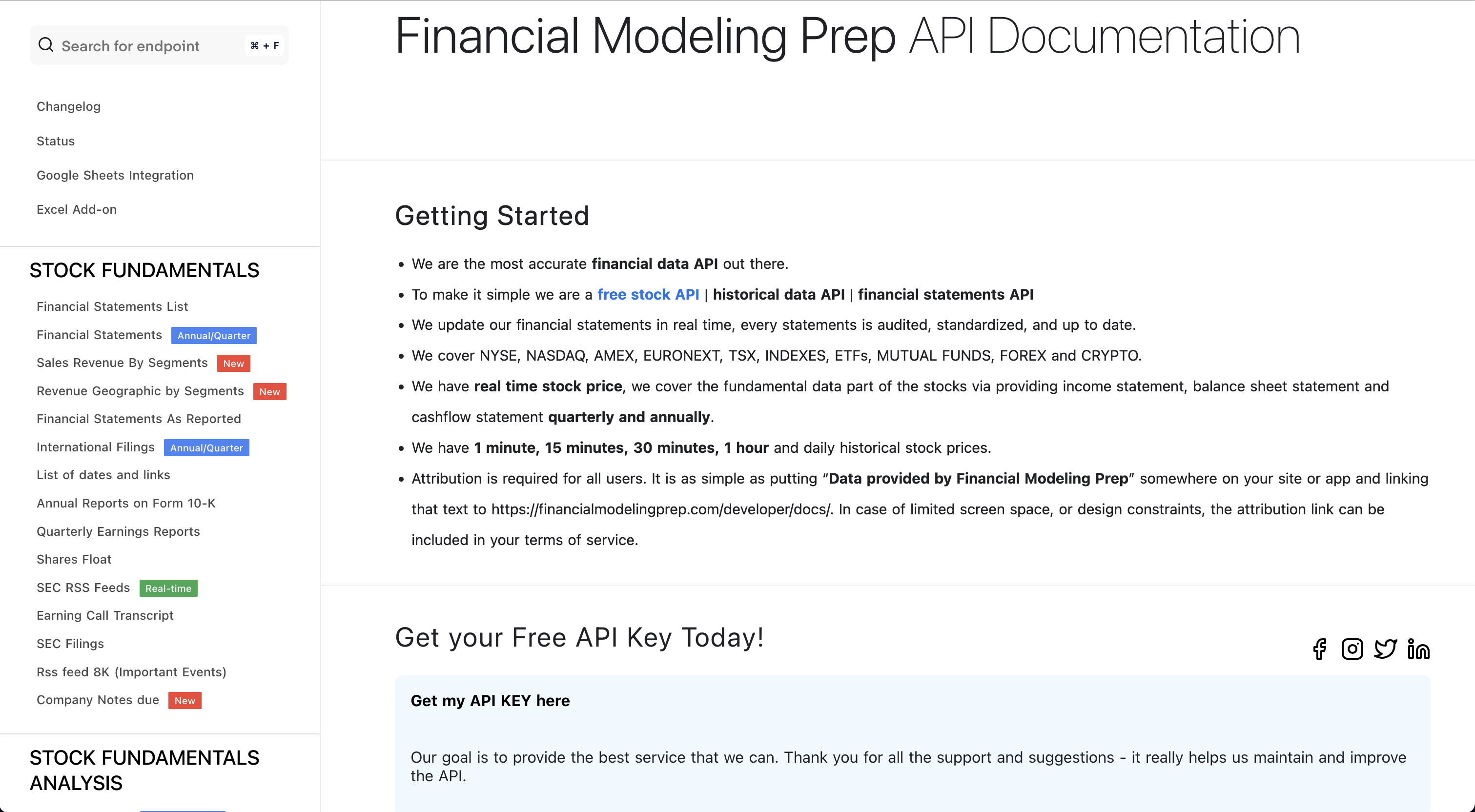
From here, press "Get my API KEY here". This opens up the following screen:
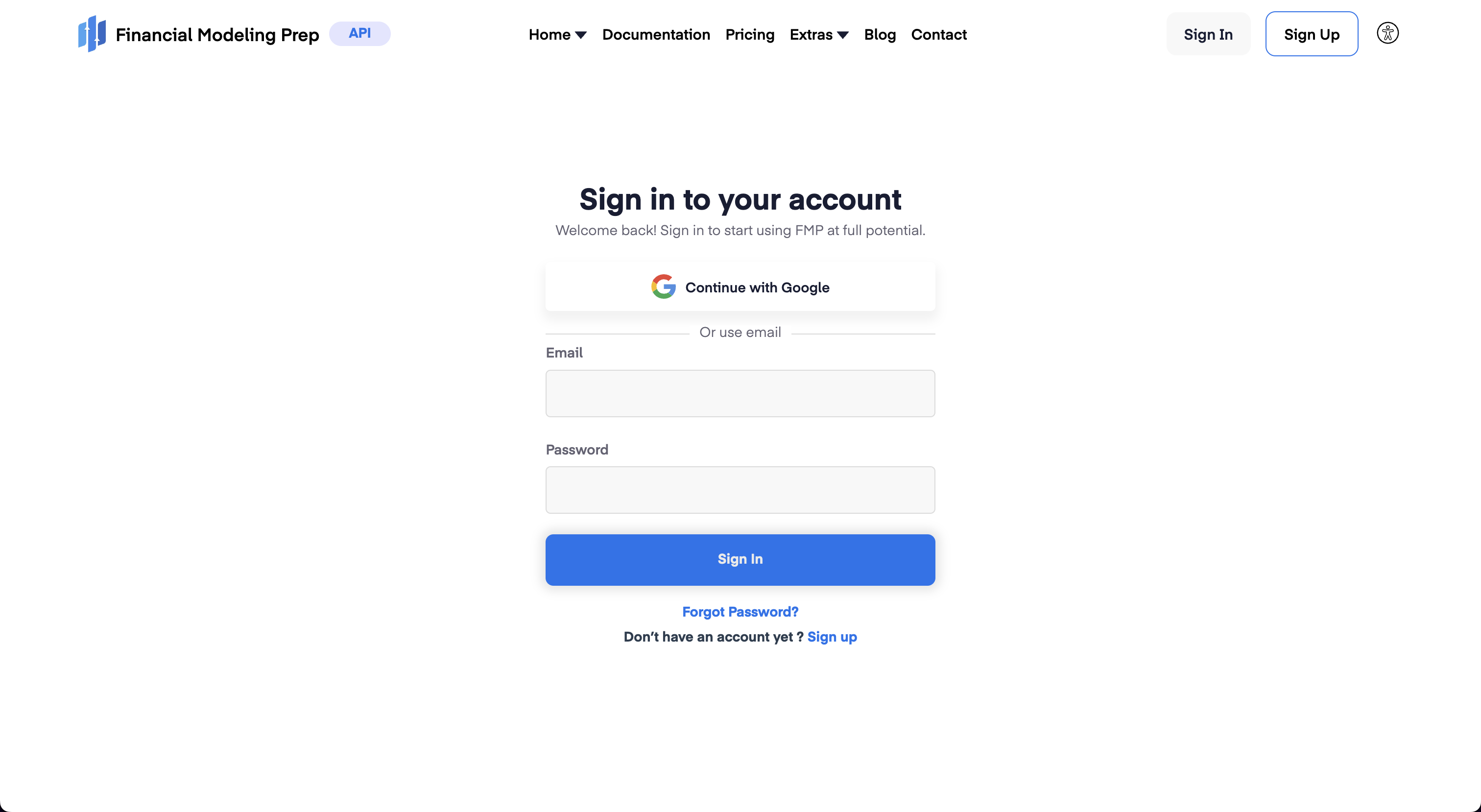
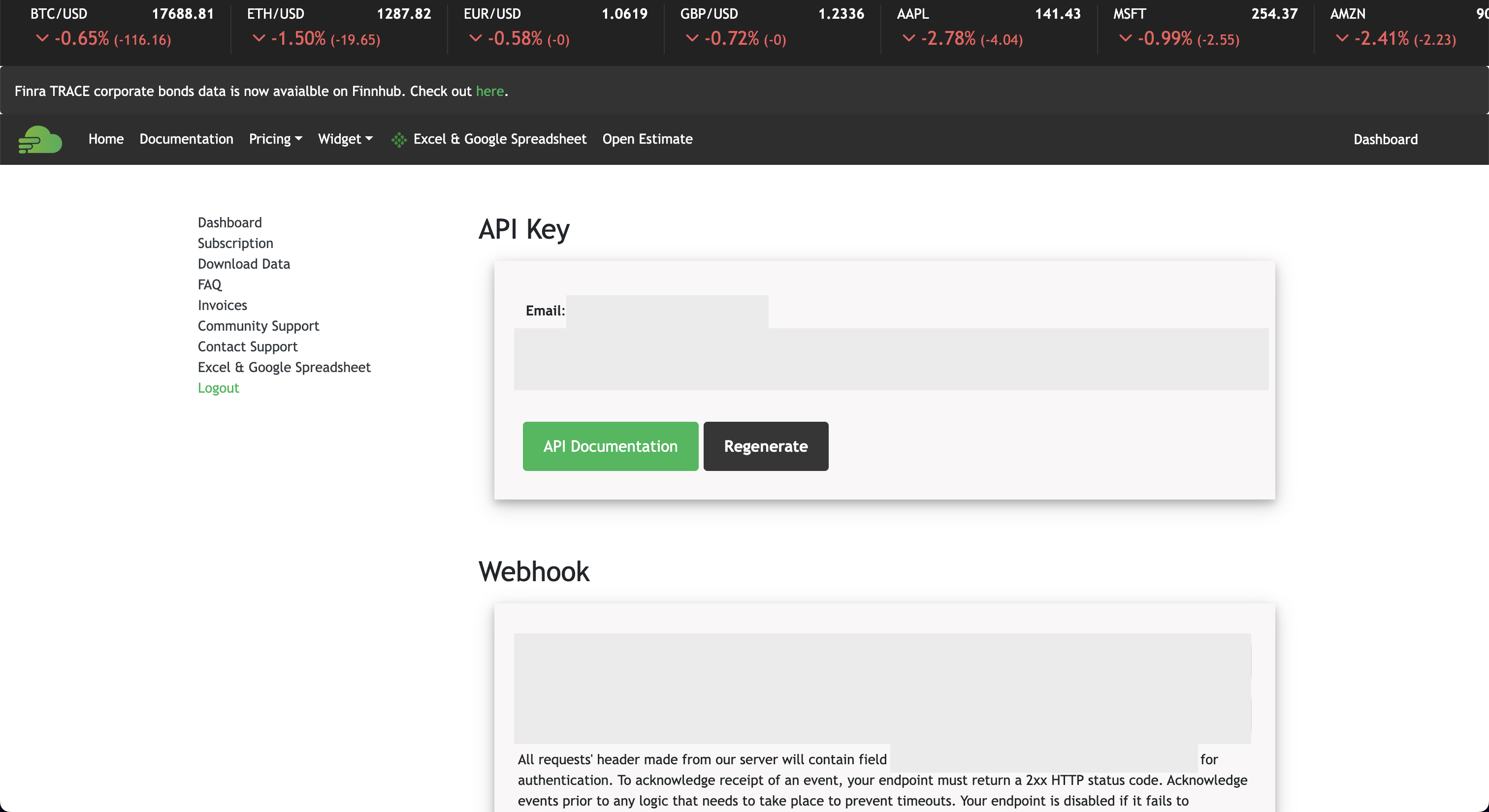
If you already have an account, you can sign-in directly and obtain the API key, otherwise click "Sign Up". Once you have created an account you can access your API Key by pressing the "Dashboard" button which will show the API key. Enter this API key into the OpenBB Terminal by typing /keys/fmp KEY

FRED
Go to https://fred.stlouisfed.org. You will be greeted with the following screen:

Click on "My Account". This opens up the following screen:
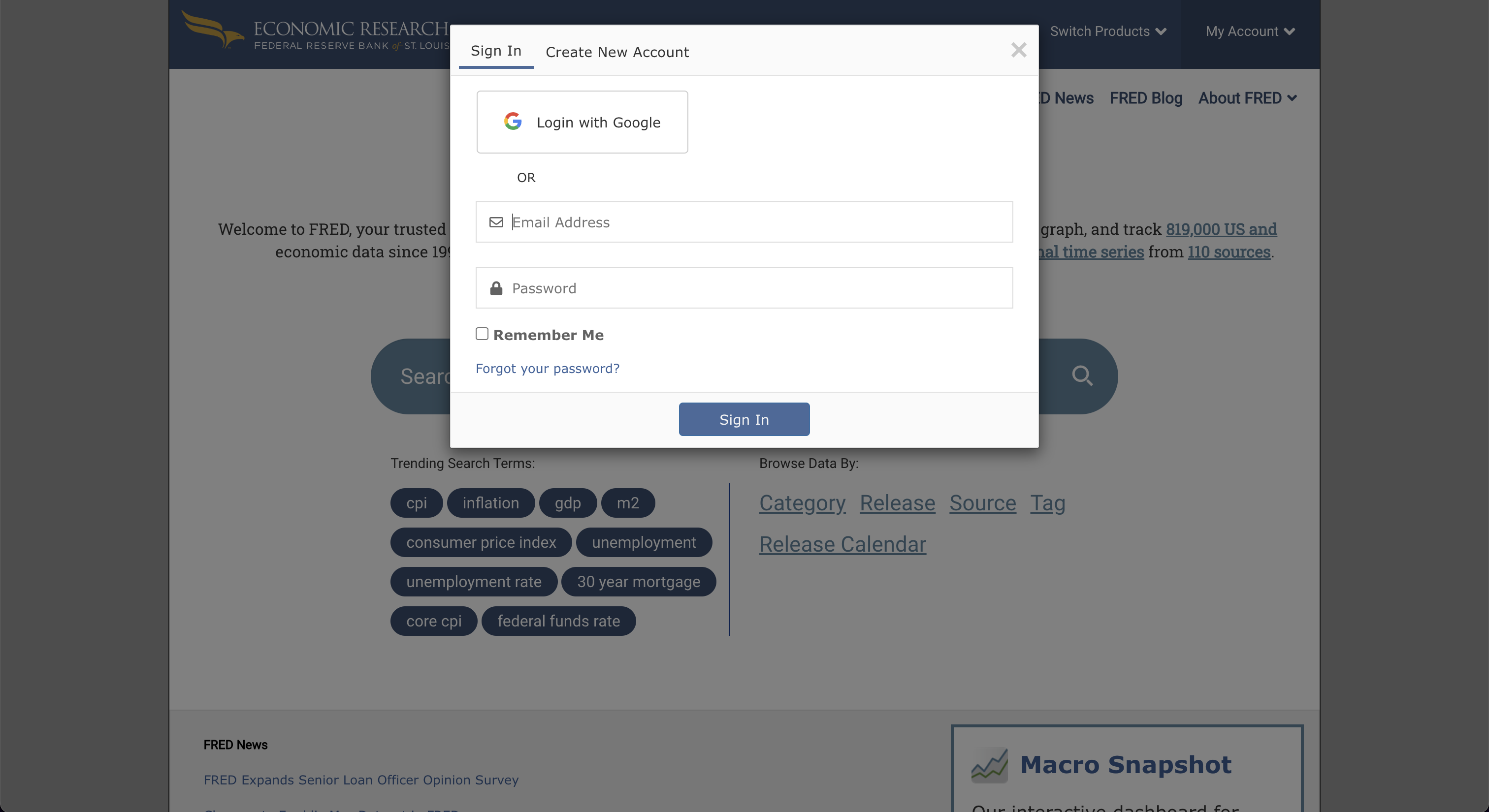
Once you have signed up, go to "My Account" and select "API Keys". This will get you to the following screen:
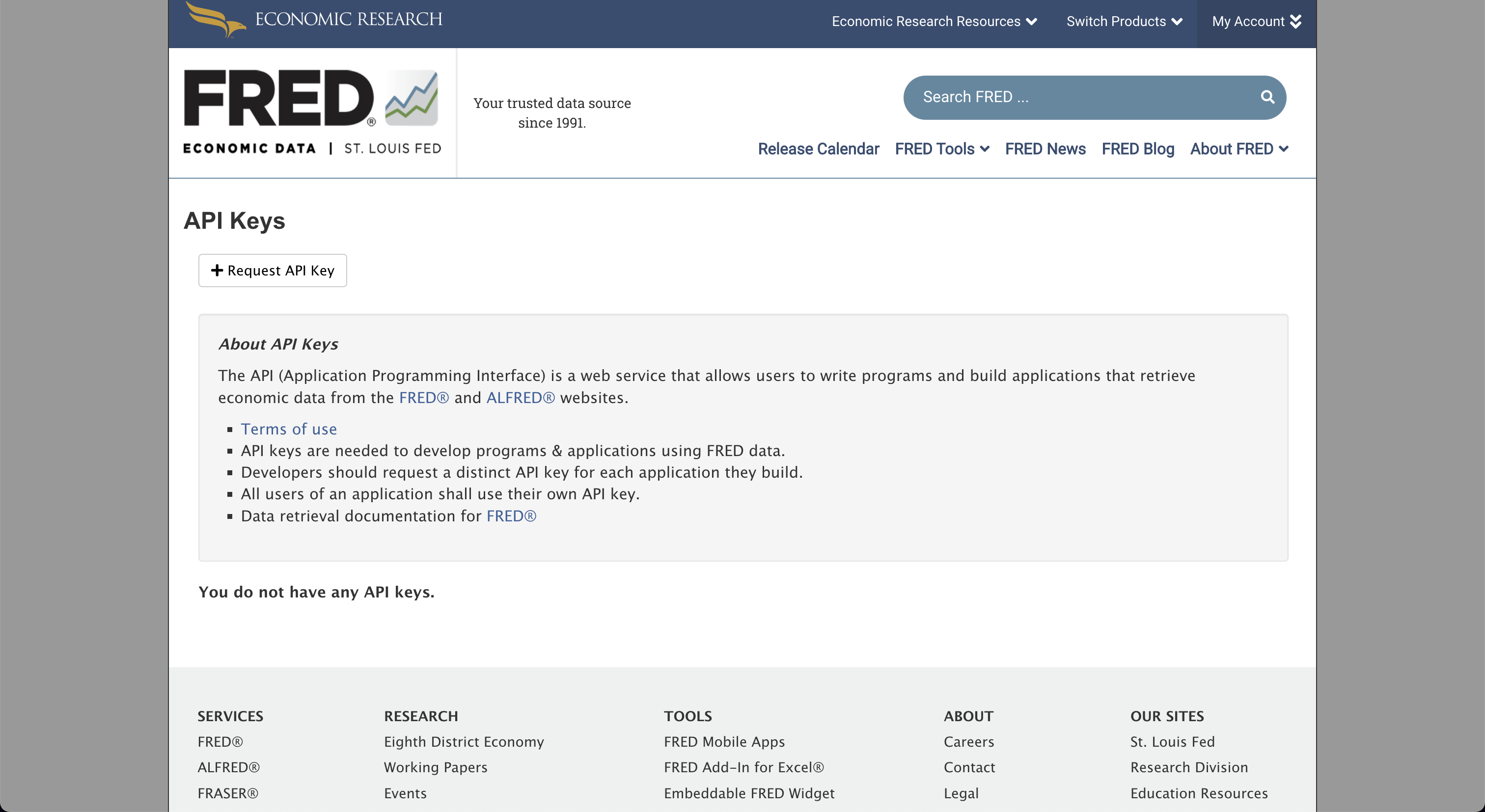
Click on "Request API Key" and fill in information about why you wish to use FRED. Then, by pressing "Request API key" you will be able to obtain the API key. Enter this API key into the OpenBB Terminal by typing /keys/fred KEY

GitHub
Go to https://github.com/. You will be greeted with the following screen:
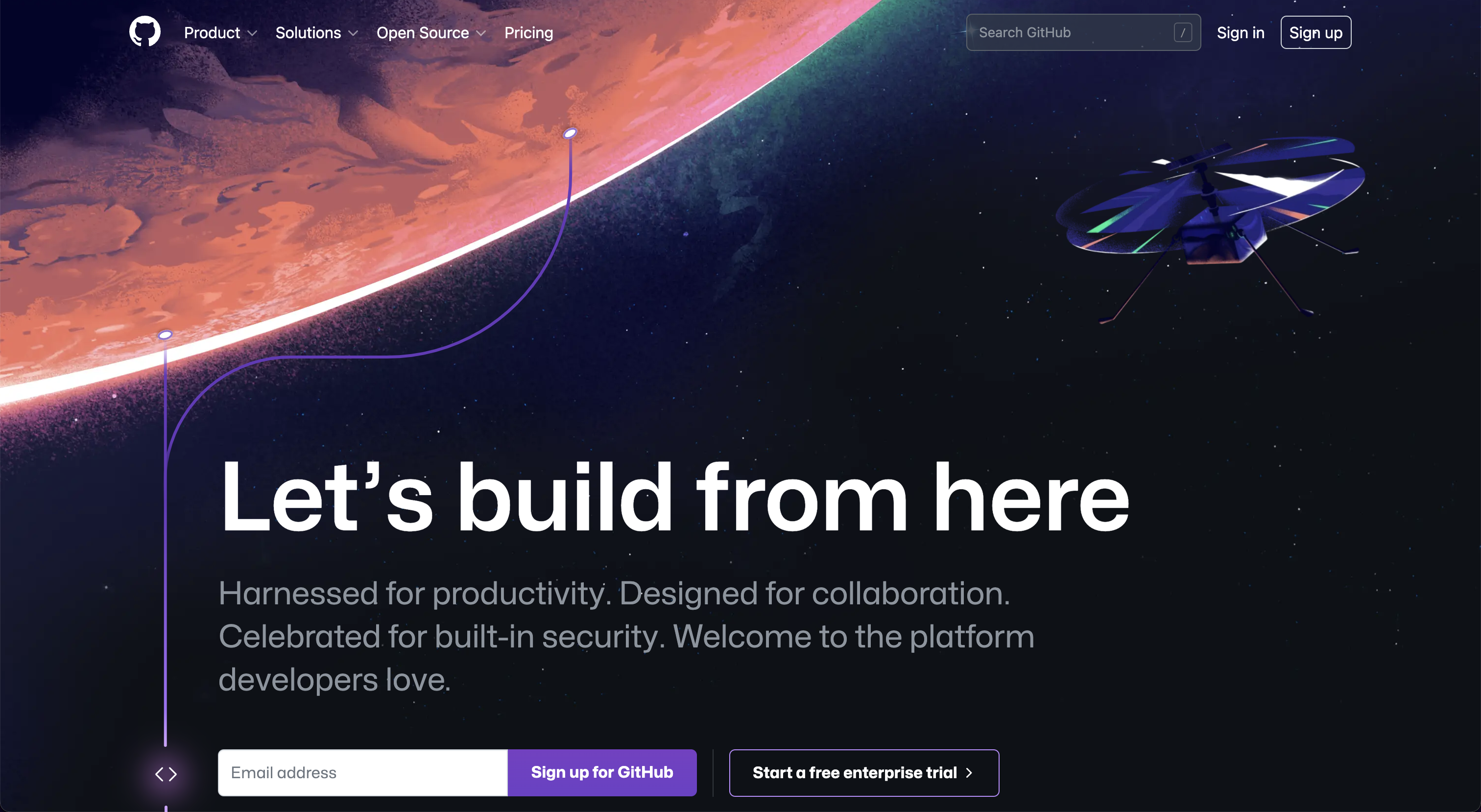
Click "Sign up" and create an account with GitHub. Once you have done so go to as depicted below: https://github.com/settings/apps
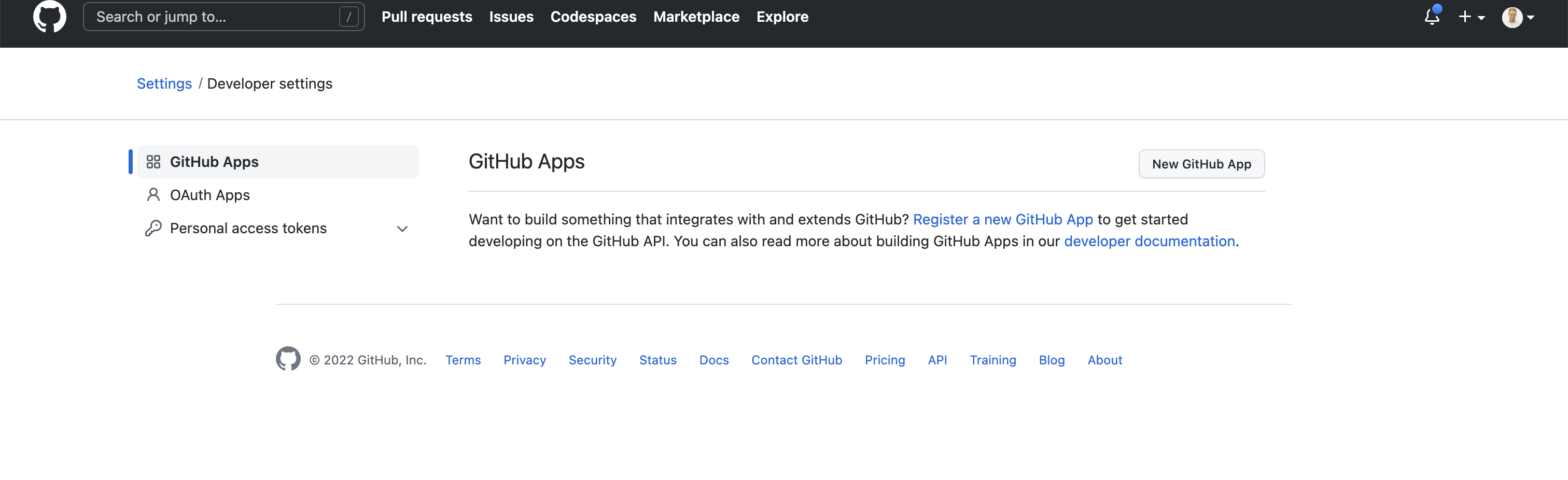
Press "New GitHub App". This opens up the following screen:
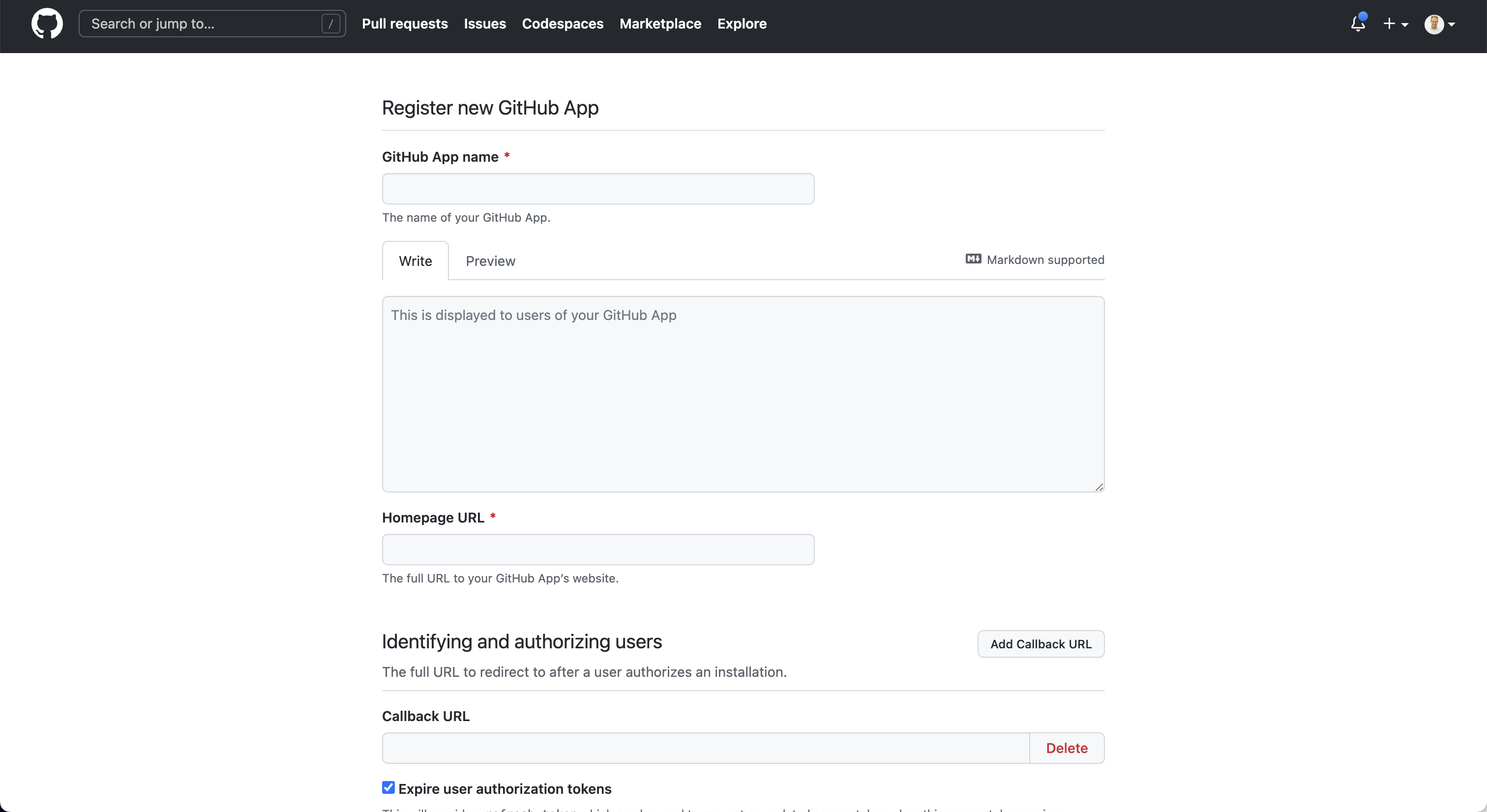
Once the app is created you are able to obtain the API Key. Enter this API key into the OpenBB Terminal by typing /keys/github KEY.
Glassnode
Go to https://studio.glassnode.com/. You will be greeted with the following screen:

Click on "Sign up". This opens up the following screen:

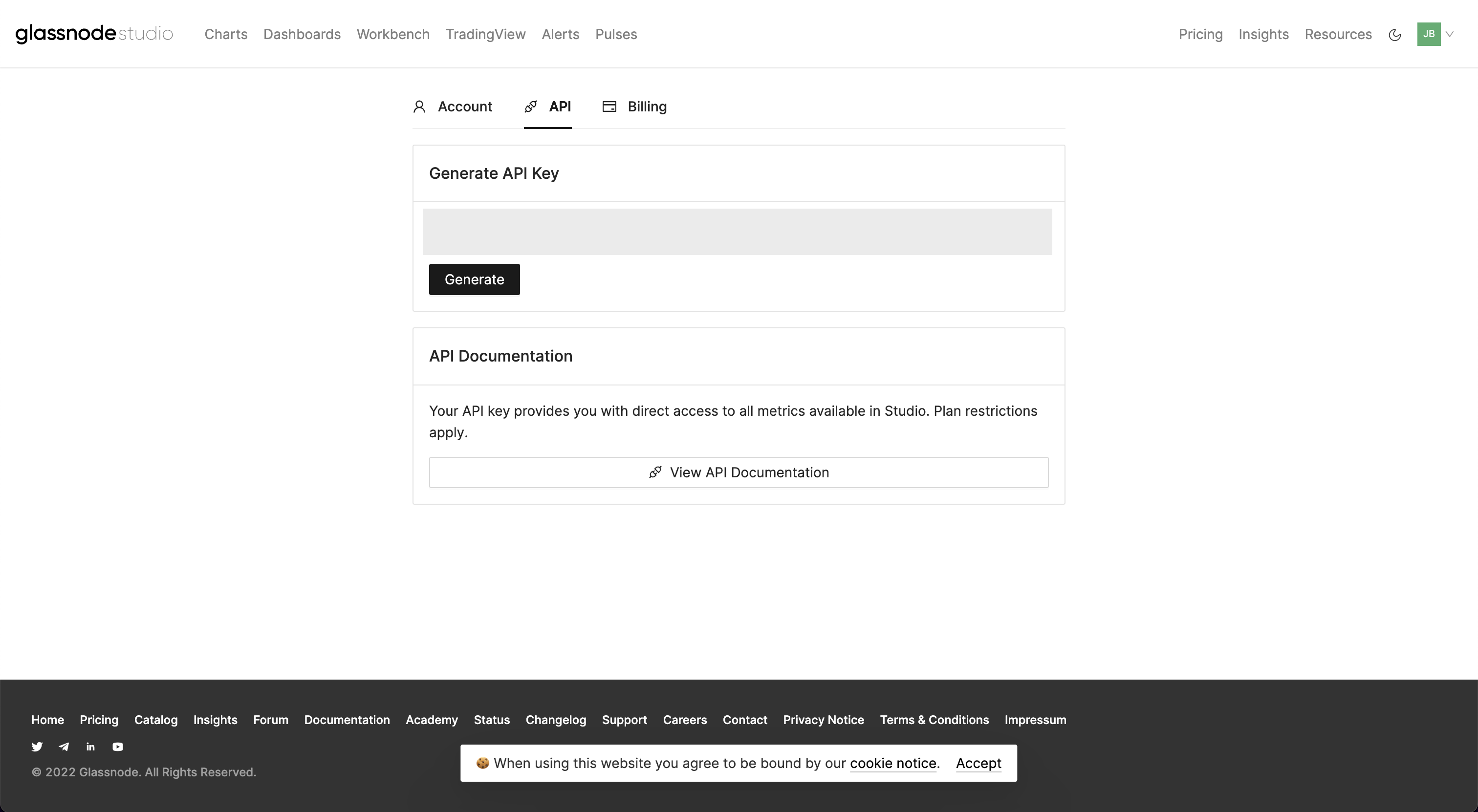
After you have created your account, go to https://studio.glassnode.com/settings/api where you can create your API Key. Enter this API key into the OpenBB Terminal by typing /keys/glassnode KEY.
IEX Cloud
Go to https://iexcloud.io/. You will be greeted with the following screen:
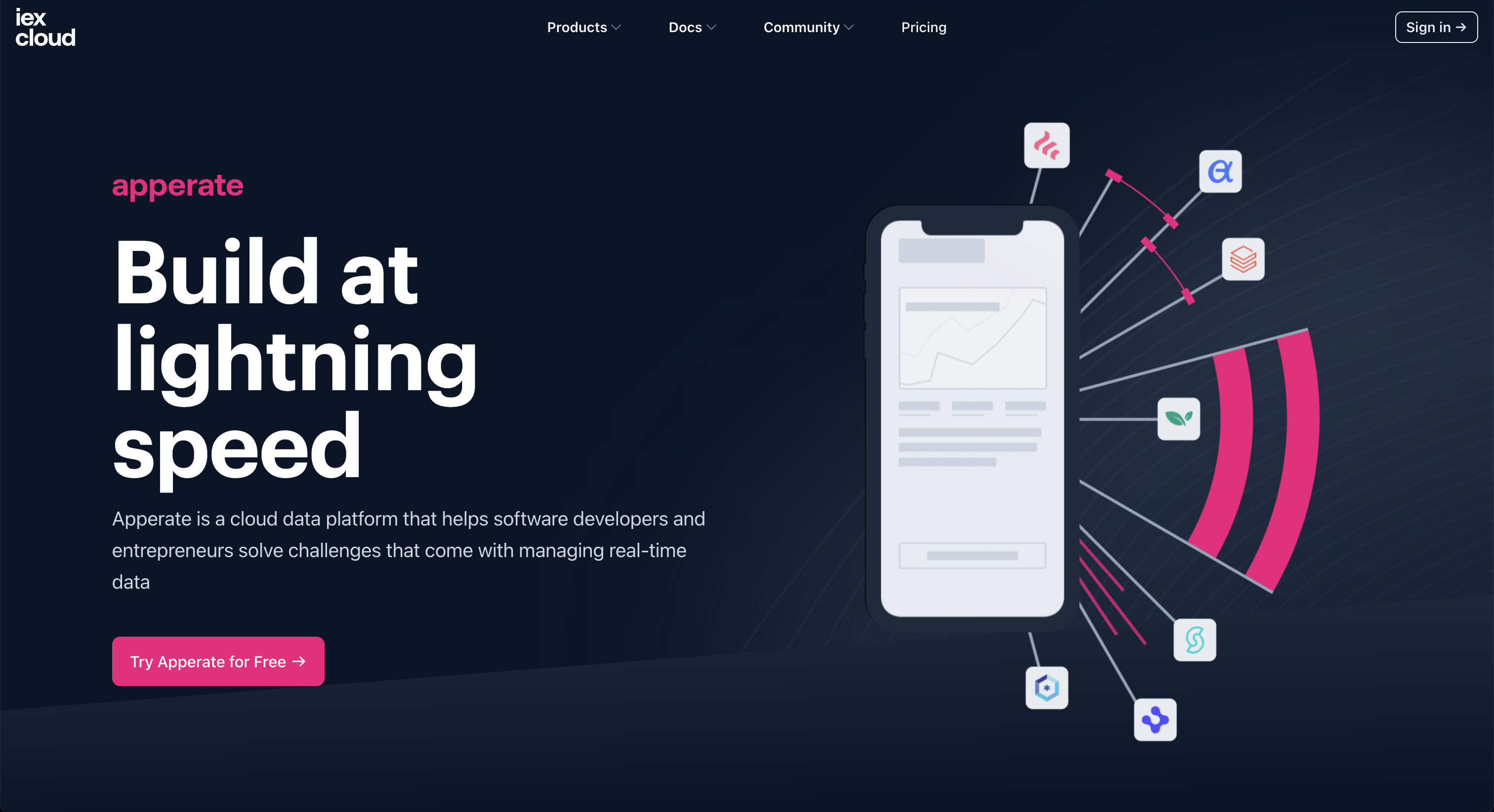
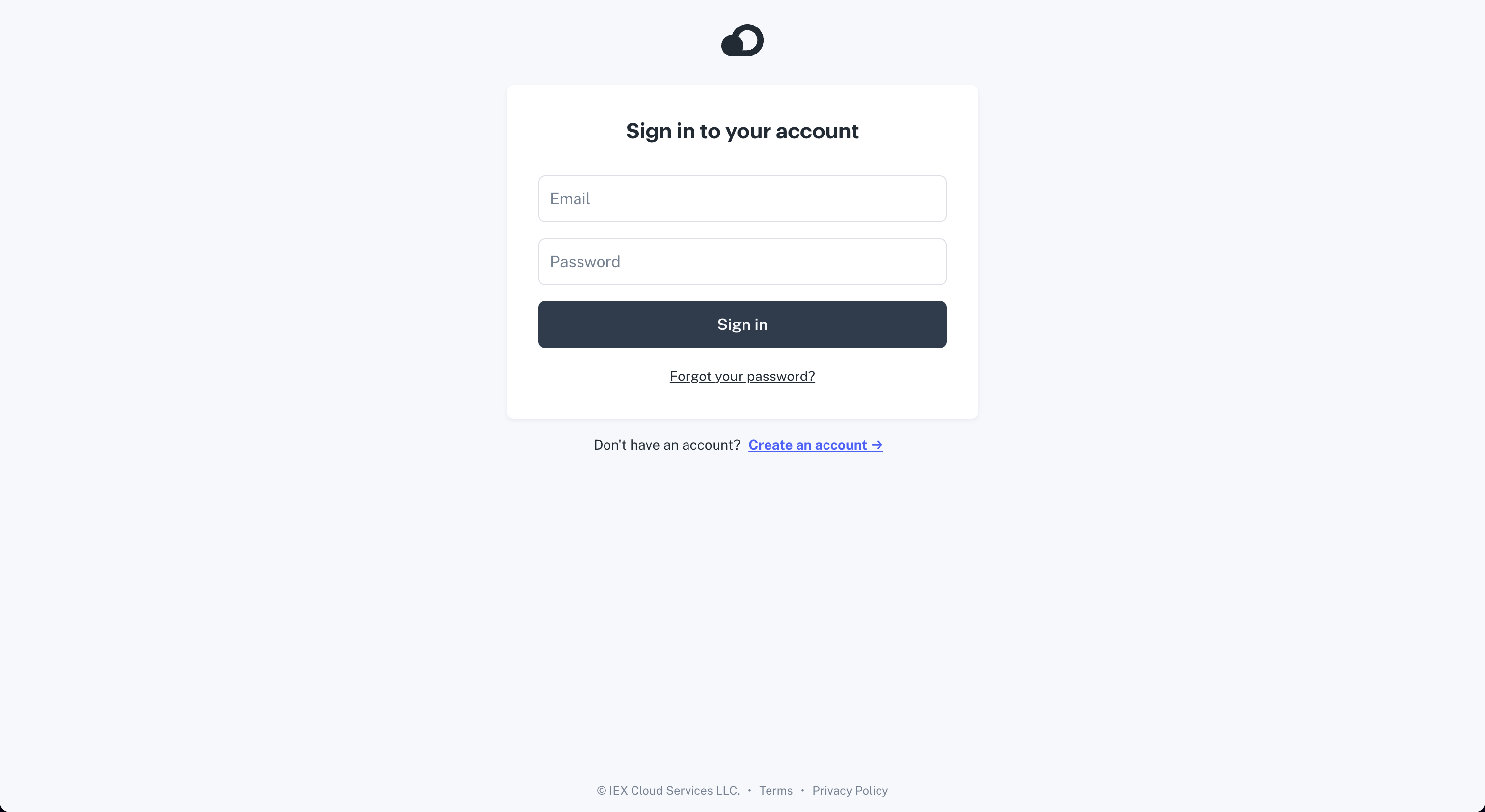
Press "Sign in". This opens up the following screen:
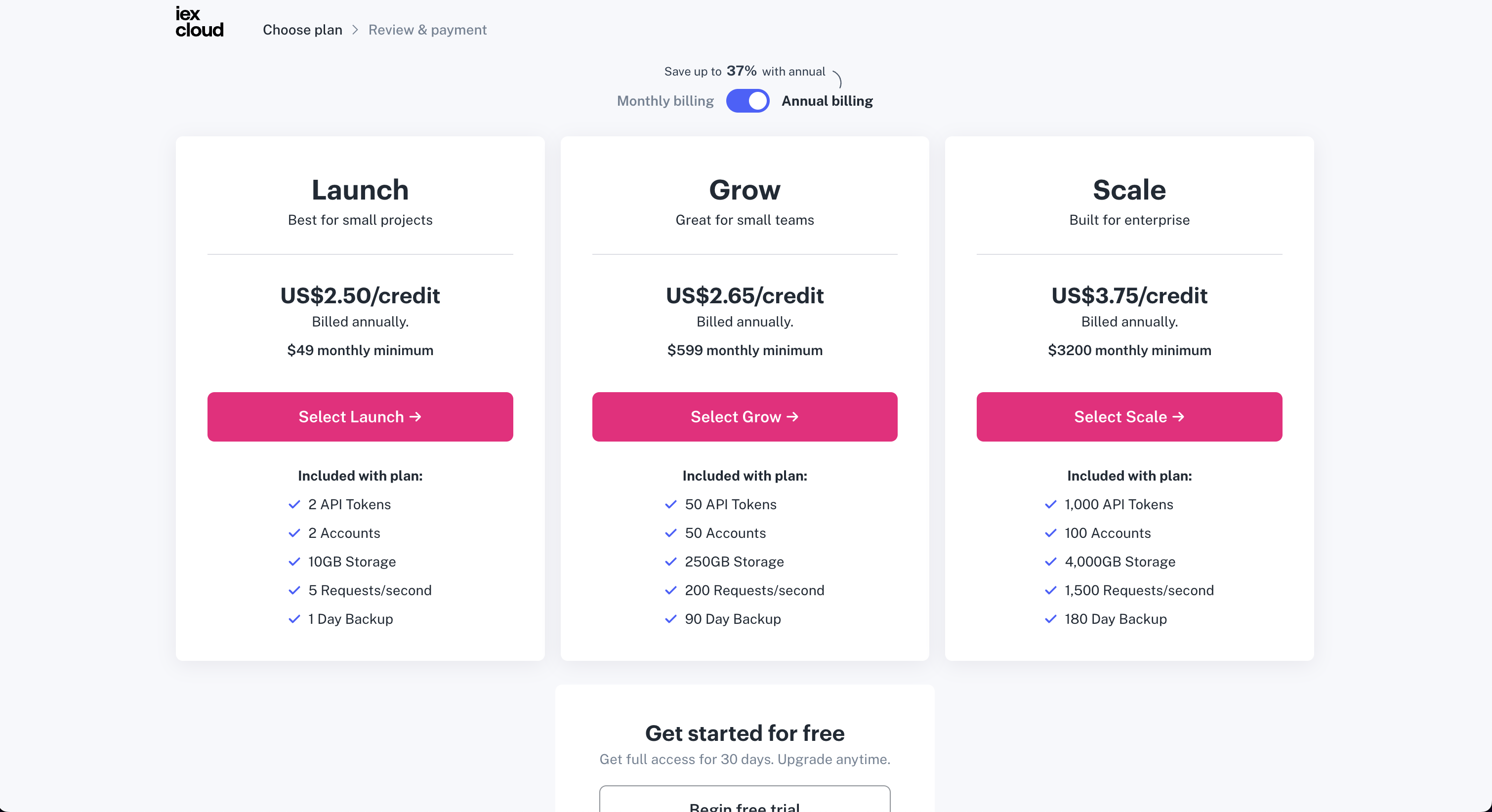
Once you have signed up you are asked what kind of plan you would like. You have the option to start a free plan at the bottom.
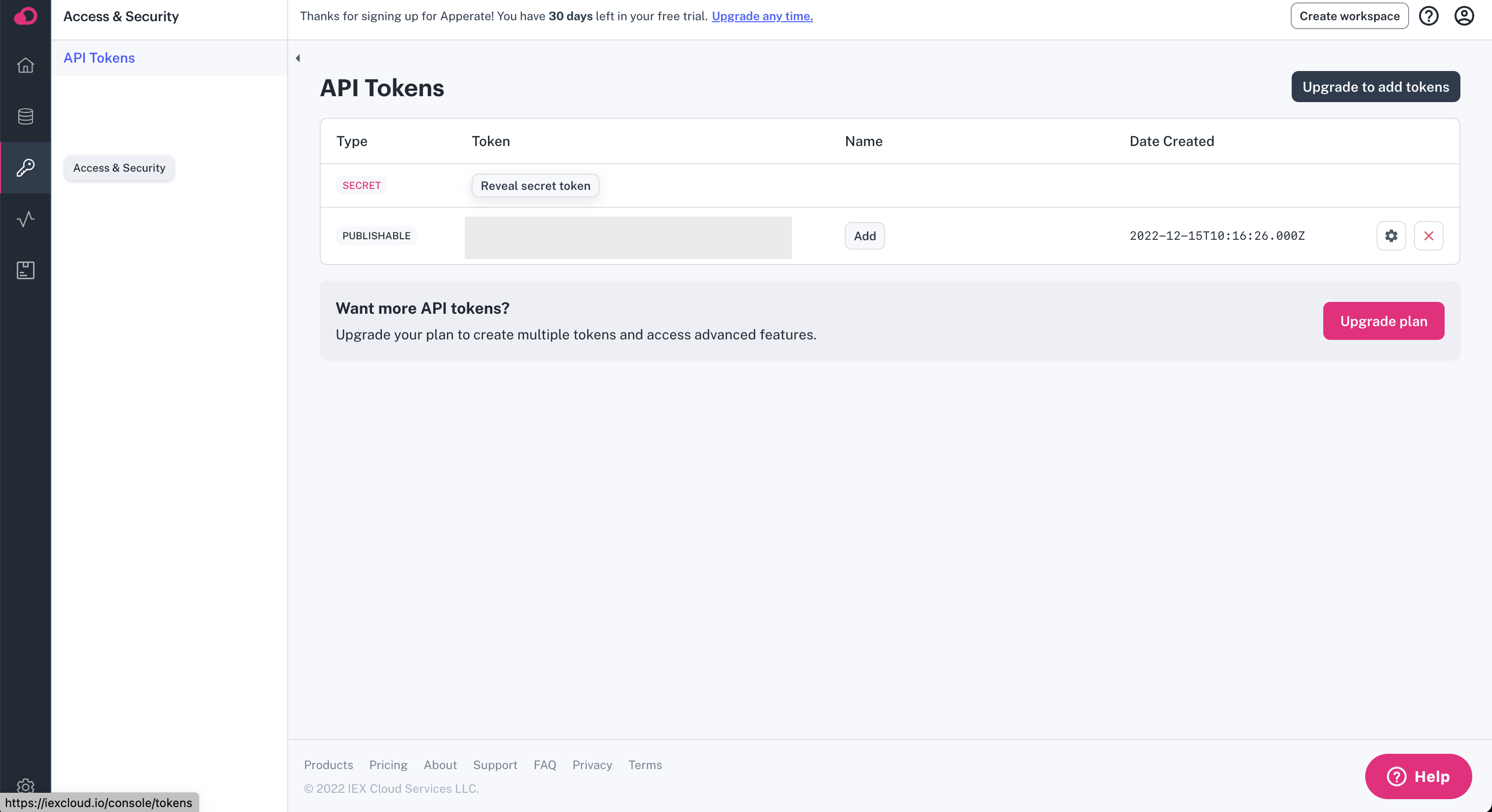
Once you have confirmed you email address, you can find your API Key under "Access & Security". Enter this API key into the OpenBB Terminal by typing /keys/iex KEY
Messari
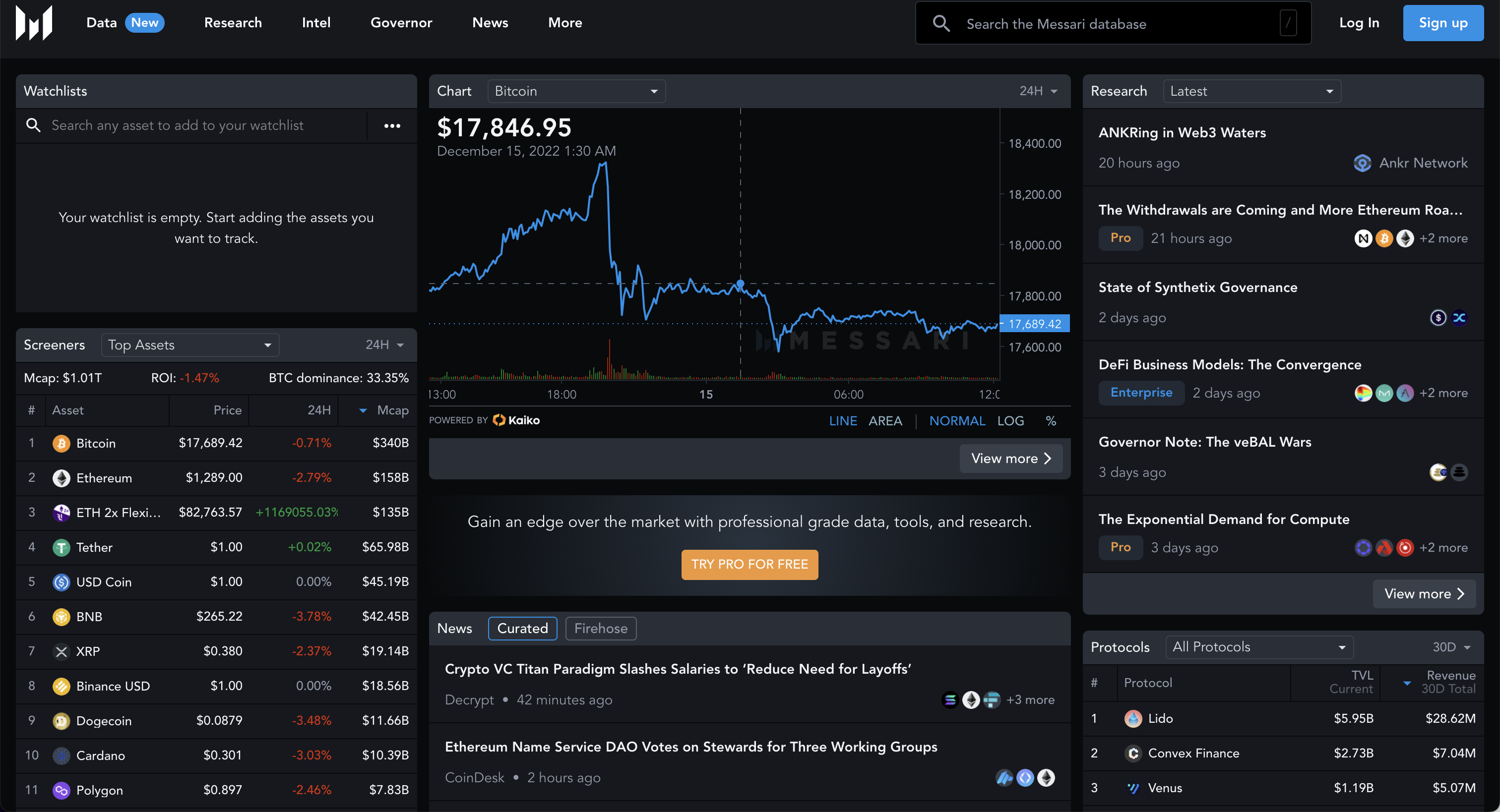
Go to https://messari.io/. You will be greeted with the following screen:
Press "Sign up". This opens up the following screen:

Once you have signed up, go to https://messari.io/account/api where you will be able to find your API Key. Enter this API key into the OpenBB Terminal by typing /keys/messari KEY.

News API
Go to https://newsapi.org/. You will be greeted with the following screen:
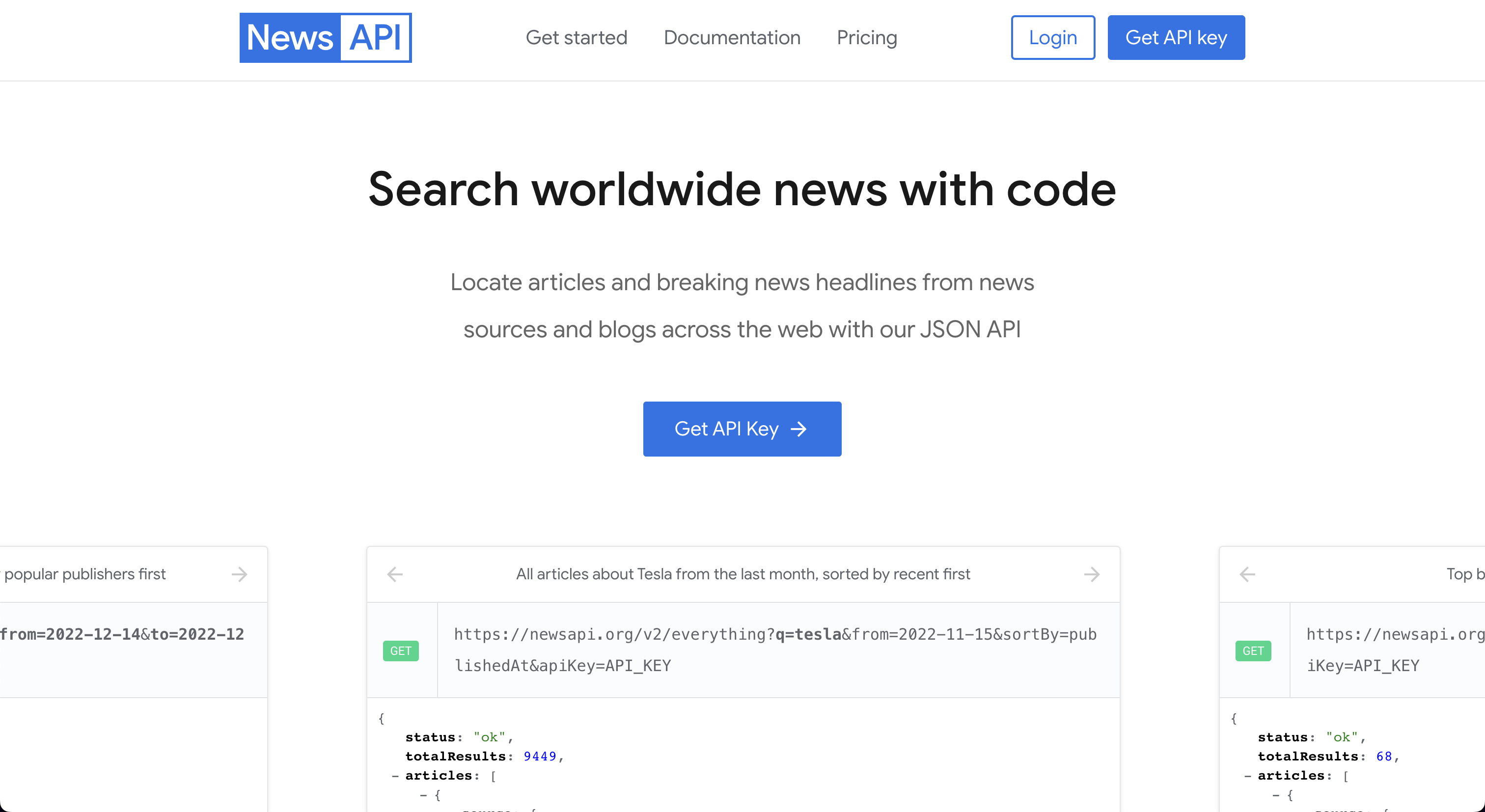
Press "Get API Key". This opens up the following screen:
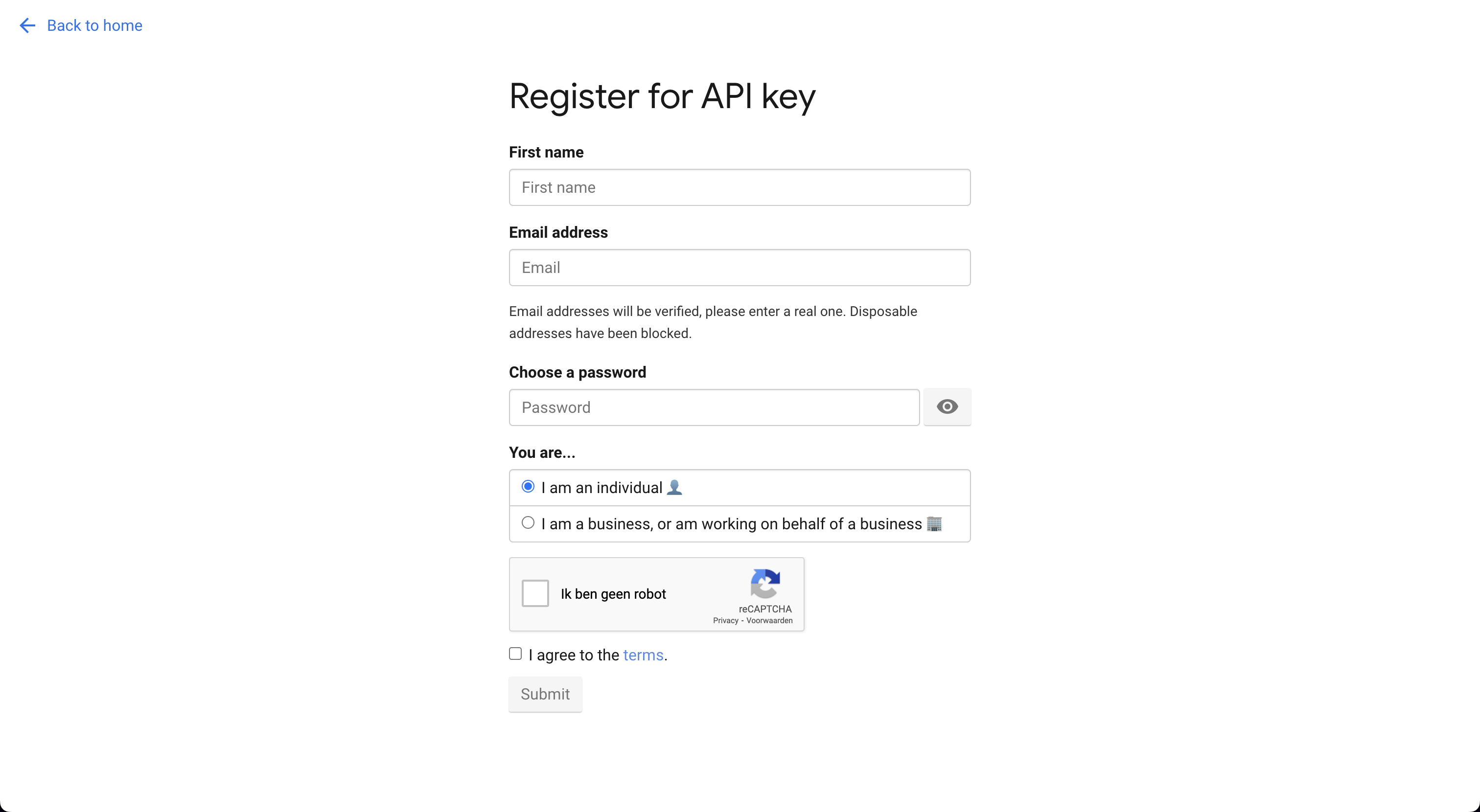
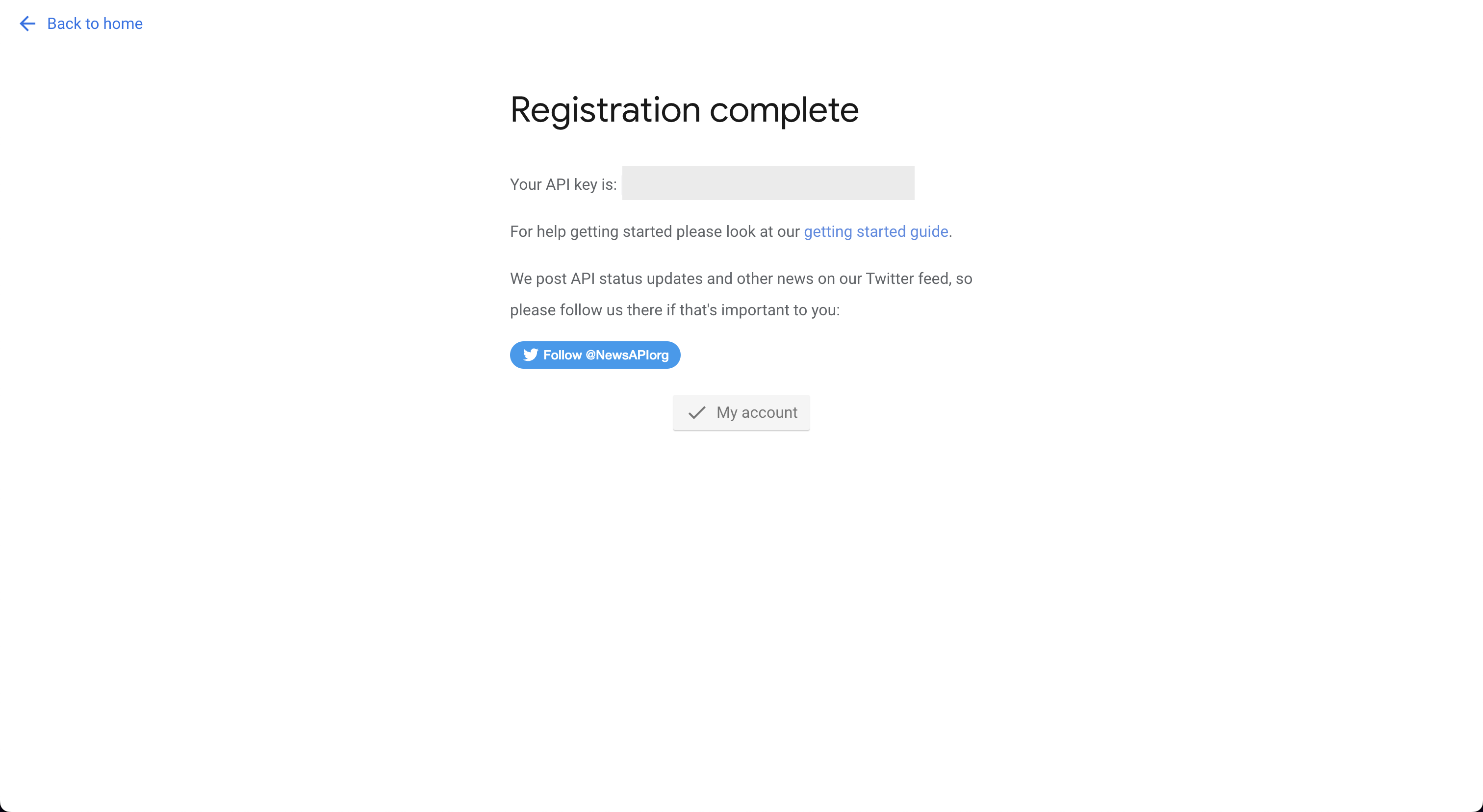
Register for an account. The next screen will provide you with the API Key. Enter this API key into the OpenBB Terminal by typing /keys/news KEY
Oanda
Go to https://developer.oanda.com. You will be greeted with the following screen:

After you have created an account with Oanda, you will be able to find the API key by following the steps below. After setting up your account you will be able to use this broker by entering your username and password in the OpenBB Terminal as follows /keys/oanda -a ACCOUNT -t TOKEN.

Polygon
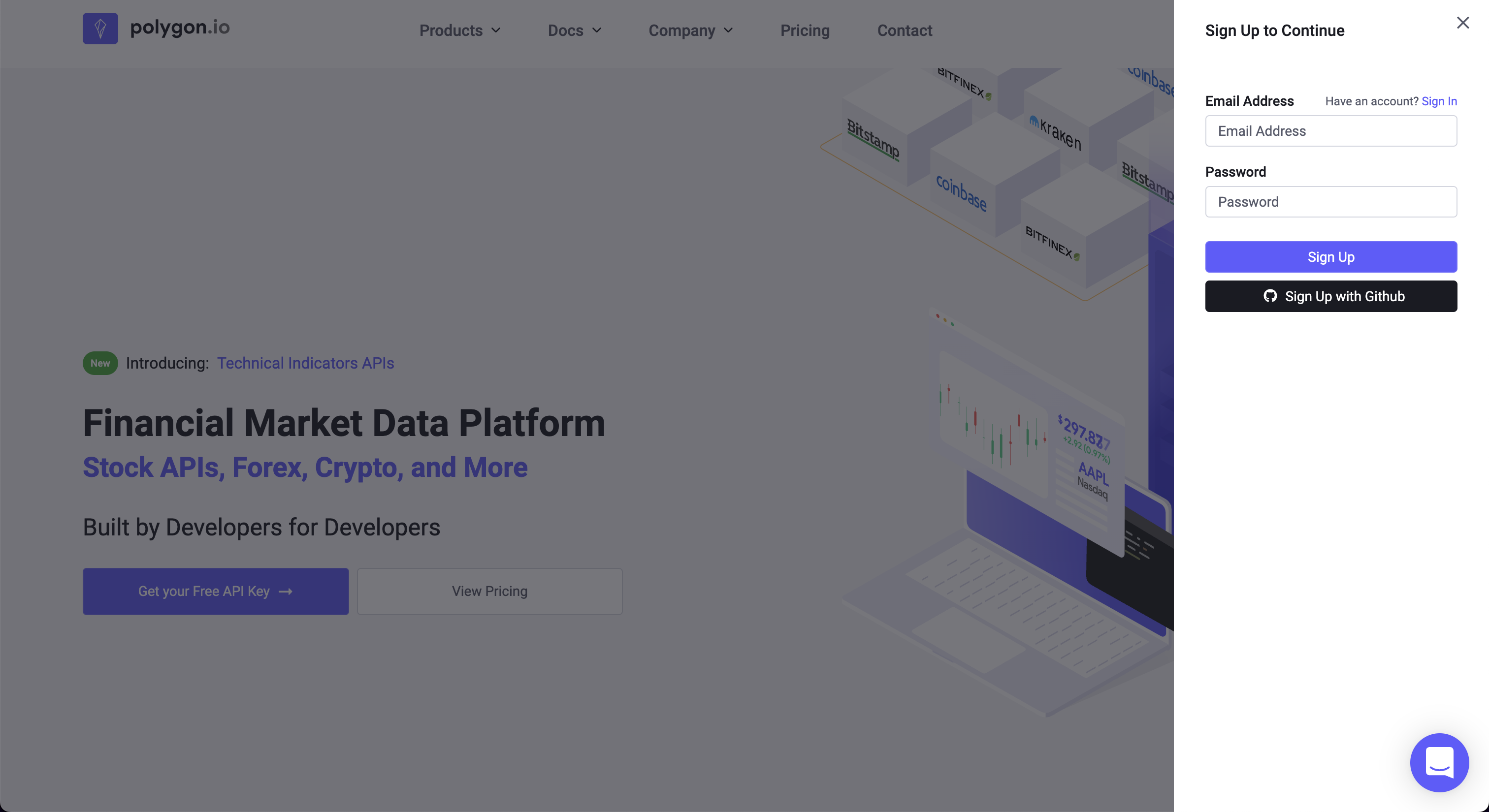
Go to https://polygon.io. You will be greeted with the following screen:
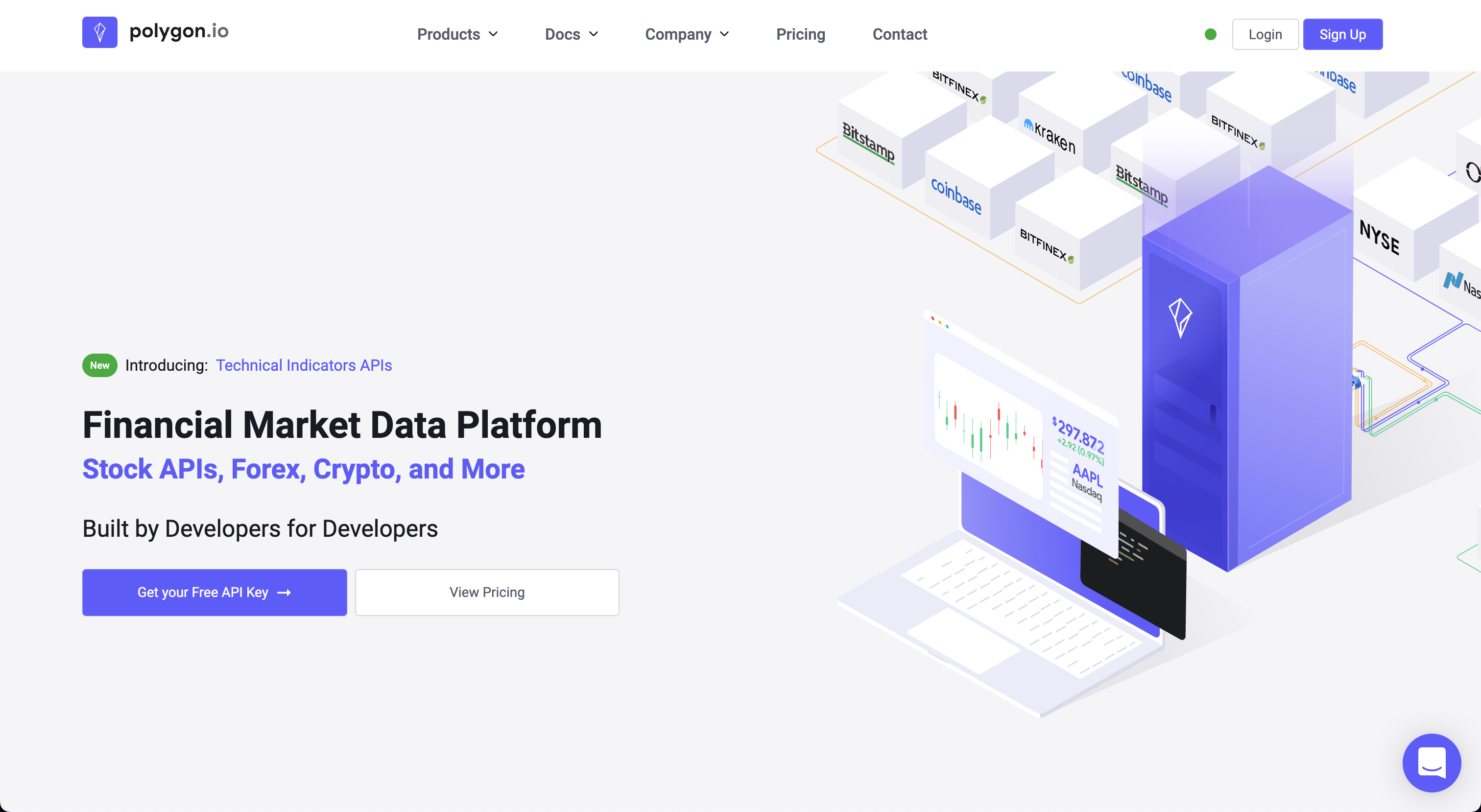
Press the button "Get your Free API Key". This opens up the following screen:
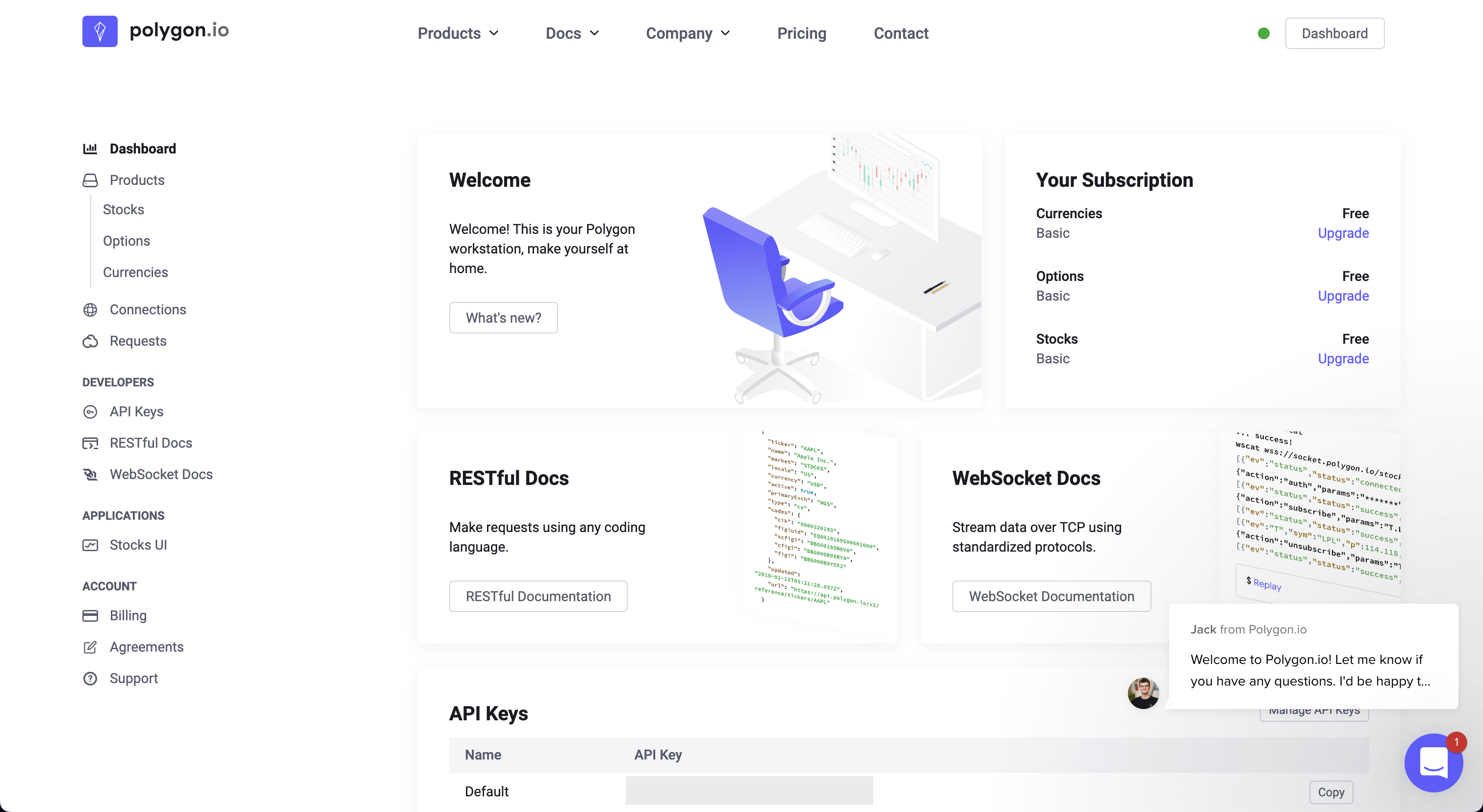
Once signed up you will find the API Key at the bottom. Enter this API key into the OpenBB Terminal by typing /keys/polygon KEY
Quandl
Go to https://www.quandl.com. You will be greeted with the following screen:
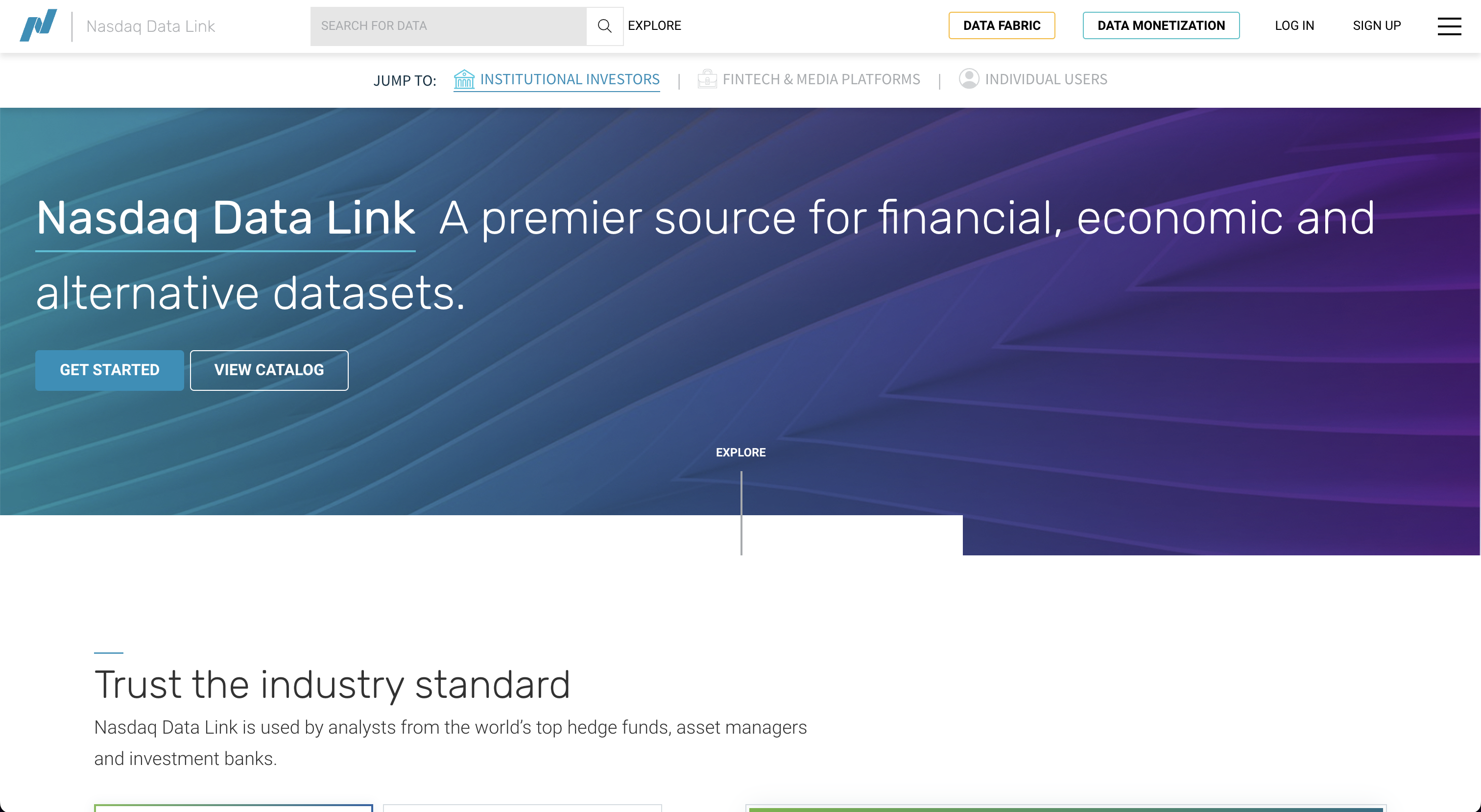
From here, click "Sign Up" at the top. This opens up the following screen:

Follow the sign-up instructions and once you have signed up you will be able to retrieve your API key. Enter this API key into the OpenBB Terminal by typing /keys/quandl KEY

Go to https://www.reddit.com/wiki/api. You will be greeted with the following screen:
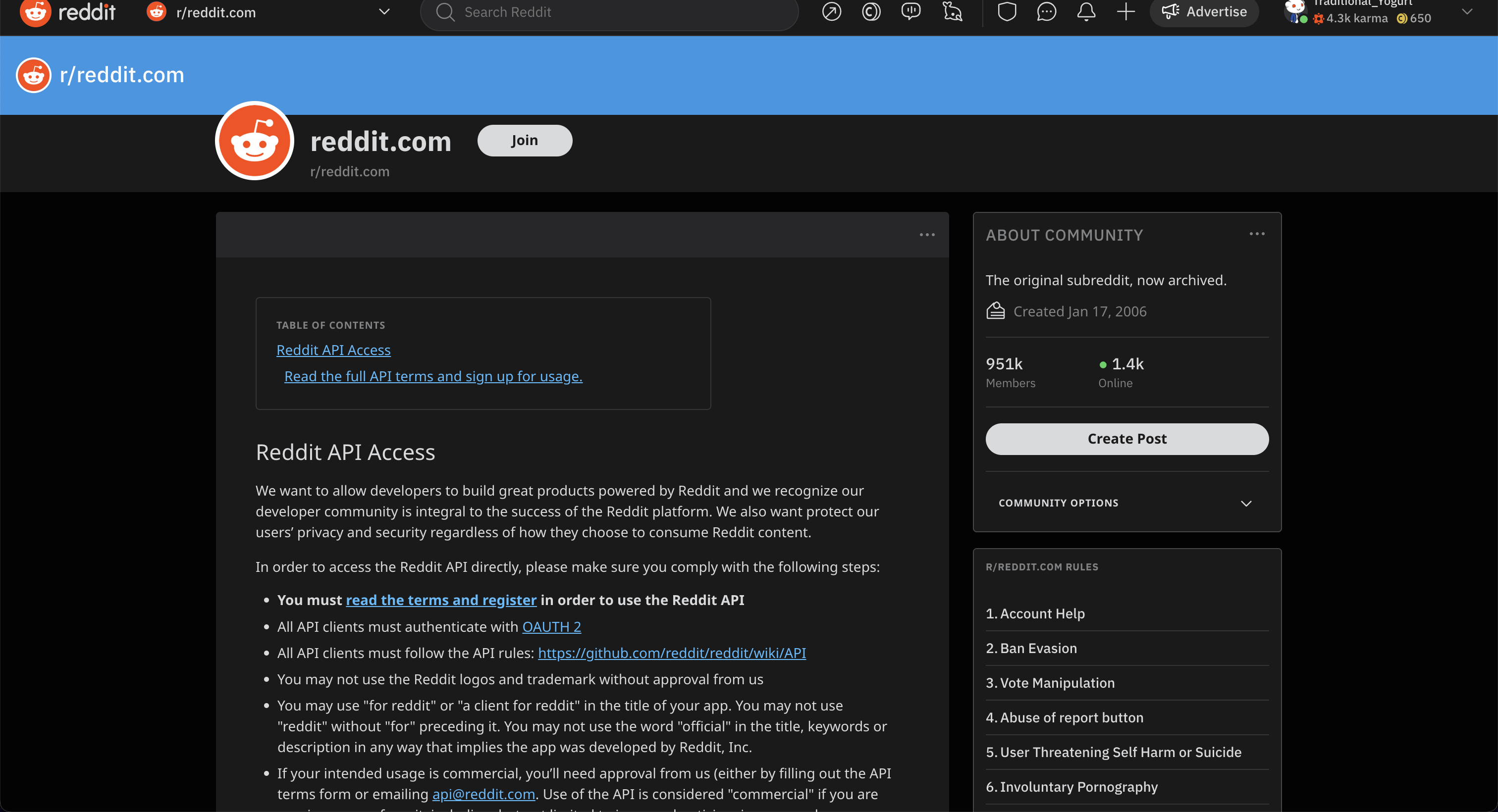
Press "Read the full API terms and sign up for usage" and start the sign-up process. This opens up the following screen:
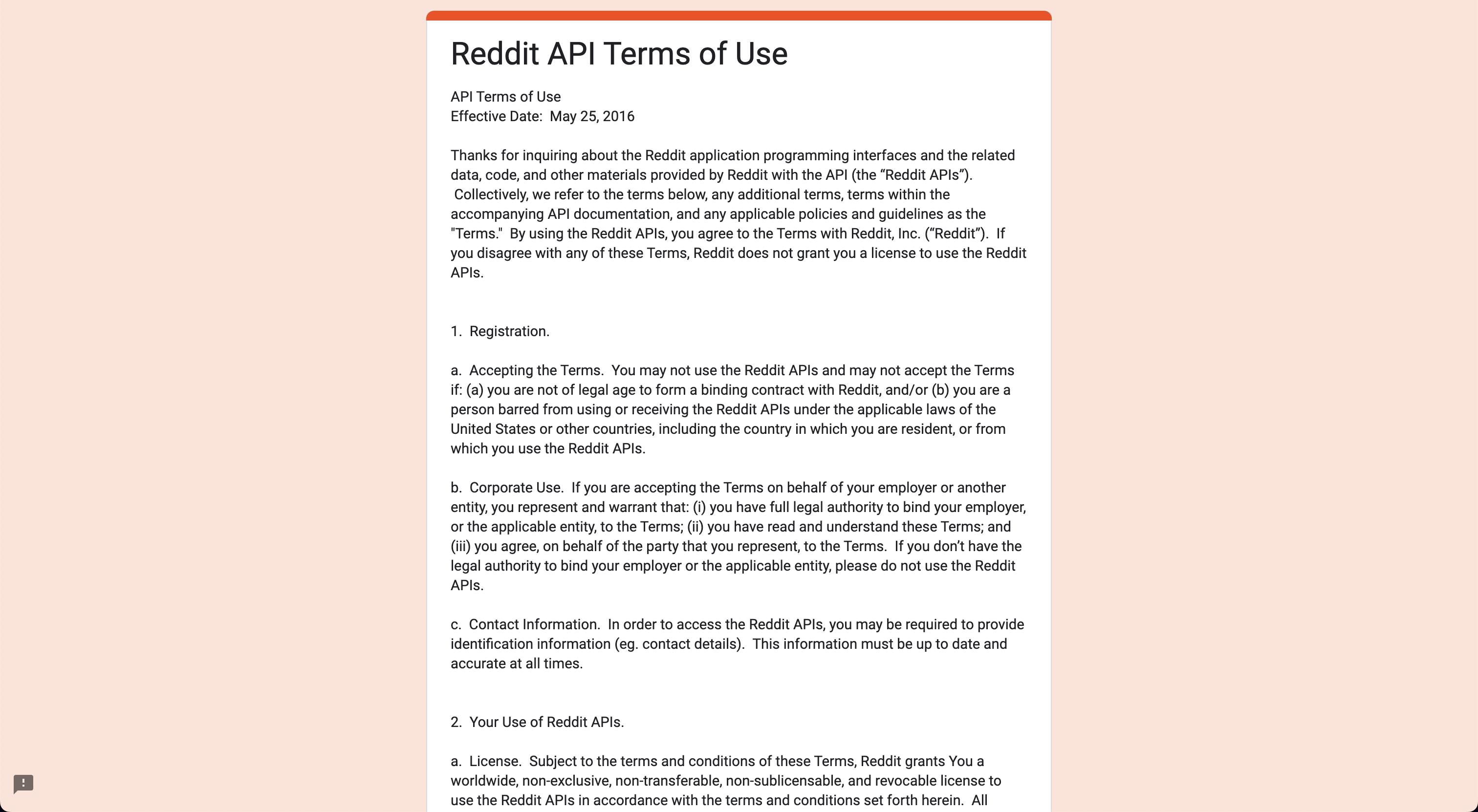
Once you have filled out everything, you will receive an email when your application is approved. Once this is approved you will receive the necessary information that needs to be entered in the OpenBB Terminal. Enter these into the OpenBB Terminal by typing /keys/reddit -i CLIENT_ID -s CLIENT_SECRET -u USERNAME -p PASSWORD -a USER_AGENT.
Robinhood
Go to https://robinhood.com/us/en/. You will be greeted with the following screen:
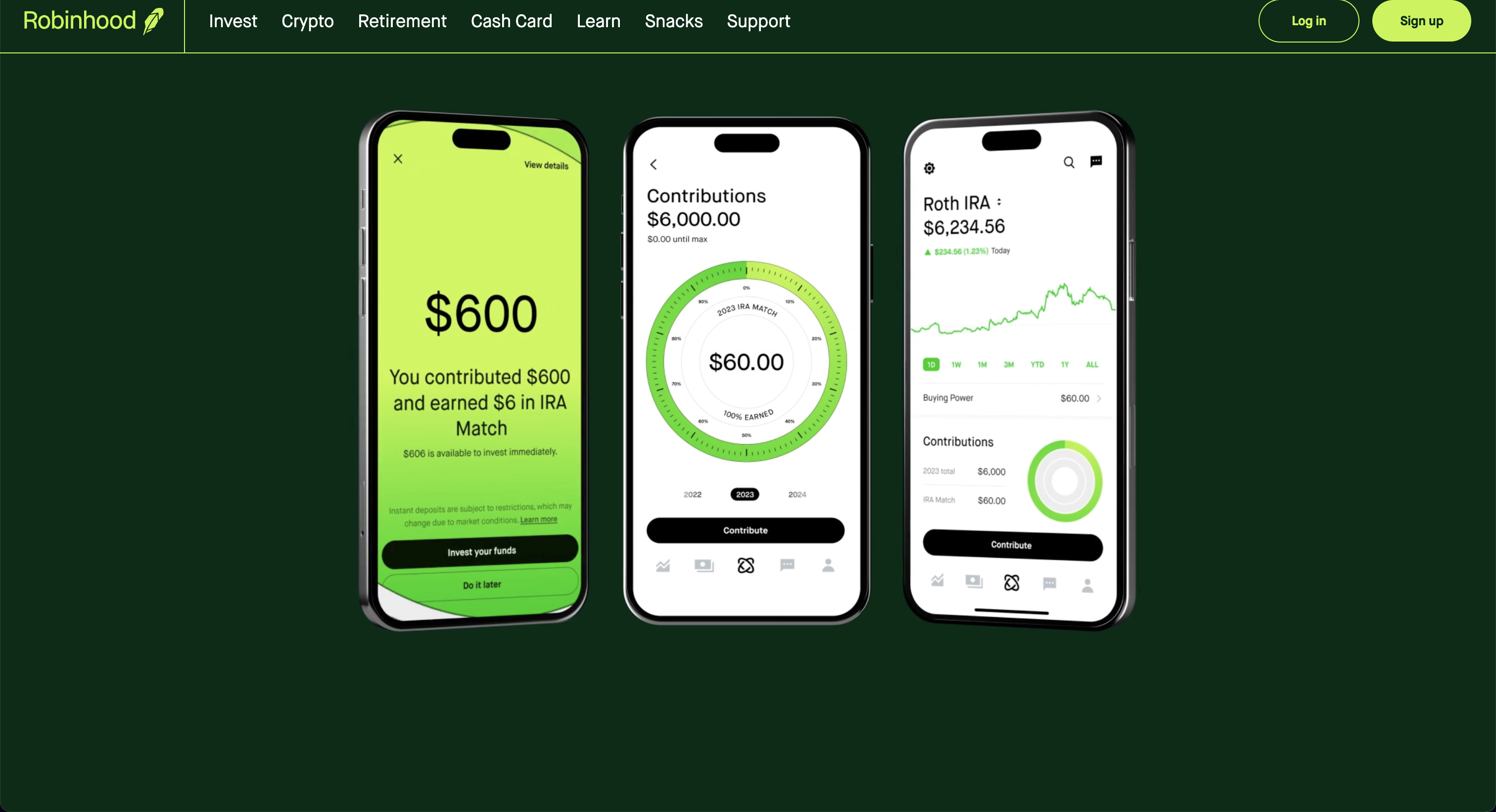
Click "Sign up" and go to the registrations process. After setting up your account you will be able to use this broker by entering your username and password in the OpenBB Terminal as follows /keys/rb -u USERNAME -p PASSWORD.
Santiment
Go to https://app.santiment.net/. You will be greeted with the following screen:
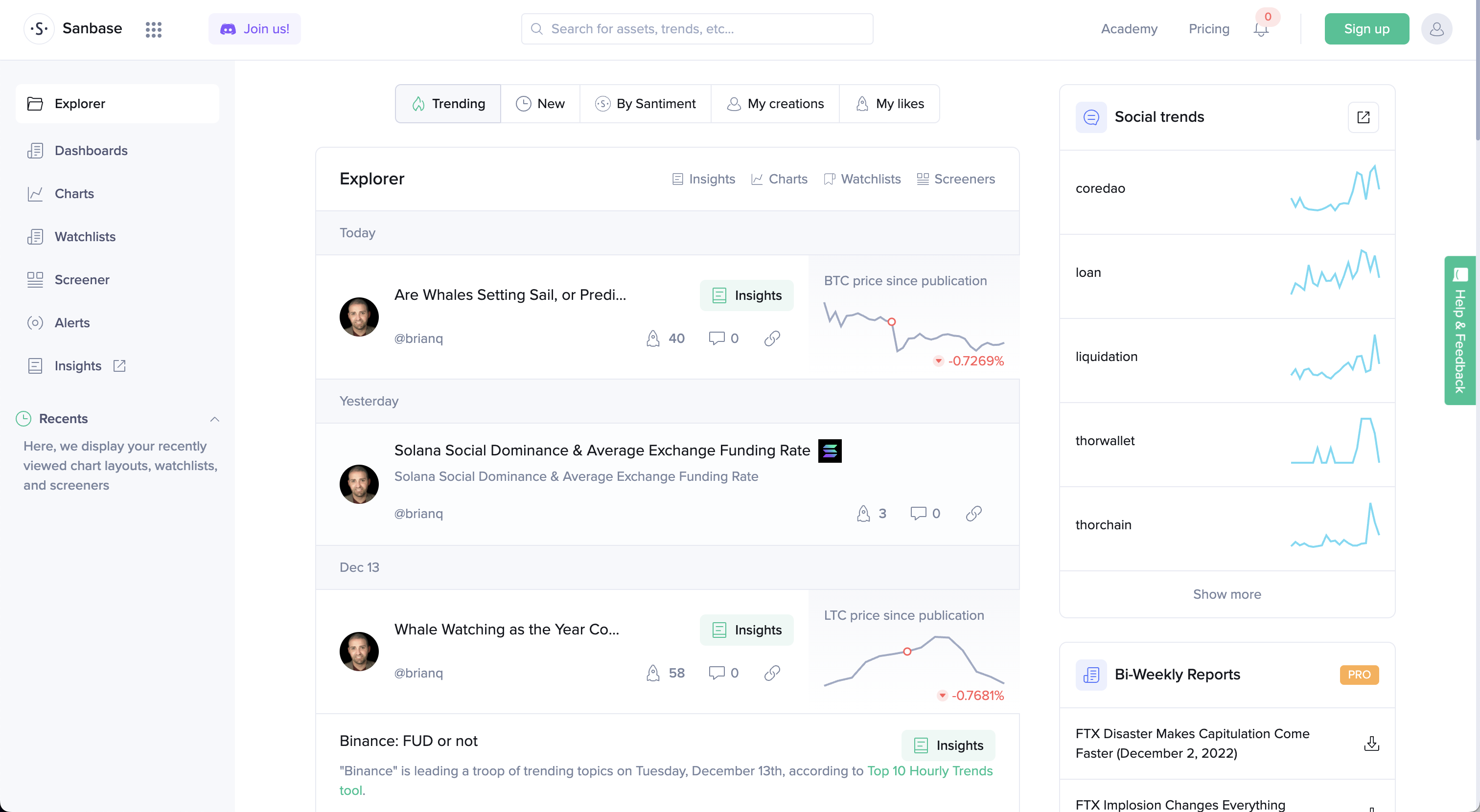
Click "Sign up". This opens up the following screen:
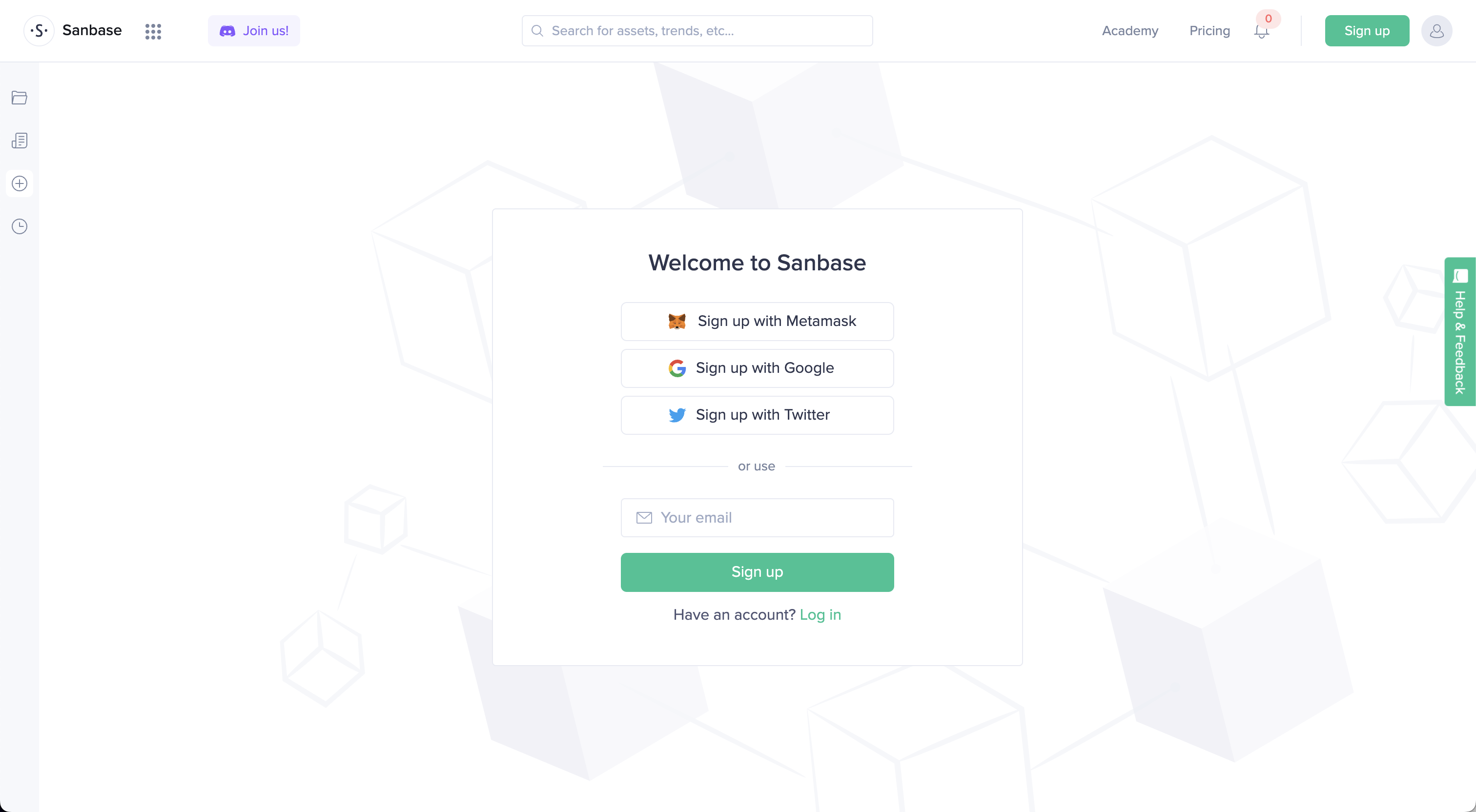
After creating an account go to https://app.santiment.net/account#api-keys and generate a key. Enter this API key into the OpenBB Terminal by typing /keys/santiment KEY.
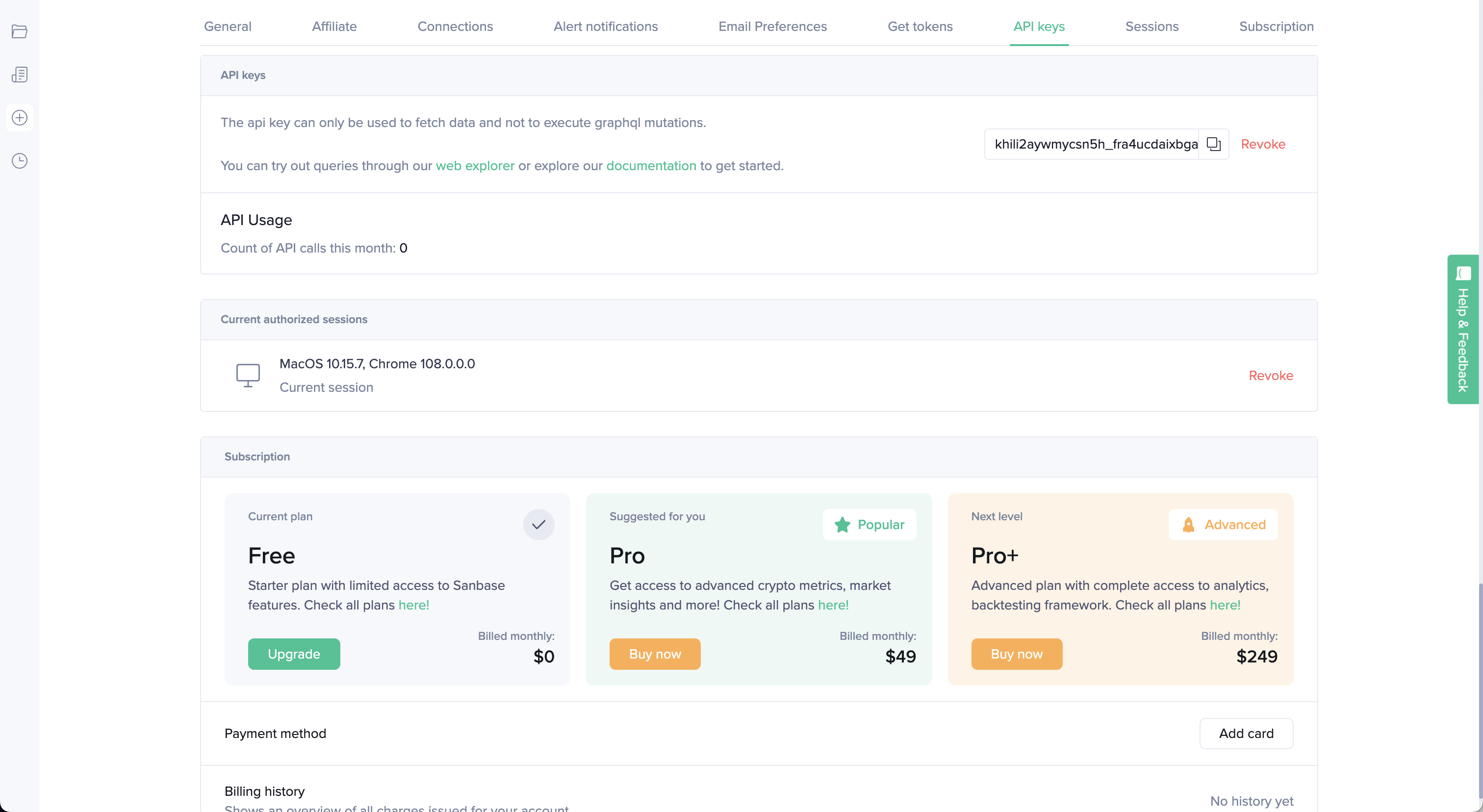
ShroomDK
Go to https://app.santiment.net/. You will be greeted with the following screen:
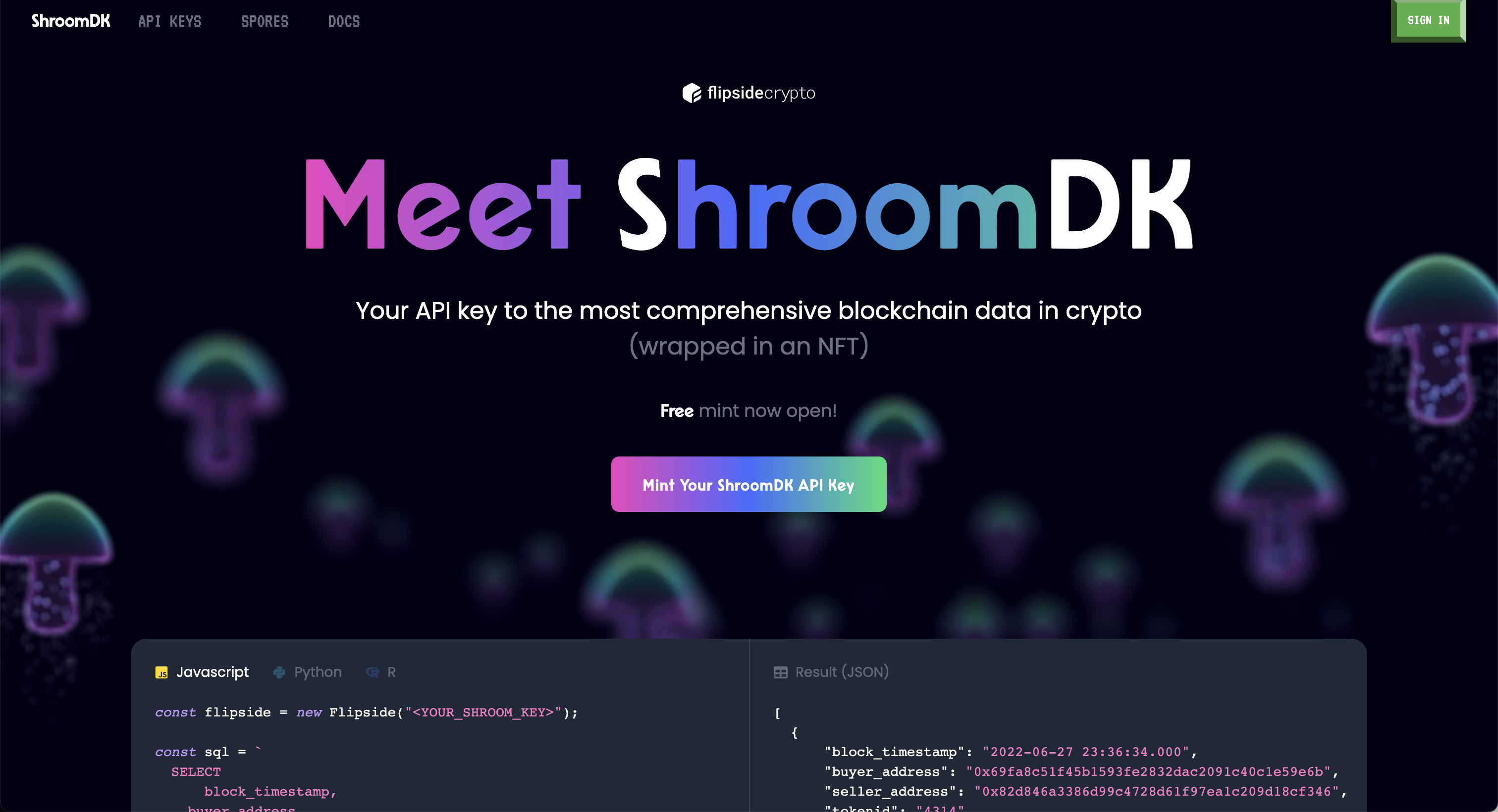
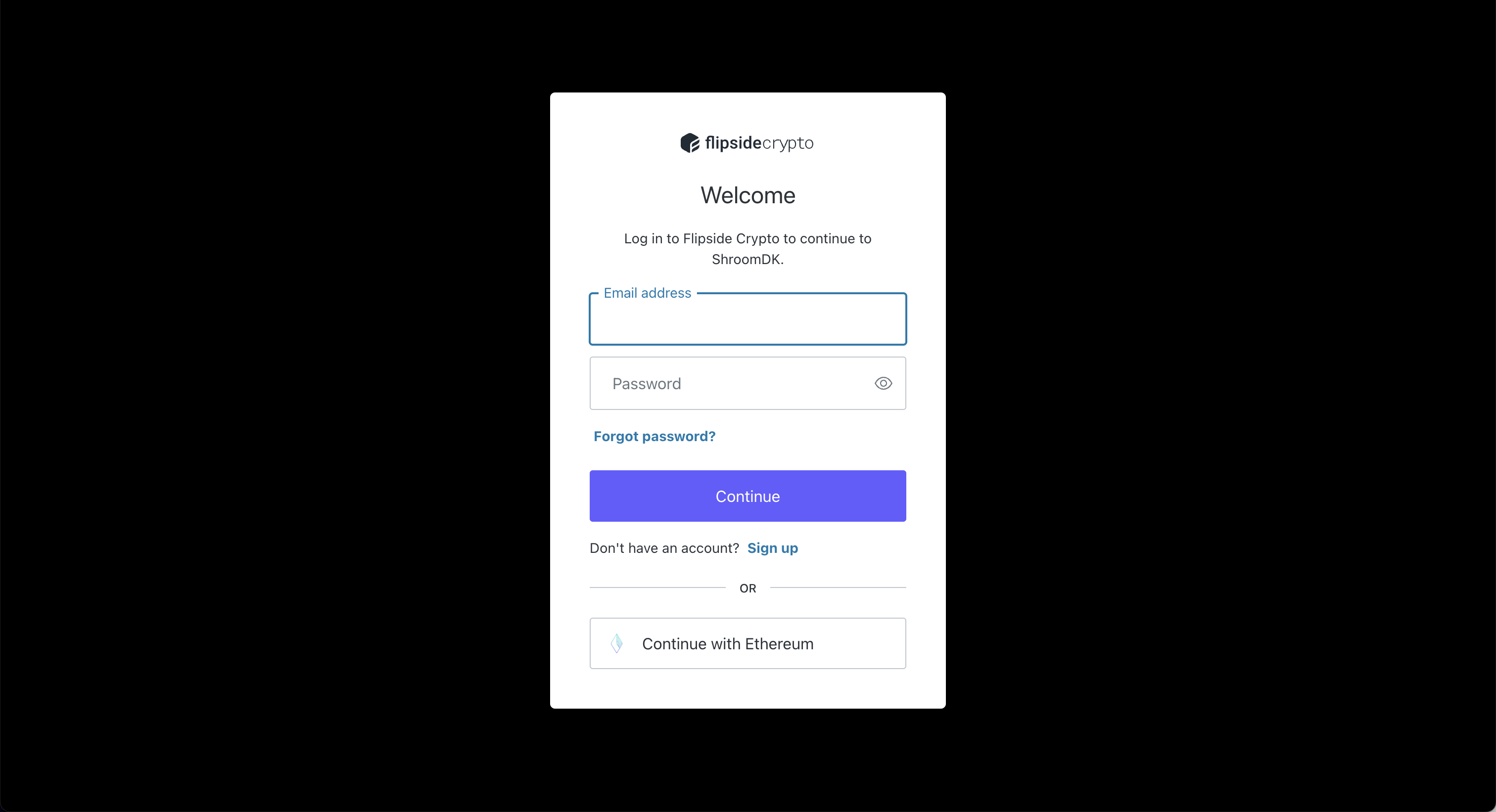
Click "Mint Your ShroomDK API Key" and sign up for an account. This opens up the following screen:
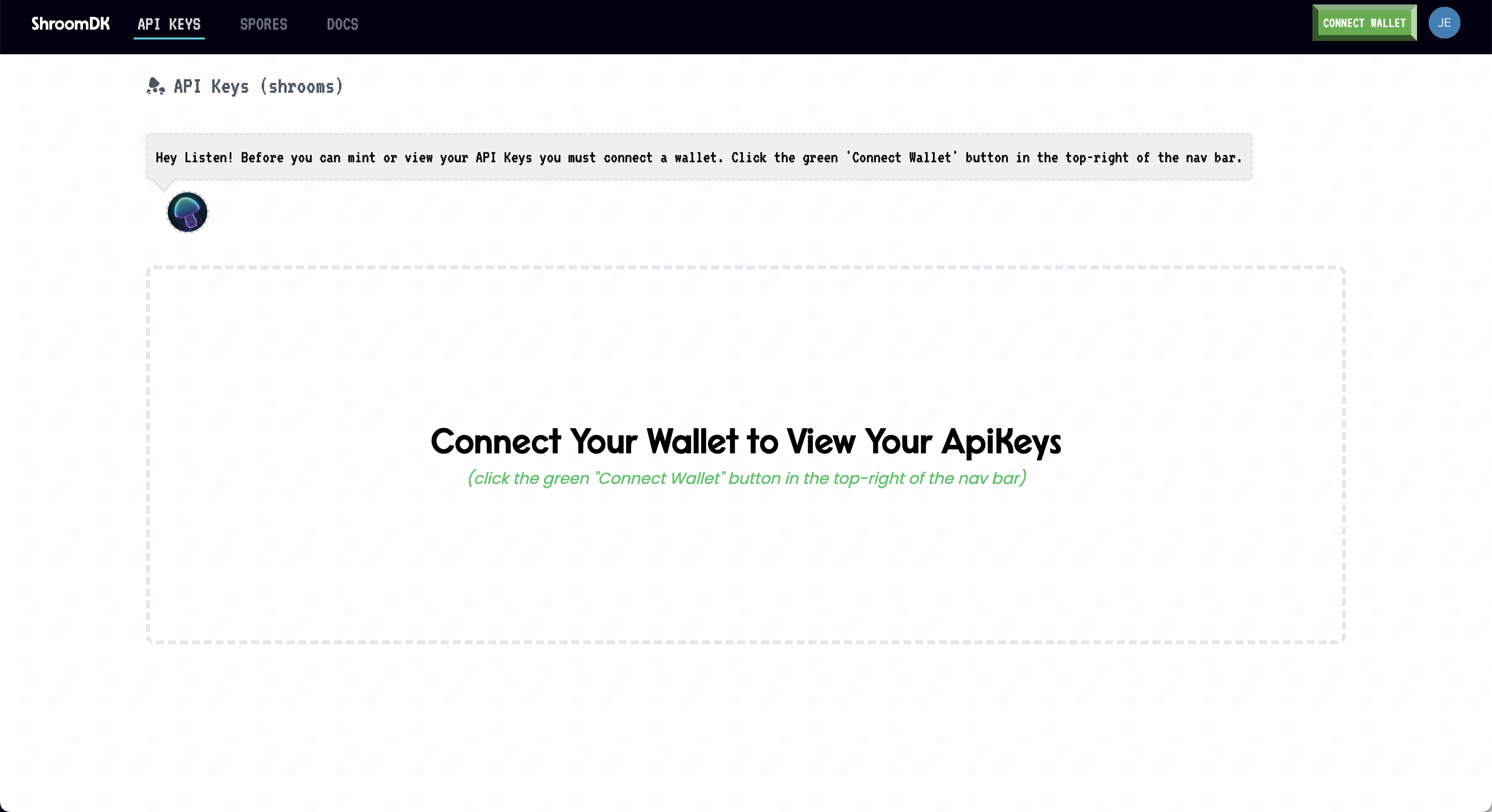
Once you have your account created, connect a wallet and access the API Key. Enter this API key into the OpenBB Terminal by typing /keys/shroom KEY.
Stocksera
Go to https://stocksera.pythonanywhere.com/. You will be greeted with the following screen:

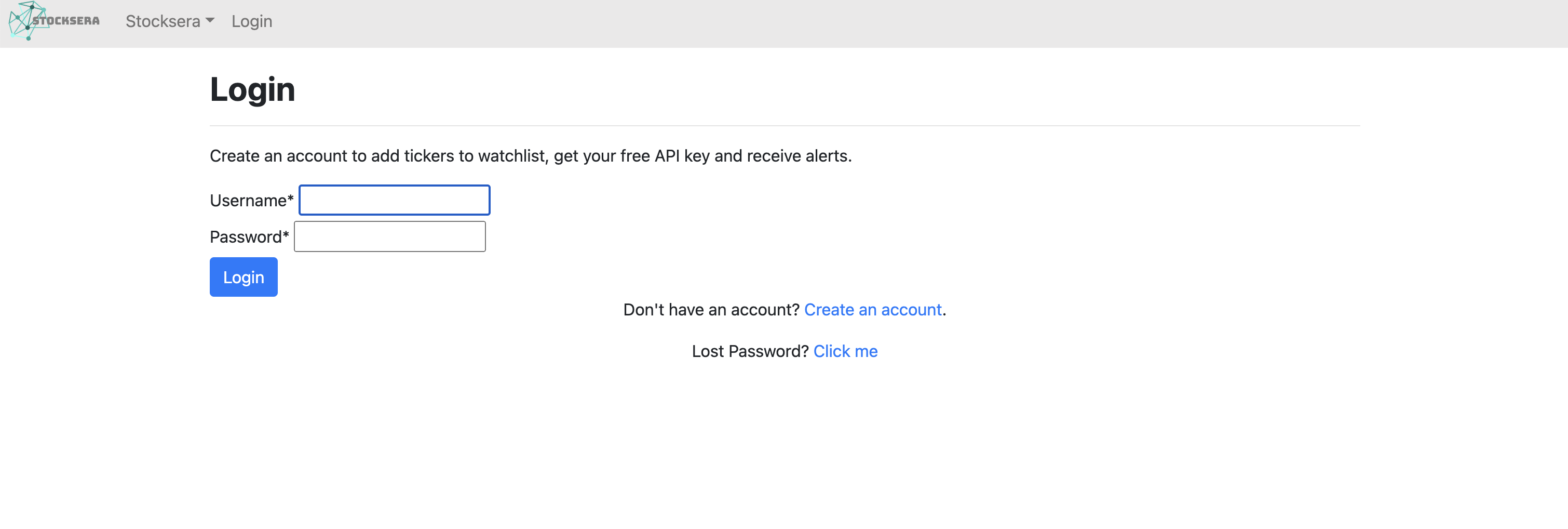
Click "Log in" and create an account. This opens up the following screen:
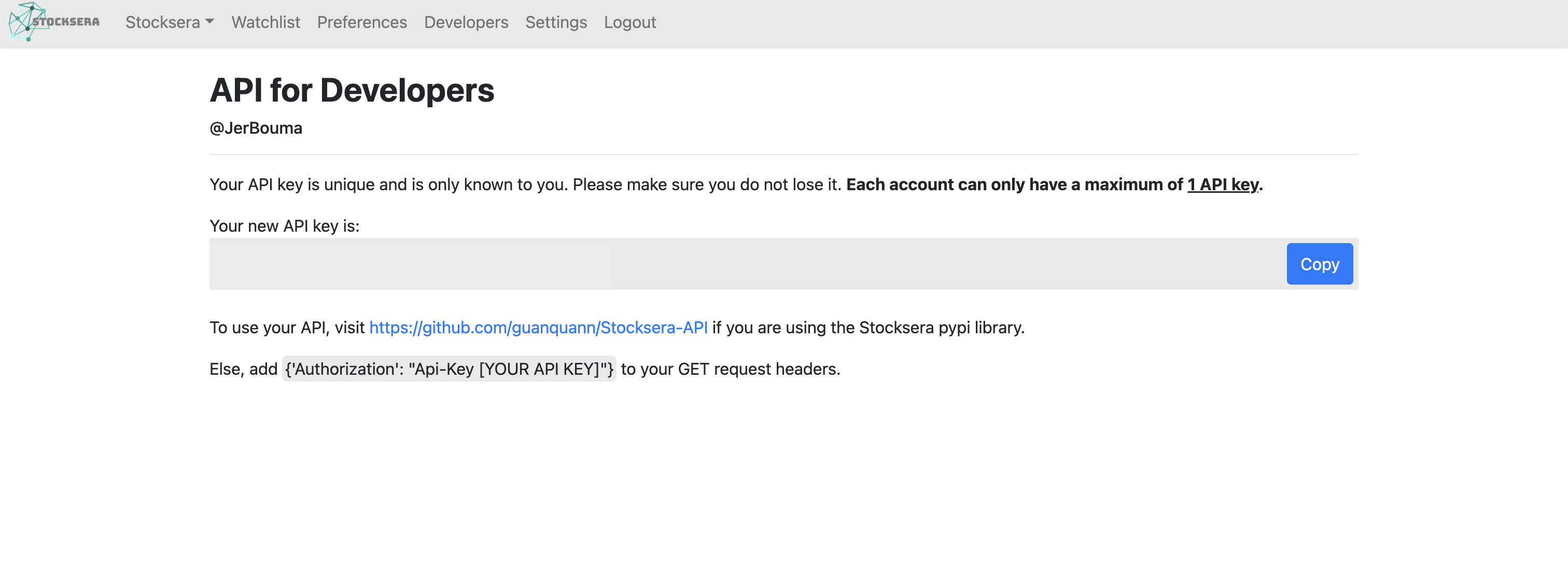
Once you have created an account, go to "Developers" to access your API Key. Enter this API key into the OpenBB Terminal by typing /keys/stocksera KEY.
Token Terminal
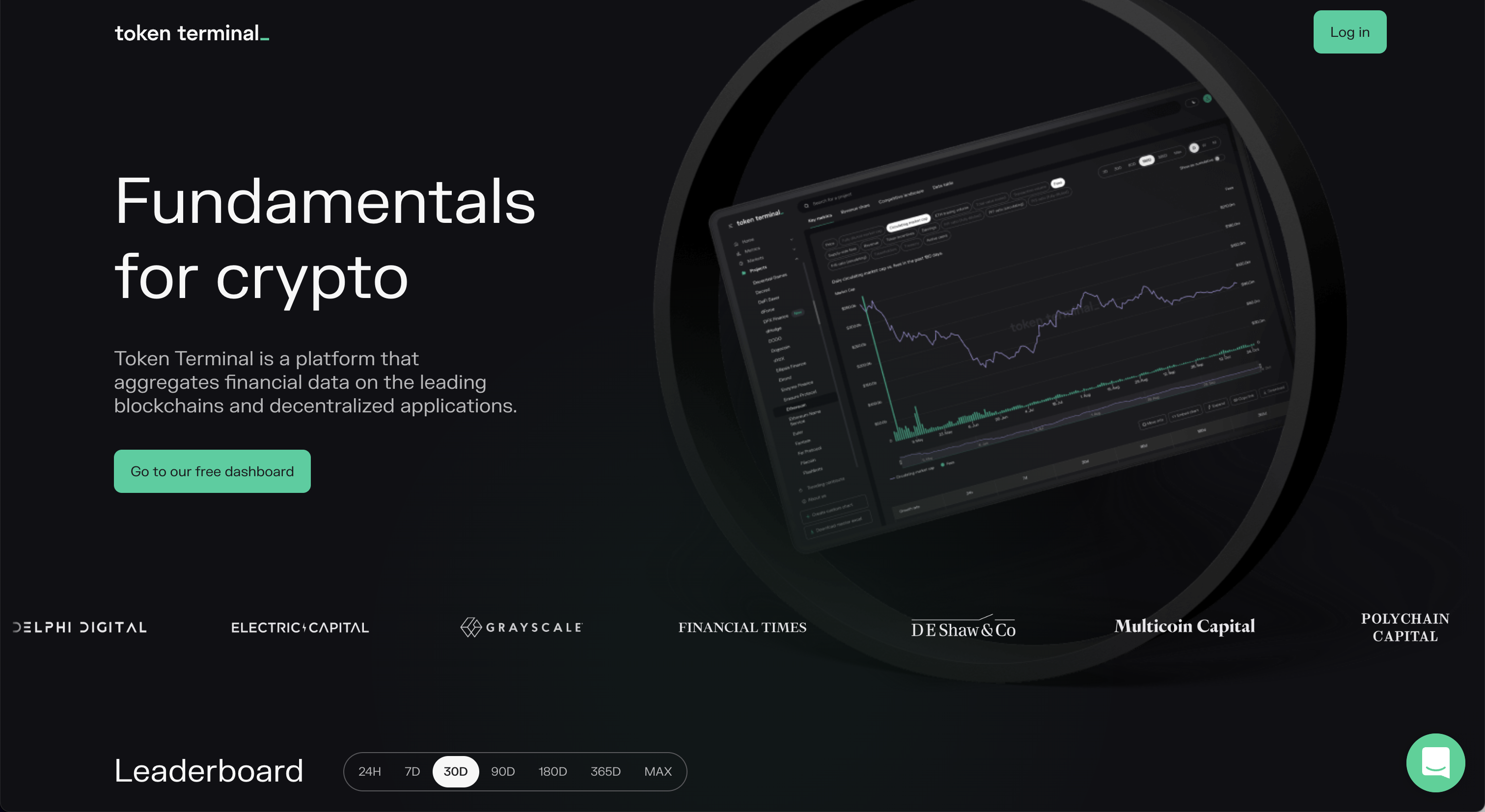
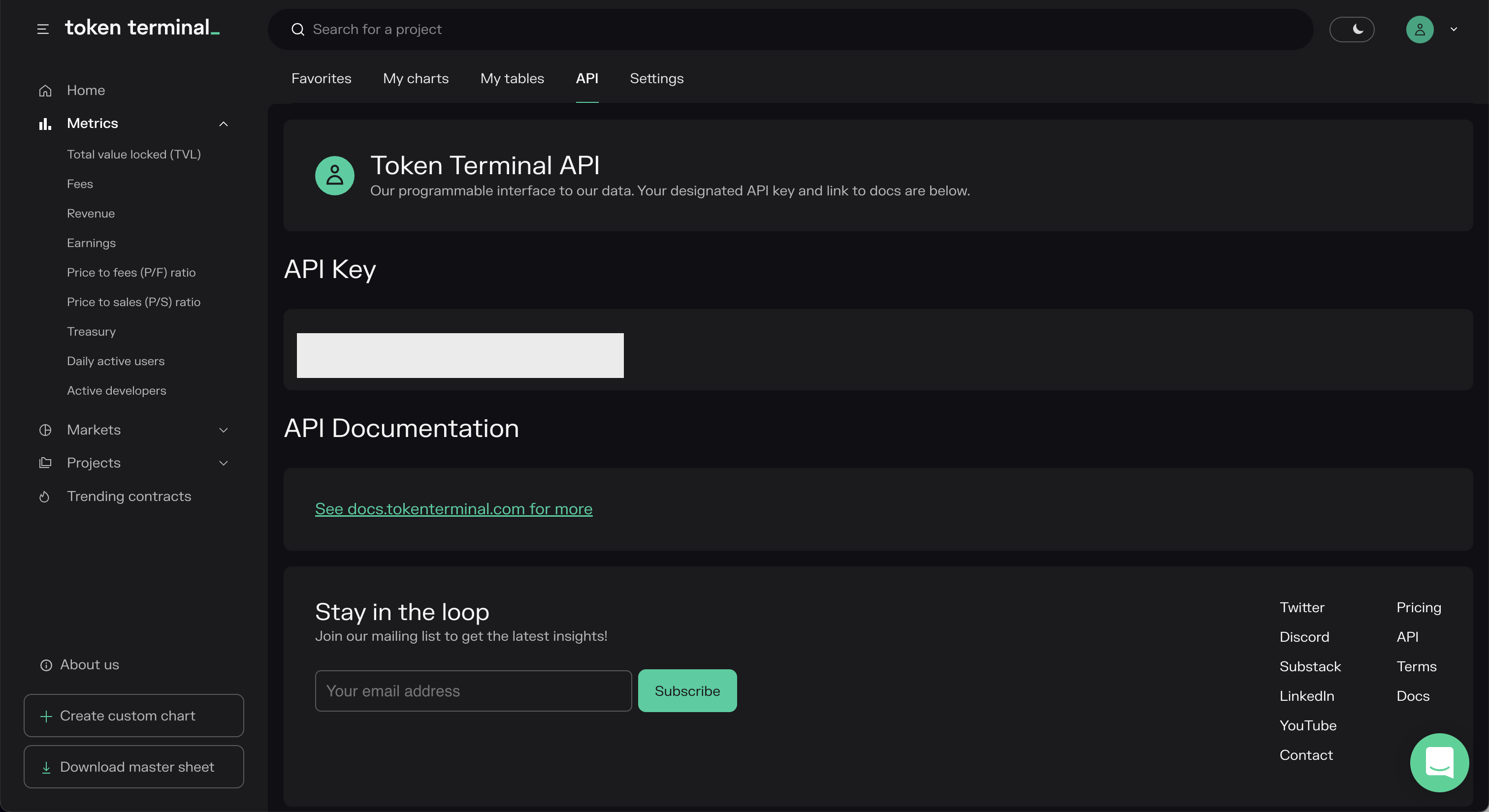
Go to https://tokenterminal.com/. You will be greeted with the following screen:
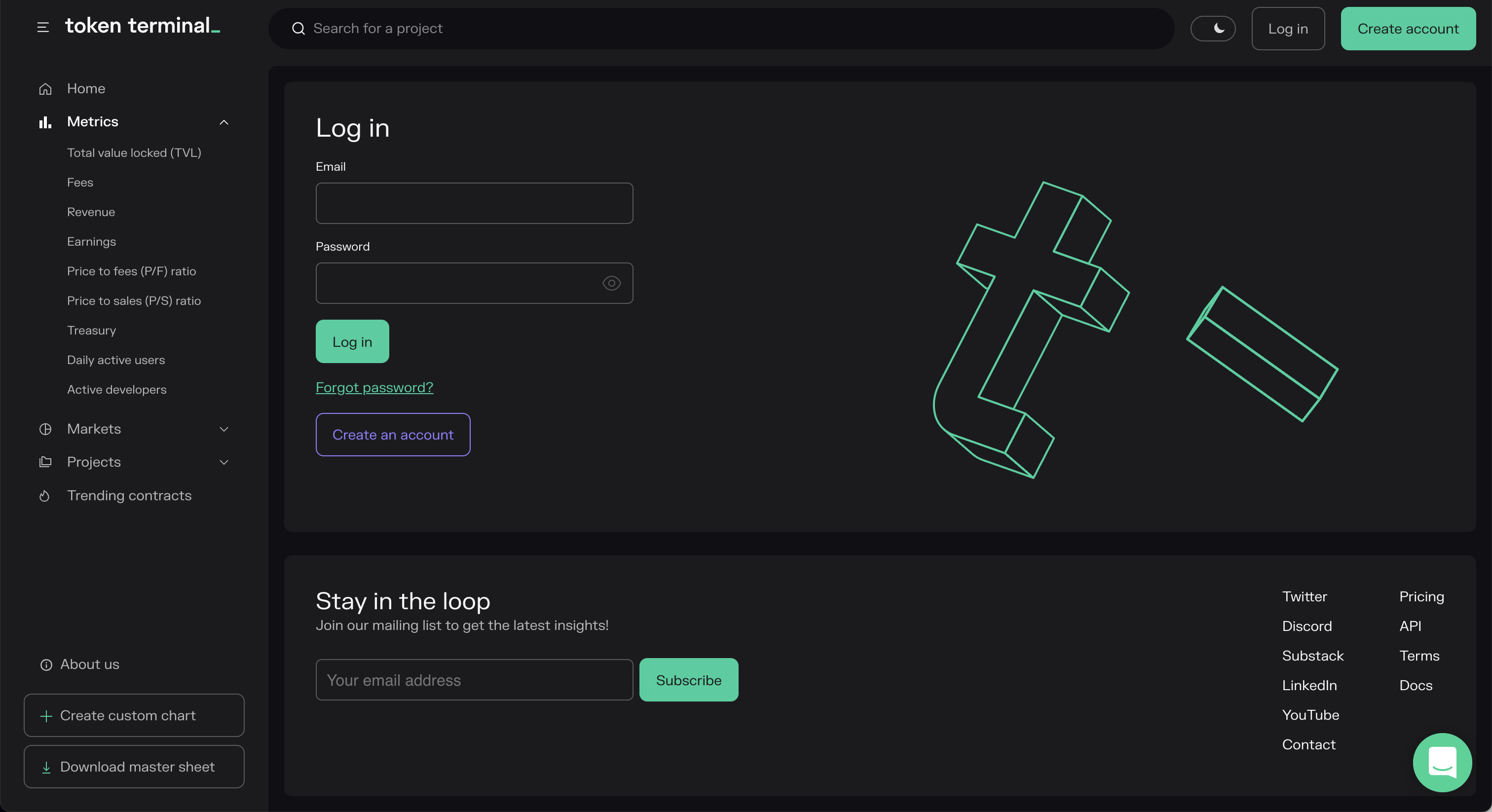
Click "Log in" and sign up for an account. This opens up the following screen:
Once you have created an account, go to "API" to access your API Key. Enter this API key into the OpenBB Terminal by typing /keys/tokenterminal KEY.
Tradier
Go to https://documentation.tradier.com/. You will be greeted with the following screen:

Click the button "Open Account" and start the sign-up process. Once you have gone through the whole process you will be able to find your API key within your account. Enter this API key into the OpenBB Terminal by typing /keys/tradier KEY
Go to https://developer.twitter.com. You will be greeted with the following screen:
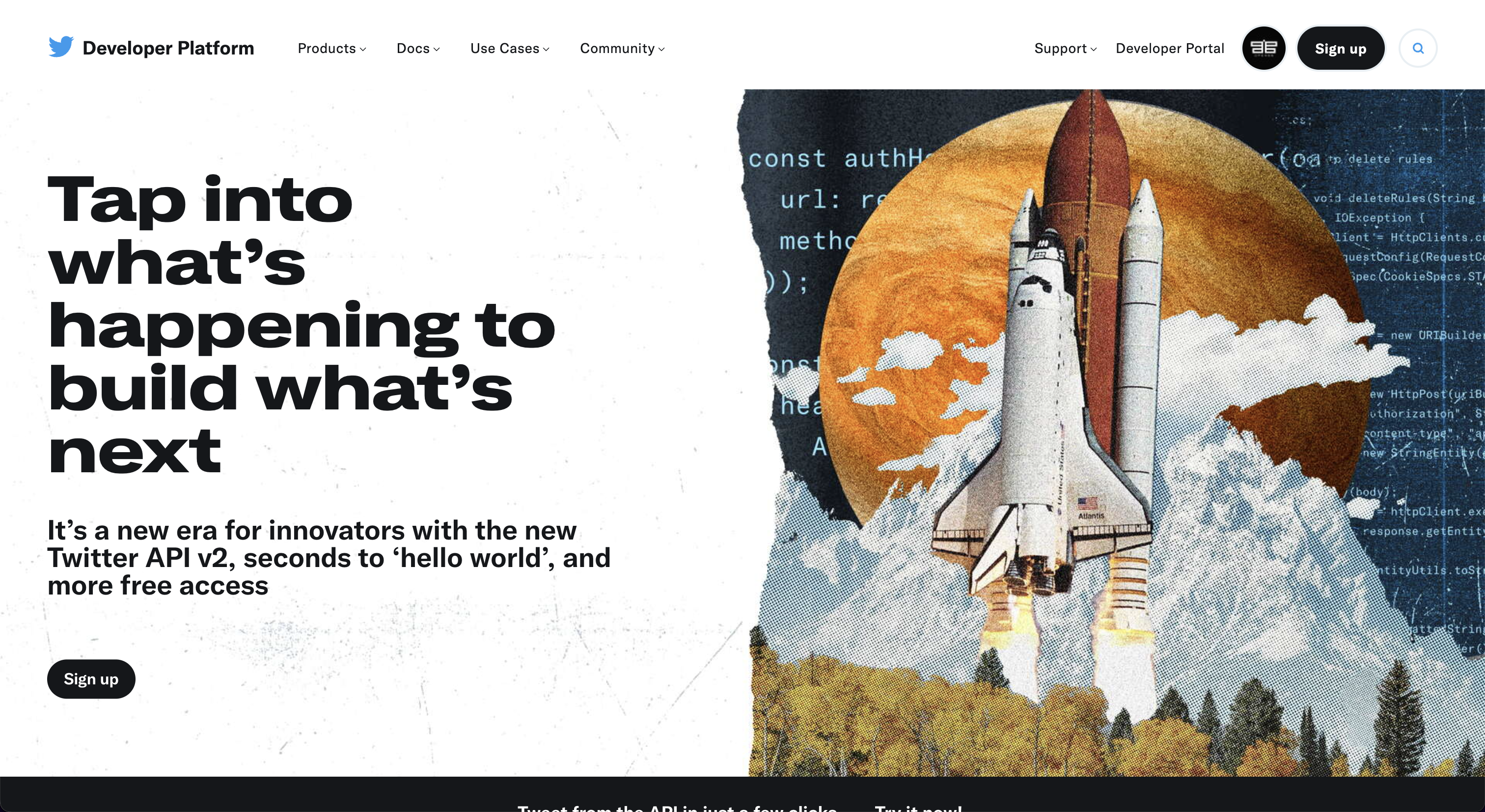
Click "Sign Up". Note that you are required to have a Twitter account and that you have verified your phone number. This opens up the following screen:
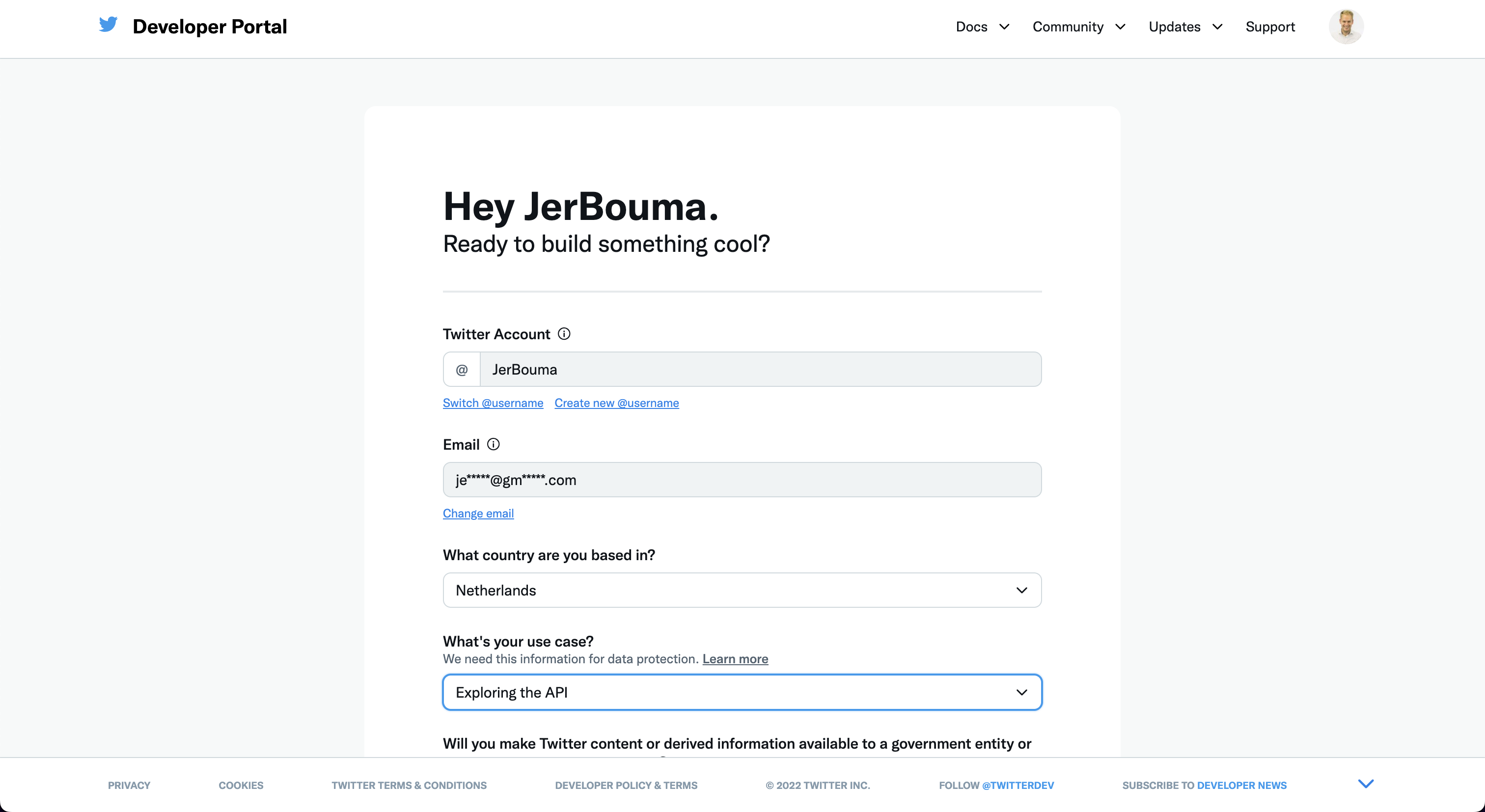
Create an account and verify your email. Then, you will be able to create an app to obtain your API Key.
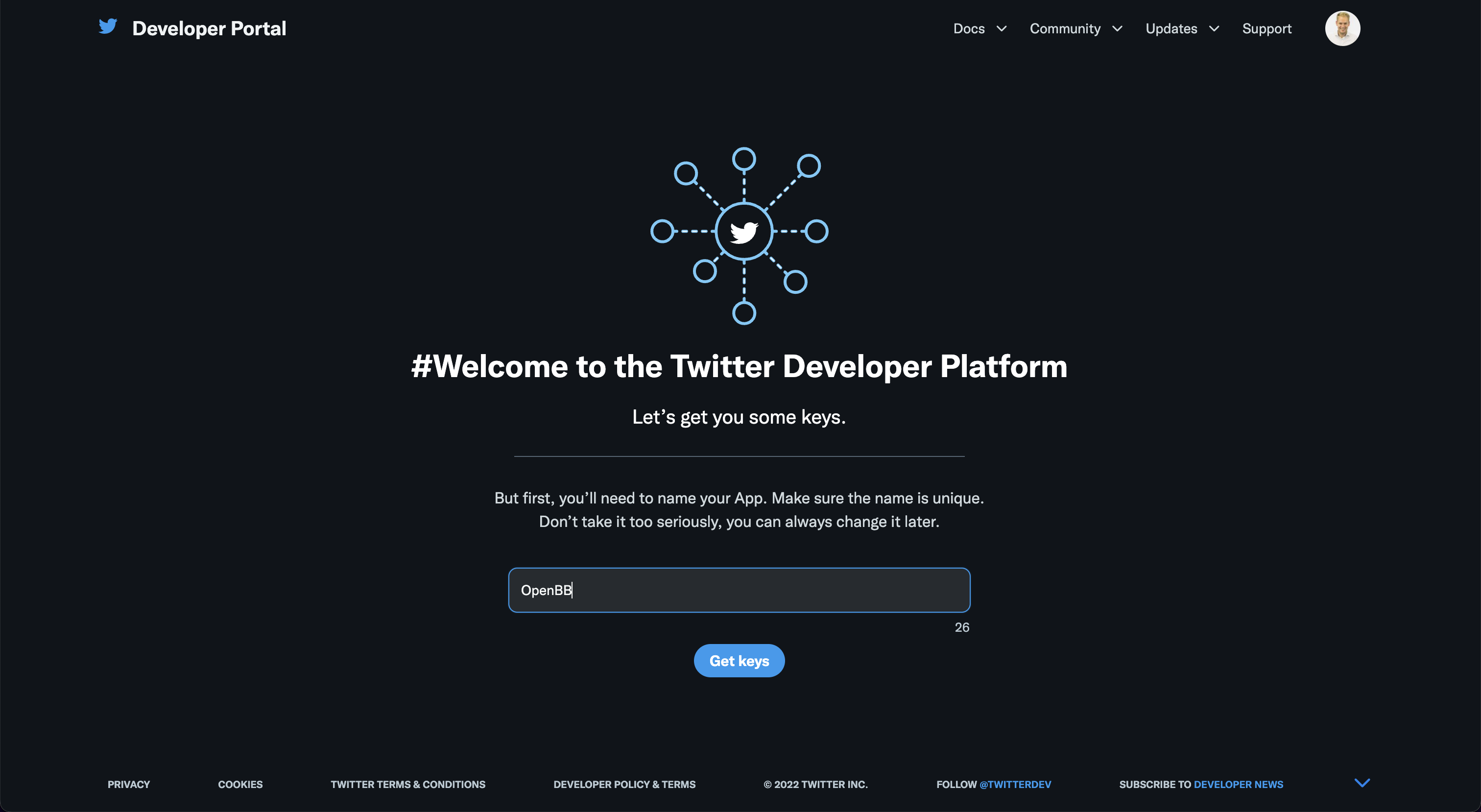
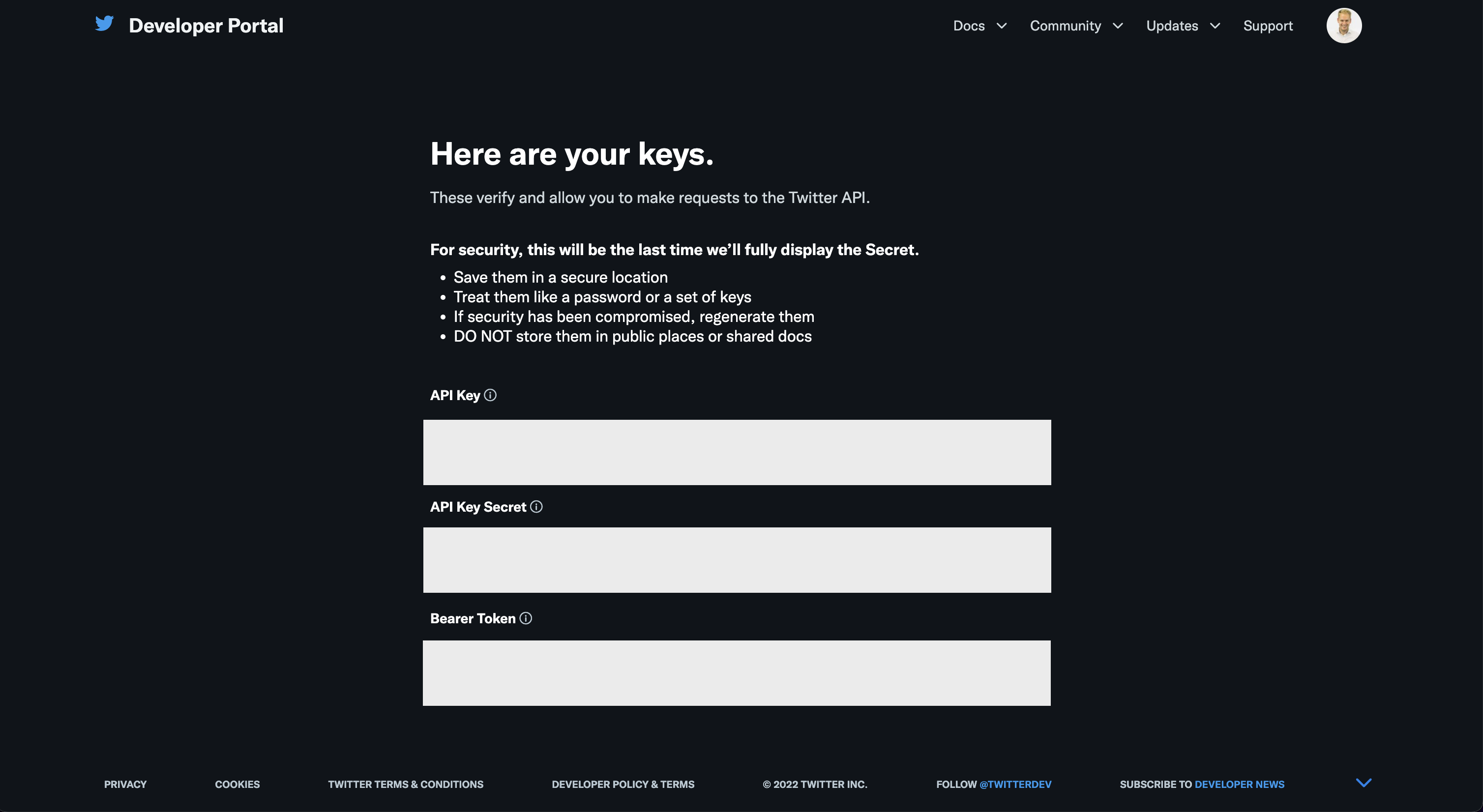
This will give you the following keys. Enter these into the OpenBB Terminal by typing /keys/twitter -k API_KEY -s API_KEY_SECRET -t BEARER_TOKEN.
Whale Alert
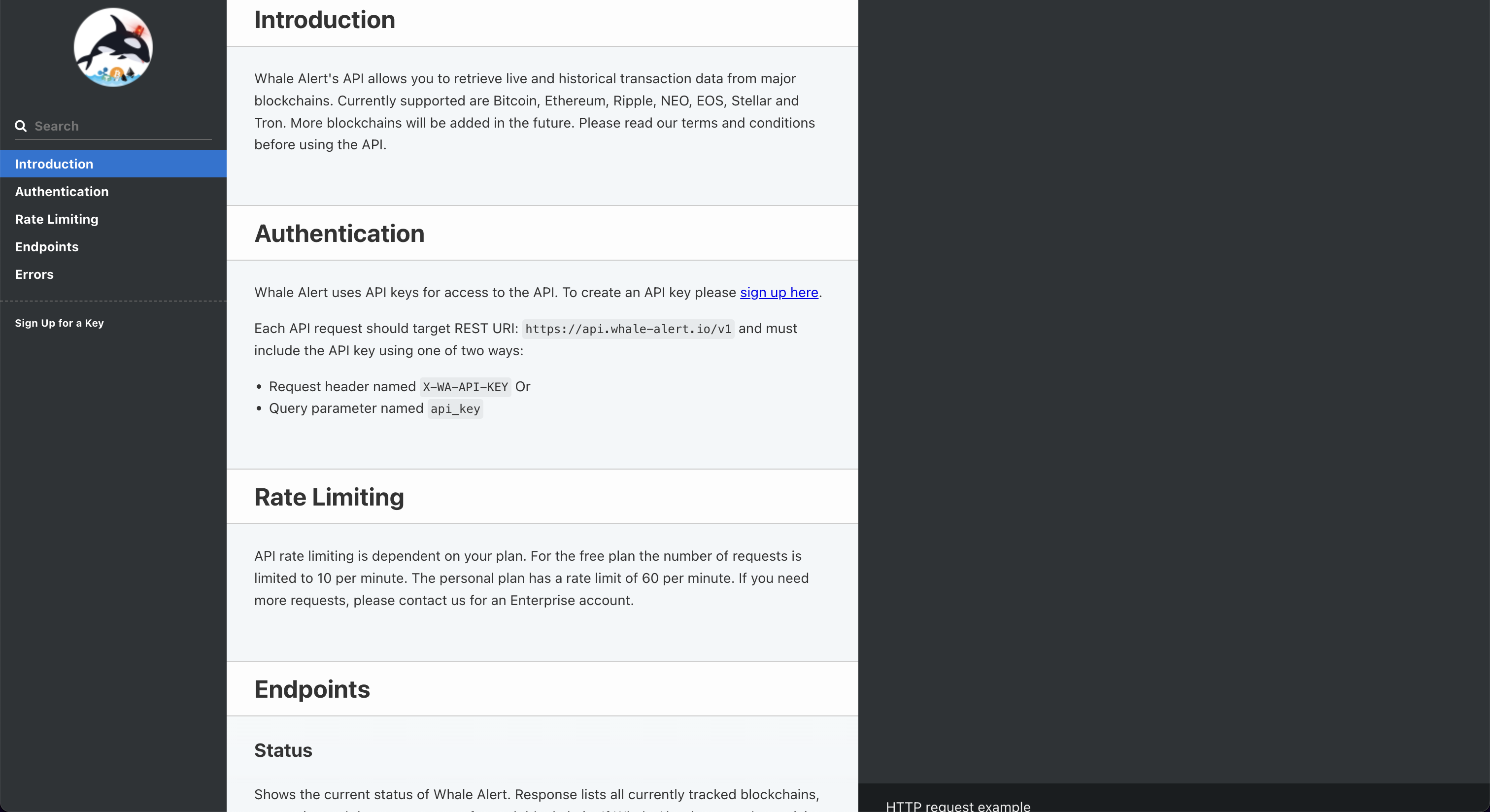
Go to https://docs.whale-alert.io/. You will be greeted with the following screen:
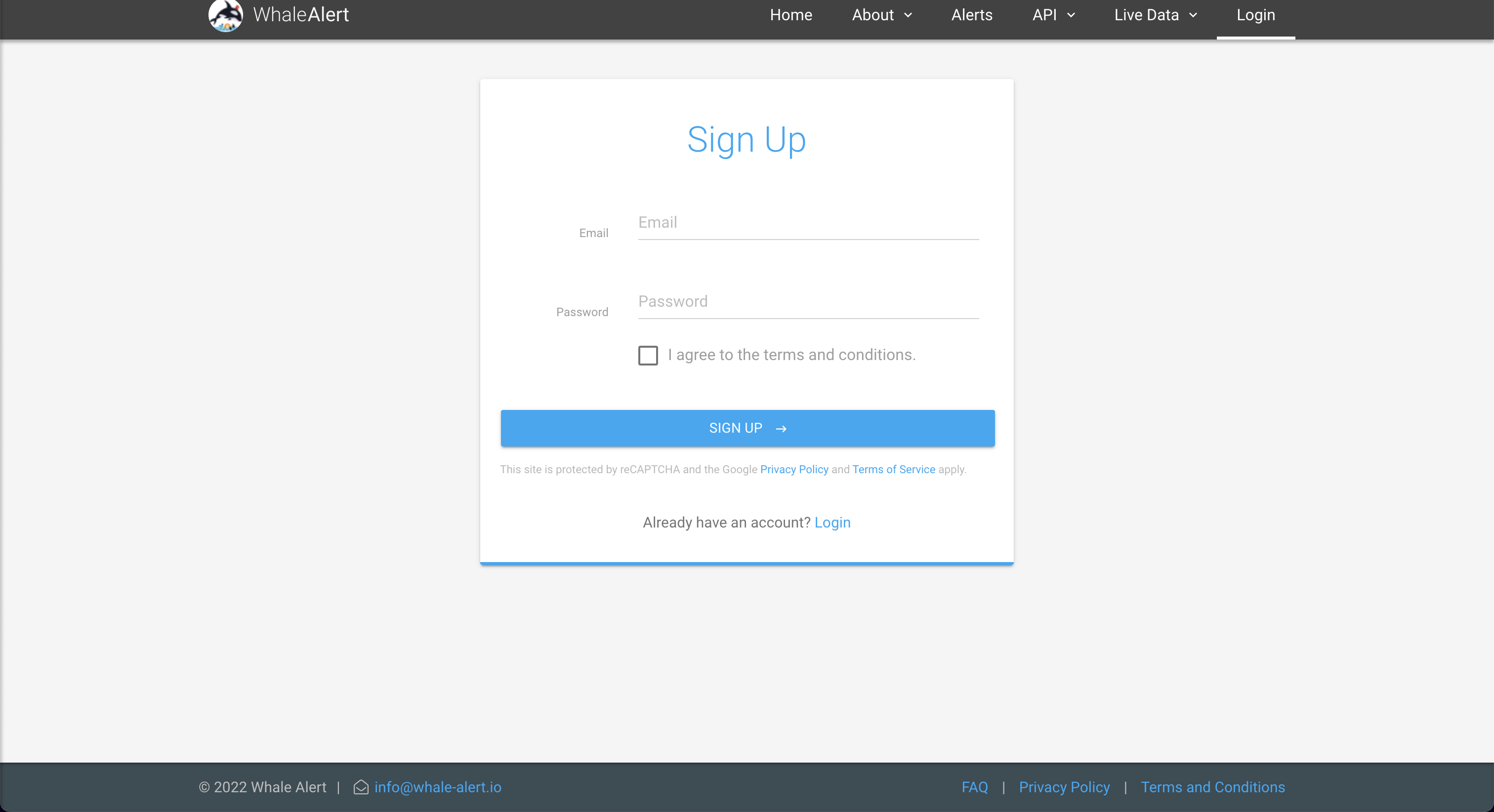
Click "sign up here". This opens up the following screen:
Once you have created your account, click "Create" to create your own API Key. Enter this API key into the OpenBB Terminal by typing /keys/walert KEY.
