Importing and Exporting Data
The OpenBBUserData Folder
The OpenBBUserData folder's default location is the home of the system user account. By default this will be the following paths:
- macOS:
Macintosh HD/Users/<YOUR_USERNAME>/OpenBBUserData - Windows:
C:/Users/<YOUR_USERNAME>/OpenBBUserData
Within the folder you can find files that you have exported as well as files that you wish to import directly into the OpenBB Terminal. For example, this could be an orderbook which you can store in OpenBBUserData/portfolio/holdings.

This folder contains all things user-created. For example:
- Screener presets
- Portfolio files
- Exported files
- Files to be imported by various functions
- Styles and themes
- Preferred data sources
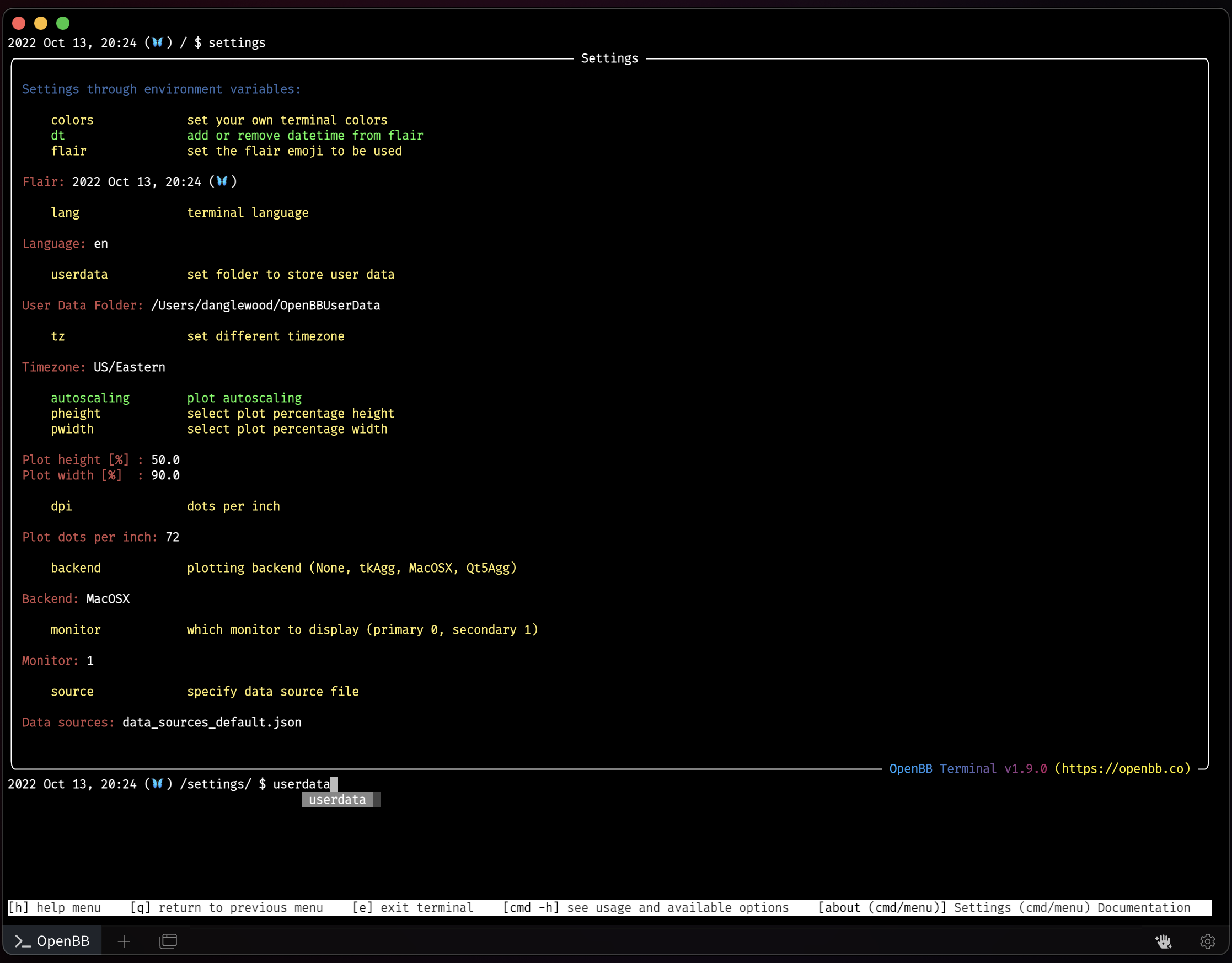
The location of this folder can be set by the user from the /settings menu. There should be no need to update paths in this menu unless the folders have been moved manually.
Exporting Files
If the location of the OpenBBUserData folder must be changed, it is best to move the entire existing folder to the new path. The path is then changed under the settings menu with:
userdata --folder /path_to/OpenBBUserData
The types of files which can be exported from tables and raw data are:
- CSV
- JSON
- XLSX
It is optional to name the file; the minimum requirement is the file type.
/stocks/load CHWY -s 2019-06-01 --export chwy_ohlc.csv
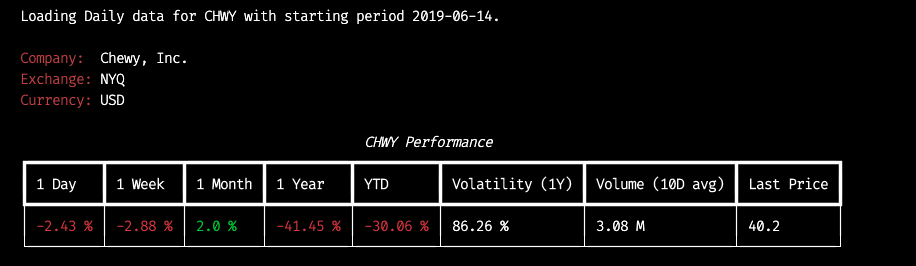
Saved file: /Users/{username}/OpenBBUserData/exports/chwy_ohlc.csv
The types of image files charts can be exported as are:
- PNG
- JPG
- PDG
- SVG
If no file name is specified, the file will be automatically named starting with the date and time generated.
candle --ma 20,50,150 -t --export svg

Saved file: /Users/{username}/OpenBBUserData/exports/20221130_141425_stocks_CHWY.svg
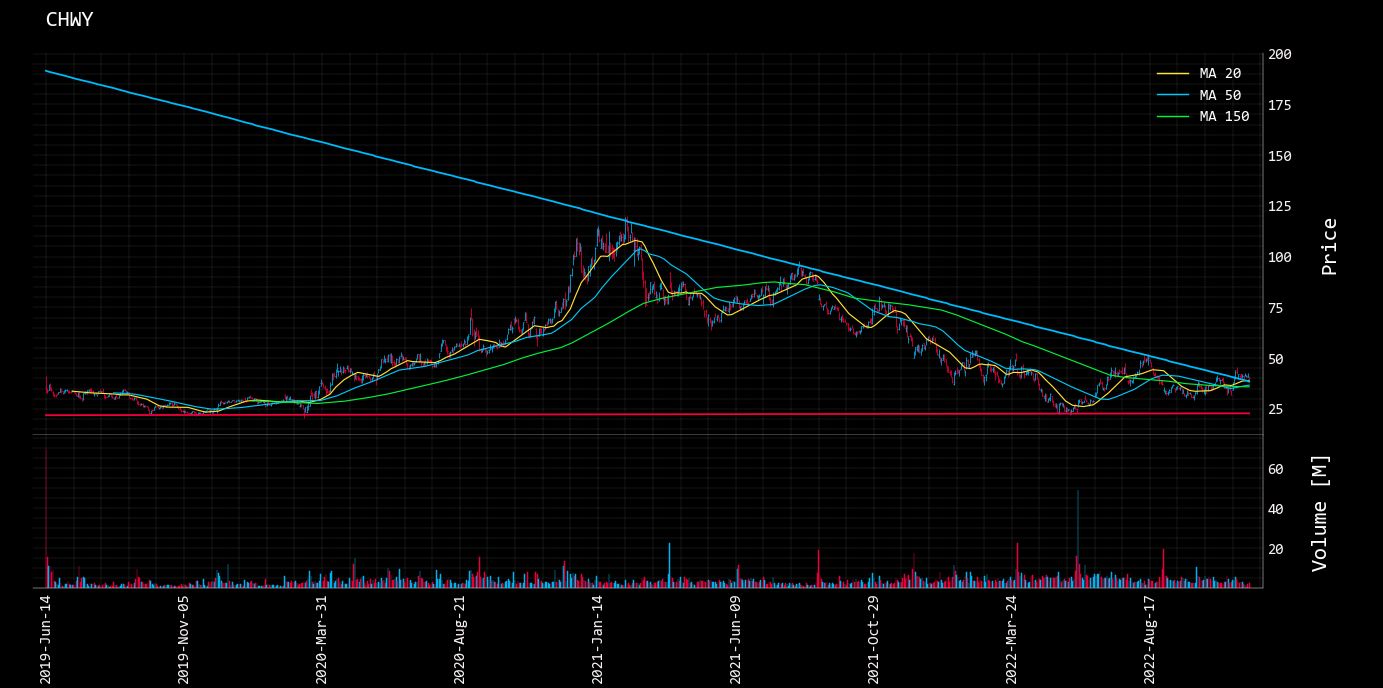
Every function capable of exporting content will work in exactly the same manner. Print the --help dialogue for any function to see the options available.
(🦋) /stocks/options/ $ chains --help

usage: chains [-c] [-p] [-m MIN_SP] [-M MAX_SP] [-d TO_DISPLAY] [-h] [--export EXPORT] [--source {YahooFinance,Tradier,Nasdaq}]

Display option chains

options:
  -c, --calls           Flag to show calls only (default: False)
  -p, --puts            Flag to show puts only (default: False)
  -m MIN_SP, --min MIN_SP
                        minimum strike price to consider. (default: -1)
  -M MAX_SP, --max MAX_SP
                        maximum strike price to consider. (default: -1)
  -d TO_DISPLAY, --display TO_DISPLAY
                        (tradier only) Columns to look at. Columns can be: bid, ask, strike, bidsize, asksize, volume, open_interest, delta, gamma, theta, vega, ask_iv, bid_iv,
                        mid_iv. E.g. 'bid,ask,strike' (default: ['mid_iv', 'vega', 'delta', 'gamma', 'theta', 'volume', 'open_interest', 'bid', 'ask'])
  -h, --help            show this help message (default: False)
  --export EXPORT       Export raw data into csv, json, xlsx (default: )
  --source {YahooFinance,Tradier,Nasdaq}
                        Data source to select from (default: YahooFinance)

For more information and examples, use 'about chains' to access the related guide.

(🦋) /stocks/options/ $
Importing Data
Menus, such as Econometrics or Portfolio, allow the user to import their own dataset. Files available to import will be included with the selections made available by auto-complete. In the Econometrics menu, this is activated after pressing the space bar, load -f

As illustrated above, the exported file that was created in the previous example is ready to be loaded into the Econometrics menu. Use the arrow keys to scroll the files available to import.