 60b39ca05f
* Improve menu with 2 more commands

* prepare for code improvement

* Improve sia filtering parameters

* fix minor bug

* implement cpis command

* consider excluding/including exchanges in stats

* Add cpcs command to sia

* add cpci command to sector and industry analysis

* optimize implementation of financials on sia

* Add a lot of additional commands to sia controller

* bump financedatabase to 1.0.2

* remove yield and dividend because always null and add forward PE

* Add sector and industry defaults to avoid a 8min loading for new users

* Improve controller for better user experience

* catch exception with exchanges on financedatabase

* from sam to sama

* allow to export all without limitation of companies

* add auto complete for industry sector and country

* Make chart title not leave the screen space by adding line breaks

* improve title further

* add auto complete for metrics

* fix small bug

* Fix pylint C0201 error that was blocking the pre-commit hook

* Fix ndarray division bug

* Add logic to handle missing values

* Split looooooooong company names to 2 lines in the chart

Co-authored-by: Theodore Aptekarev <aptekarev@gmail.com>
Discord Bot - WORK IN PROGRESS
Install Requirements
This tutorial assumes that you have successfully installed Gamestonk Terminal.
Next, go into the discordbot folder with cd discordbot and install the following packages:
pip install discord
pip install discord_components
pip install pyimgur
pip install python-dotenv
Registering Applications
DISCORD
- Login into your discord account in https://discord.com/developers/applications
- On the "Applications" tab, select "New Application" and name it something like "GST Bot". This will create a new application.
- For creating a bot, we need to go into the "GST Bot" application previously created, and on the "Bot" tab select "Add Bot".
- Allow privileged gateway intents by enabling MESSAGE CONTENT INTENT under the bot tab.
- Next we need to obtain the "Client ID". For that we choose the "OAuth2" tab and copy our "Client ID" under "Client".
- At this stage the bot is created and we are ready to invite it to one of our servers. To do so we need to access: https://discord.com/oauth2/authorize?client_id=CLIENTID&scope=bot, where CLIENTID is replaced by the value copied above.
- If everything went well, you should see a window popup where the Bot that was just created asks to which of your own servers do you want to add it to.
NOTE: If you haven't managed the bot permissions on the Bot tab previously you can do it via this link generator https://discordapi.com/permissions.html
IMGUR
- Login into your https://imgur.com account. Create one if you don't have it.
- Access https://api.imgur.com/oauth2/addclient to create your application.
- Select "OAuth 2 authorization without a callback URL" when creating such.
- You will receive a client ID and client secret once you submit the form.
NOTE: Registering is free for all open source projects and if your discord bot uses fewer than 1250 uploads per day.
HEROKU
- Replace the general requirements.txt with the one in the discordbot folder.
- Create a Heroku account at: https://signup.heroku.com/.
- Click 'Create a new app'.
- Go to the 'Settings' page, and then find Config Vars.
- Add GT_DISCORD_BOT_TOKEN and GT_IMGUR_CLIENT_ID with their associated values.
- Go to the repository:https://github.com/GamestonkTerminal/GamestonkTerminal and fork it if you have not already done so.
- On the 'Deploy' page select Github as the deployment method.
- Select 'enable automatic deploys' if you would like for the server to update every time you update your fork.
- Go to the 'Resources' tab and turn on the worker by pressing the pencil to edit and then pressing the toggle button.
NOTE: If you only want the bot to run in the cloud you are done, if you would like it to run on your local machine read below.
Discord Configs
In order to config the discord bot you will need to edit the config_discordbot.py file.
-
Edit the path to the terminal by changing the variable
GST_PATH. E.g.GST_PATH = os.path.join("~", "Documents", "GamestonkTerminal") sys.path.append(GST_PATH) -
Update
DISCORD_BOT_TOKENusing discord bot CLIENT ID obtained previously in discord. -
Update
IMGUR_CLIENT_IDusing imgur application CLIENT ID obtained previously in imgur.
Advanced
Other parameters that can be configured are:
- DEBUG: Shows a debug message on the terminal console of what's happening on the discord bot from the server side.
- COMMAND_PREFIX: Command prefix to be used when calling the bot from the discord server.
- DATE_FORMAT: Selects date format to be used as parameter on the discord bot.
- COLOR: Changes color of the bot messages replies on the discord server.
- MENU_TIMEOUT: Timeout in seconds to allow user to select options when a menu command is invoked from the discord bot.
- AUTHOR_NAME: Name of the discord bot in the server.
- AUTHOR_ICON_URL: Icon displayed on the discord bot replies on the server.
Run Locally
Just run the discord bot from this folder with:
python discordbot/run_discordbot.py
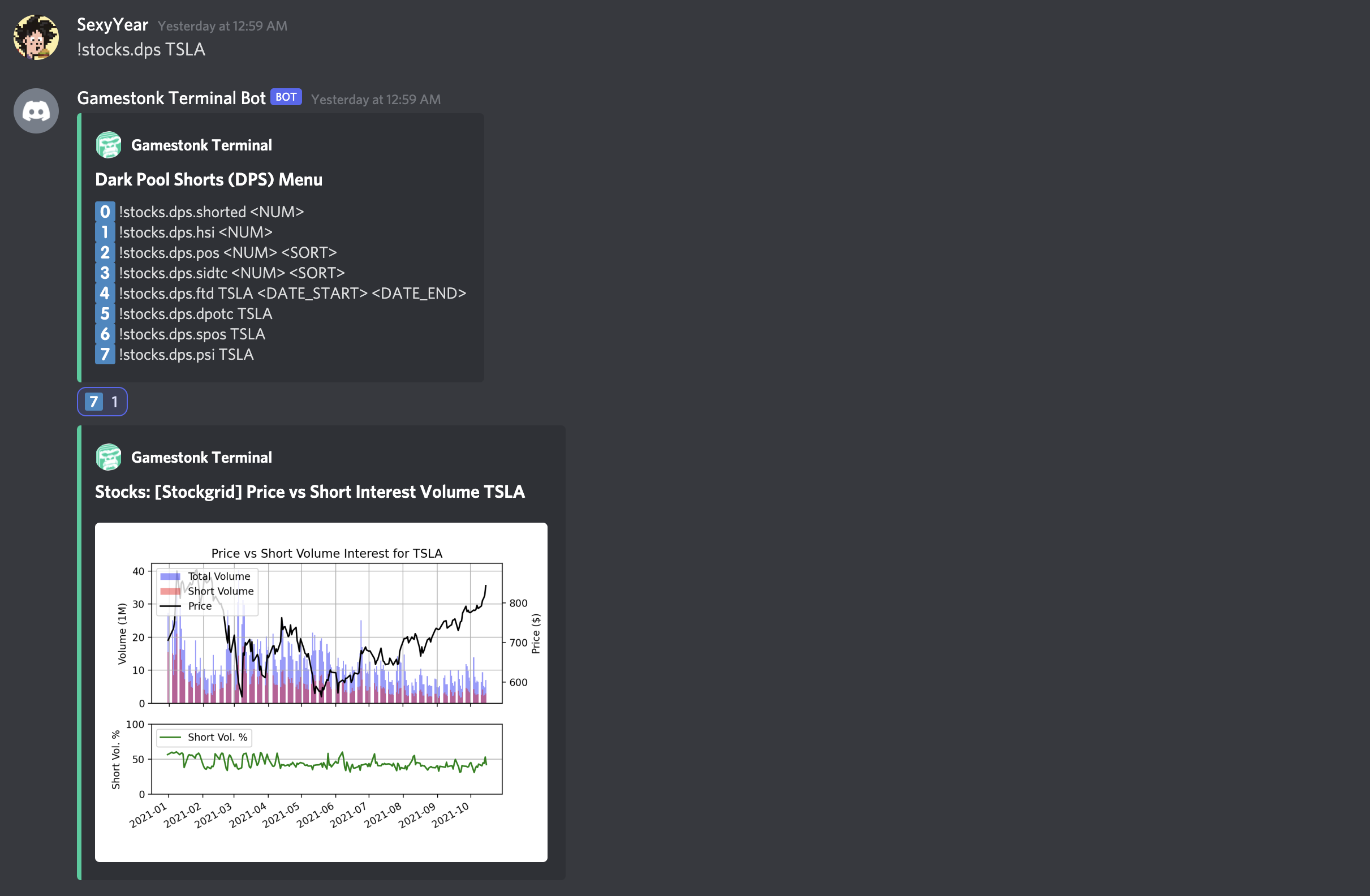
Now, you should be ready to invoke the discord bot from server using something like:
!stocks.dps TSLA
Contributing
See more in CONTRIBUTING.md.
Bugs
If when trying to run the discord bot you receive the following error
ssl.SSLError: [SSL: CERTIFICATE_VERIFY_FAILED] certificate verify failed
The solution is to browse to Applications/Python 3.x and double-click Install Certificates.command.
If an error occurs, use DEBUG=True on the config_discordbot.py file.
Then, report what is the issue with the console output attached either by:
- Opening an issue on github
- Contacting either
DidierRLopes(@SexyYear) ornorthern-64bit