
5.3 KiB
Vendored
title, sidebar_position, description, keywords
| title | sidebar_position | description | keywords | |||||||||||||||||||
|---|---|---|---|---|---|---|---|---|---|---|---|---|---|---|---|---|---|---|---|---|---|---|
| Importing and Exporting Data | 3 | The `OpenBBUserData` folder is where files are saved when they are created from within the OpenBB Terminal, like exports and generated reports. It is also where user-generated files are stored. |
|
The OpenBBUserData Folder
The OpenBBUserData folder is where files are saved when they are created from within the OpenBB Terminal, like exports and generated reports. It is also where user-generated files are stored, such as:
- Screener presets
- Portfolio files
- Exported files
- Files to be imported by various functions
- Styles and themes
The folder's location is at the root of user account for the operating system.
- Linux:
~/home/<YOUR_USERNAME>/OpenBBUserData - macOS:
Macintosh HD/Users/<YOUR_USERNAME>/OpenBBUserData - Windows:
C:\Users\<YOUR_USERNAME>\OpenBBUserData
Note: With a WSL-enabled Windows installation, this folder will be under the Linux partition
Exporting Files
Most Terminal functions have the ability to export results as a file to the OpenBBUserData folder. This can be confirmed by engaging the help dialogue.
/economy/fred --help
usage: fred [-p PARAMETER] [-s START_DATE] [-e END_DATE] [-q QUERY [QUERY ...]] [-h] [--export EXPORT] [--sheet-name SHEET_NAME [SHEET_NAME ...]] [--raw] [-l LIMIT]

Query the FRED database and plot data based on the Series ID. [Source: FRED]

options:
  -p PARAMETER, --parameter PARAMETER
                        Series ID of the Macro Economic data from FRED (default: )
  -s START_DATE, --start START_DATE
                        Starting date (YYYY-MM-DD) of data (default: None)
  -e END_DATE, --end END_DATE
                        Ending date (YYYY-MM-DD) of data (default: None)
  -q QUERY [QUERY ...], --query QUERY [QUERY ...]
                        Query the FRED database to obtain Series IDs given the query search term. (default: None)
  -h, --help            show this help message (default: False)
  --export EXPORT       Export raw data into csv, json, xlsx and figure into png, jpg, pdf, svg (default: )
  --sheet-name SHEET_NAME [SHEET_NAME ...]
                        Name of excel sheet to save data to. Only valid for .xlsx files. (default: None)
  --raw                 Flag to display raw data (default: False)
  -l LIMIT, --limit LIMIT
                        Number of entries to show in data. (default: 100)

For more information and examples, use 'about fred' to access the related guide.
For exporting data from tables, the valid output types are:
- CSV
- JSON
- XLSX
Images can be exported as:
- JPG
- PNG
- SVG
Deploying the --export flag can include just the file type:
/stocks/ $ load aapl --export csv
Loading Daily data for AAPL with starting period 2020-02-13.
Saved file: /Users/danglewood/OpenBBUserData/exports/20230217_204550_OpenBBTerminal_openbb_terminal_load_AAPL.csv
Or, the file can be named explicitly:
/stocks/ $ load aapl --export aapl_daily.csv
Loading Daily data for AAPL with starting period 2020-02-13.
Saved file: /Users/danglewood/OpenBBUserData/exports/aapl_daily.csv
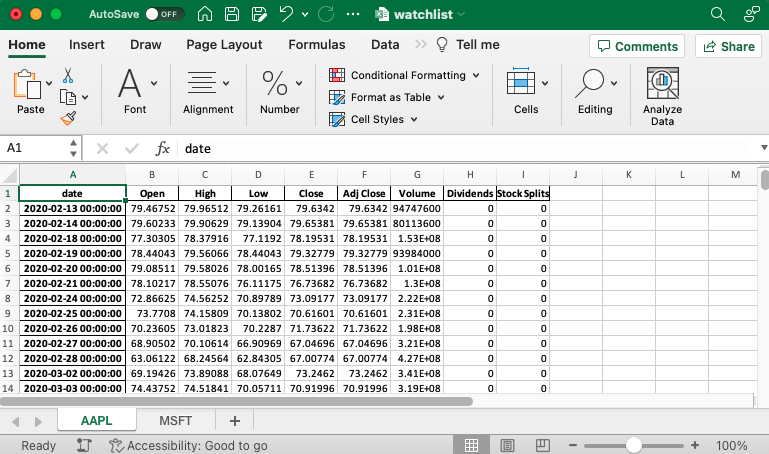
When xlsx is the file type, an additional argument for the sheet name is available. The purpose of this functionality is to export multiple items to the same spreadsheet; for example:
/stocks/load aapl --export watchlist.xlsx --sheet-name AAPL
Loading Daily data for AAPL with starting period 2020-02-13.
Saved file: /Users/danglewood/OpenBBUserData/exports/watchlist.xlsx
/stocks/load msft --export watchlist.xlsx --sheet-name MSFT
Loading Daily data for MSFT with starting period 2020-02-13.
Saved file: /Users/danglewood/OpenBBUserData/exports/watchlist.xlsx
Importing Data
Menus, such as Econometrics, Forecast, or Portfolio, allow the user to import their own dataset. Files available to import will be included with the choices presented by auto-complete. In the Econometrics menu, this is activated after pressing the space bar, load -f.

The Econometrics menu looks at the exports and custom_imports/econometrics folder. The portfolio menu looks in the portfolio/holdings folder whereas the portfolio/po menu looks at the portfolio/allocation and portfolio/optimization folder for the load and file command respectively. Please make sure to read the relevant guides to understand how this works.
Custom Path for OpenBBUserData folder
The location of this folder can be set by the user from the /settings menu. There should be no need to update paths in this menu unless the folders have been moved manually. If the location of the OpenBBUserData folder must be changed, it is best to move the entire existing folder to the new path. The path is then changed under the settings menu with:
userdata --folder "/complete_path_to/OpenBBUserData"