
4.3 KiB
Vendored
title, sidebar_position, description, keywords
| title | sidebar_position | description | keywords | |||||||||||||||||||
|---|---|---|---|---|---|---|---|---|---|---|---|---|---|---|---|---|---|---|---|---|---|---|
| MacOS | 2 | Install the OpenBB Terminal on MacOS (Big Sur or later). There are two versions of the installers available for MacOS, Intel-based and Apple Silicon (M1). |
|
import HeadTitle from '@site/src/components/General/HeadTitle.tsx';
import InstallerButton from "@site/src/components/General/InstallerButton";
Install the OpenBB Terminal on MacOS (Big Sur or later). There are two versions of the installers available for MacOS, Intel-based and Apple Silicon (M1).
Minimum Requirements
- MacOS Monterey or newer
- Modern CPU (Intel processor made in the last 5 years or Apple Silicon chip)
- At least 4GB of RAM
- At least 5GB of free storage
- Internet connection (cable or 4G mobile)
:::info Apple Silicon users will need to install Rosetta prior to installation To understand whether you are using an Apple Sillicon (M1) device or an Intel-based device click on the Apple Icon at the top left of your MacBook and select "About This Mac". Then under "Chip" if it says something like "Apple M1 Pro" or "Apple M1 Max", you know you have an Apple Silicon MacBook. If it says for example "2,3 GHz Quad-Core Intel Core i7" you know that you have an Intel-based MacBook and you can continue by clicking on the "Mac Intel Installer" button.
Rosetta Installation Instructions (Apple Sillicon users only)
- Press ⌘ (Command) + SPACE to open spotlight search, and type "Terminal" and hit Return (⏎).
- Copy and paste the following code in the Terminal and hit ENTER (⏎):
softwareupdate --install-rosetta
- This will start up the Rosetta installation process and you will receive a message regarding the Licence Agreement. Type
Aand hit Return (⏎). - After the installation process has finished, you can proceed by clicking on the "Mac M1 Installer" button.
Step by step instructions:
-
Download the PKG file from the links above.
-
Launch the PKG installer by double-clicking on it.

-
Follow the Installer prompt. You will be asked to enter your system password.

-
This process installs the application into the
/Application/OpenBB Terminalfolder.
-
Launch the application by double-clicking on the
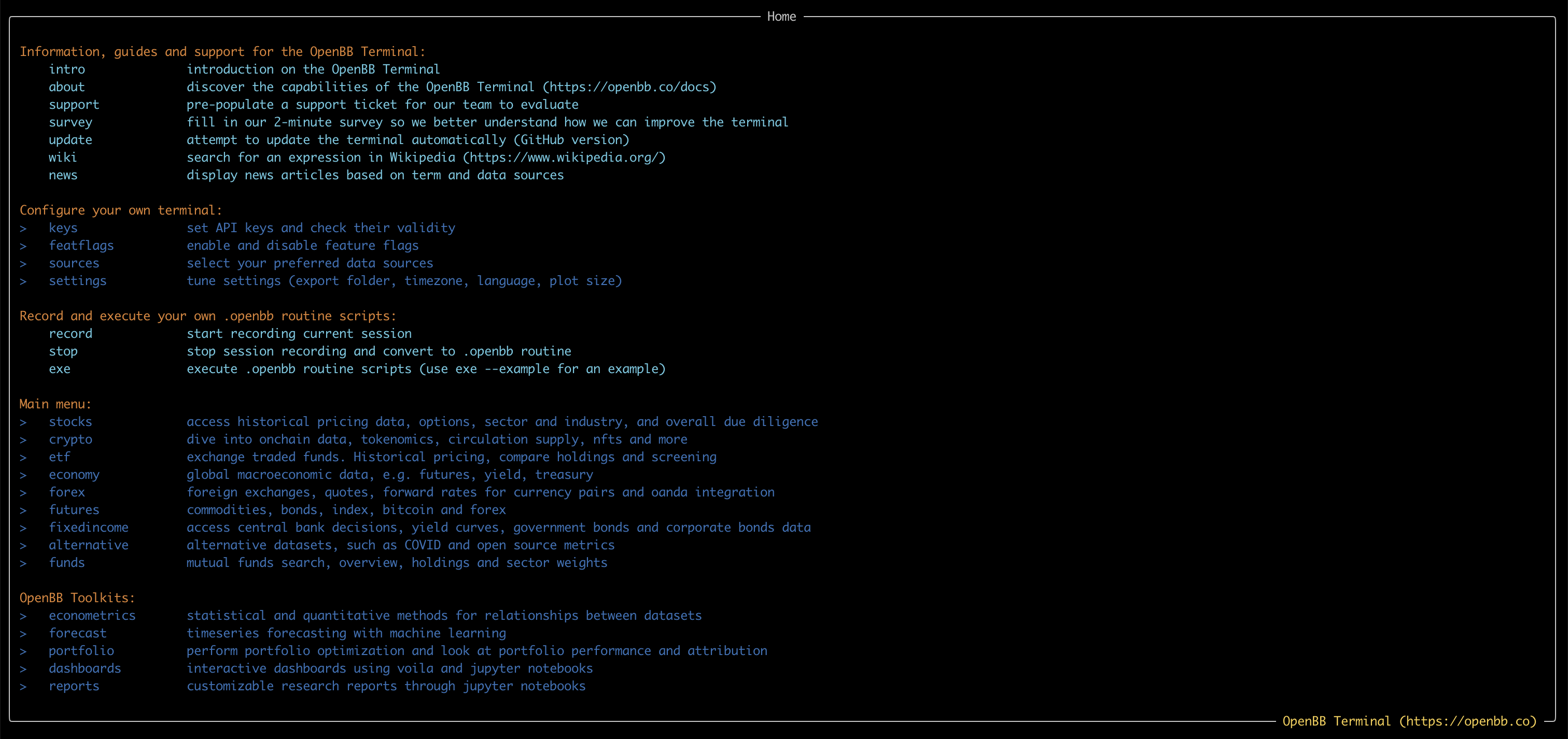
OpenBB Terminalapplication. If everything was successful you should see a screen like the one below:
Note: During the first launch, a warning message may appear. Click, "Open". If you get a warning about opening apps from an unverified developer, please follow the instructions on this MacOS User Guide page to proceed.
