 95431ecb85
* Many improvements to the documentation

* Remove redundant guides

* details

* Add guide backin

* linting

* Update FAQs

* Match it up with SDK

* add po to sdk

* Add PO in

* adding discovery

* adding BA and FA to sdk

* Add in Troubleshooting page

* quick fix on forecast

* onemore quickie

* fix sdk

* updates to troubleshooting

* Add in ticker to codespel so it doesn't whine

Co-authored-by: Jeroen Bouma <jeroenbouma@Jeroens-MacBook-Pro.local>
Co-authored-by: andrewkenreich <andrew.kenreich@gmail.com>
Co-authored-by: martinb-bb <105685594+martinb-bb@users.noreply.github.com>
Co-authored-by: james <jmaslek11@gmail.com>
9.7 KiB
Vendored
sidebar_position, title
| sidebar_position | title |
|---|---|
| 2 | Menus & Commands |
Explanation of Menus
Menus, depicted in <span style={{color:"#005CA9"}}>Dark Blue, take you to a new section of the terminal referred to as a menu. For example, if you wish to view information about stocks, you can do so by typing stocks and pressing ENTER (⏎). This opens a new menu as depicted below.

Depending on the menu you are in, you are presented with a new set of commands and menus you can select. There are interactions in place between each menu. For example, when selecting a company within the stocks menu, the terminal will remember your selection when you visit the fa or options menu. See Introduction to Stocks for more information.
Pro tip: you can quickly jump between menus by using a forward slash (/). For example, if I want to access the options
menu, I can type /stocks/options to instantly arrive at this menu. You can do this from any location within the
OpenBB Terminal!
Explanation of Commands
Commands, depicted in <span style={{color:"#00AAFF"}}>Light Blue, execute an action or task. For example, the commands that you are able to use from any menu in the terminal (see Explanation of Menus) are as follows:
cls: clears the screen, by executing this command you are left with an empty screen.help,hor?: displays the menu that you are currently on.quit,qor..: allows for navigation through the menu. E.g. if you typestockspressENTER(⏎) and then useqand pressENTER(⏎) you return to where you started. Validate this by typing?and pressingENTER(⏎).support: allows you to submit bugs, questions and suggestions.about: this opens the related guide, linking to this website. It also has the ability to open a guide to a specific command. For example, within thestocksmenu,about candleopens this guide.wiki: search for a given expression on the Wikipedia without leaving the terminal.
Continuing with the example mentioned at quit, revisit the stocks menu and look at the commands. At the top you will see a command named load. To understand what this command can do, you can use load -h followed by ENTER (⏎). The -h stands for help and every command will have this feature. This will return the following:
2022 May 19, 05:27 (🦋) /stocks/ $ load -h
usage: load [-t TICKER] [-s START] [-e END] [-i {1,5,15,30,60}] [-p] [-f FILEPATH] [-m] [-w] [-r {ytd,1y,2y,5y,6m}] [-h] [--source {yf,av,iex,polygon}]

Load stock ticker to perform analysis on. When the data source is Yahoo Finance, an Indian ticker can be loaded by
using '.NS' at the end, e.g. 'SBIN.NS'. American tickers do not have this addition, e.g. AMZN.

optional arguments:
  -t TICKER, --ticker TICKER
                        Stock ticker (default: None)
  -s START, --start START
                        The starting date (format YYYY-MM-DD) of the stock (default: 2019-07-01)
  -e END, --end END     The ending date (format YYYY-MM-DD) of the stock (default: 2022-07-05)
  -i {1,5,15,30,60}, --interval {1,5,15,30,60}
                        Intraday stock minutes (default: 1440)
  -p, --prepost         Pre/After market hours. Only works for 'yf' source, and intraday data (default: False)
  -f FILEPATH, --file FILEPATH
                        Path to load custom file. (default: None)
  -m, --monthly         Load monthly data (default: False)
  -w, --weekly          Load weekly data (default: False)
  -r {ytd,1y,2y,5y,6m}, --iexrange {ytd,1y,2y,5y,6m}
                        Range for using the iexcloud api. Note that longer range requires more tokens in account (default: ytd)
  -h, --help            show this help message (default: False)
  --source {yf,av,iex,polygon}
                        Data source to select from (default: yf)

For more information and examples, use 'about load' to access the related guide.
This shows you all arguments the command has. These are additional options you can provide to the command. Each default value is also displayed which is used when you do not select this option. For example, if I would use the stock ticker of Amazon (AMZN, which can also be found with search amazon), I can use load AMZN which will return the following:
2022 May 19, 05:27 (🦋) /stocks/ $ load AMZN

Loading Daily AMZN stock with starting period 2019-05-15 for analysis.

Datetime: 2022 May 19 05:33
Timezone: America/New_York
Currency: USD
Market:   OPEN
Company:  Amazon.com, Inc.

                                           AMZN Performance
┏━━━━━━━━━┳━━━━━━━━┳━━━━━━━━━━┳━━━━━━━━━━┳━━━━━━━━━━┳━━━━━━━━━━━━━━━━━┳━━━━━━━━━━━━━━━━━━┳━━━━━━━━━━━━┓
┃ 1 Day   ┃ 1 Week ┃ 1 Month  ┃ 1 Year   ┃ YTD      ┃ Volatility (1Y) ┃ Volume (10D avg) ┃ Last Price ┃
┡━━━━━━━━━╇━━━━━━━━╇━━━━━━━━━━╇━━━━━━━━━━╇━━━━━━━━━━╇━━━━━━━━━━━━━━━━━╇━━━━━━━━━━━━━━━━━━╇━━━━━━━━━━━━┩
│ -3.34 % │ 1.65 % │ -32.26 % │ -33.71 % │ -37.14 % │ 31.36 %         │ 5.51 M           │ 2142.25    │
└─────────┴────────┴──────────┴──────────┴──────────┴─────────────────┴──────────────────┴────────────┘
The default values you see within load -h have been inputted here. E.g. the starting period is 2019-05-15. I can decide to change these default values by calling the argument and inputting a different value.
Whenever you wish to apply an optional argument, you use the related shortcode, e.g. -s or --start. Then, if there is an additional word behind the argument (in this case there is, which is START) it implies the argument expects you to define a value. Within the documentation you can read that the format must be YYYY-MM-DD implying that 2010-01-01 will be valid. If there is not an additional word behind it, it is enough to write down load AMZN -p (which refers to the prepost optional argument)
Let's change the starting and ending period of the data that is being loaded in by doing the following:
2022 May 19, 05:38 (🦋) /stocks/ $ load AMZN -s 2005-01-01 -e 2010-01-01

Loading Daily AMZN stock with starting period 2005-01-01 for analysis.

Datetime: 2022 May 19 05:43
Timezone: America/New_York
Currency: USD
Market:   OPEN
Company:  Amazon.com, Inc.

                                           AMZN Performance
┏━━━━━━━━━┳━━━━━━━━━┳━━━━━━━━━┳━━━━━━━━━━┳━━━━━━━━━━┳━━━━━━━━━━━━━━━━━┳━━━━━━━━━━━━━━━━━━┳━━━━━━━━━━━━┓
┃ 1 Day   ┃ 1 Week  ┃ 1 Month ┃ 1 Year   ┃ Period   ┃ Volatility (1Y) ┃ Volume (10D avg) ┃ Last Price ┃
┡━━━━━━━━━╇━━━━━━━━━╇━━━━━━━━━╇━━━━━━━━━━╇━━━━━━━━━━╇━━━━━━━━━━━━━━━━━╇━━━━━━━━━━━━━━━━━━╇━━━━━━━━━━━━┩
│ -3.51 % │ -3.18 % │ -2.87 % │ 162.32 % │ 203.73 % │ 49.78 %         │ 8.53 M           │ 134.52     │
└─────────┴─────────┴─────────┴──────────┴──────────┴─────────────────┴──────────────────┴────────────┘
We can check that this period has changed by looking into the candle chart with candle. This, again shares the same -h argument. This results in the following which indeed depicts our selected period.
2022 May 19, 05:44 (🦋) /stocks/ $ candle
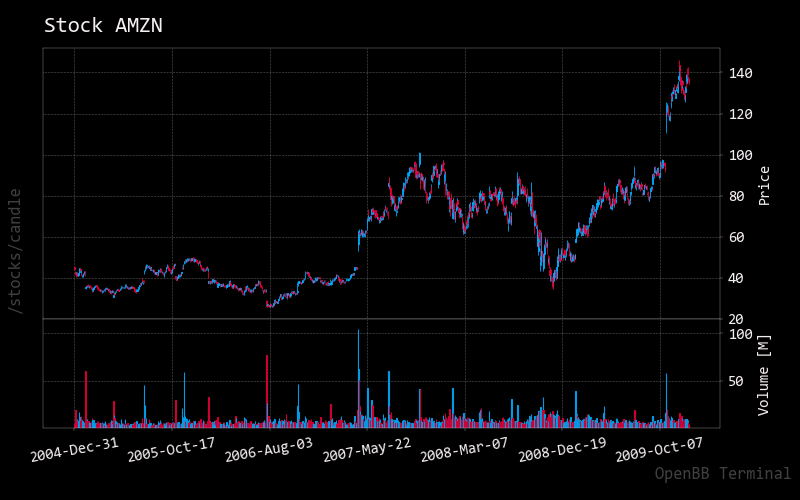
As mentioned in the Explanation of Menus, some information also transfers over to other menus and this includes the loaded market data from load. So, if you would visit the ta menu (which stands for Technical Analysis) you will see that, by running any command, the selected period above is depicted again. Return to the Stocks menu again by using q and use it again to return to the home screen which can be shown with ?.