
2.6 KiB
Vendored
title, sidebar_position, description, keywords
| title | sidebar_position | description | keywords | ||||||||||
|---|---|---|---|---|---|---|---|---|---|---|---|---|---|
| Installation | 1 | How to get started with OpenBB Bot |
|
import AddBotDialog from "@site/src/components/General/AddBot";
Adding Bot to your Server
To add the bot to your server click on one of the links for your respective platform and then follow the instructions below.
Discord - First Time Setup
A pop-up window will open, asking you to log in to your Discord account and allow the bot access.

Once you log in, you’ll see a window asking for permission to access your account. Locate the “Add to Server” drop-down menu and click on it.

This will open a list of Discord servers where you can add a bot. Select your server and press “Continue”.
Review permissions that the bot requests on your server. Select and deselect based on your needs, we recommend all the default settings in order to experience everything the bot has to offer. Click on “Authorize” when you’re ready.

Congratulations! You’ve successfully added a bot to your Discord server.
Telegram - First Time Setup
After clicking on the Add to Telegram button it should open a chat with our OpenBB Bot.
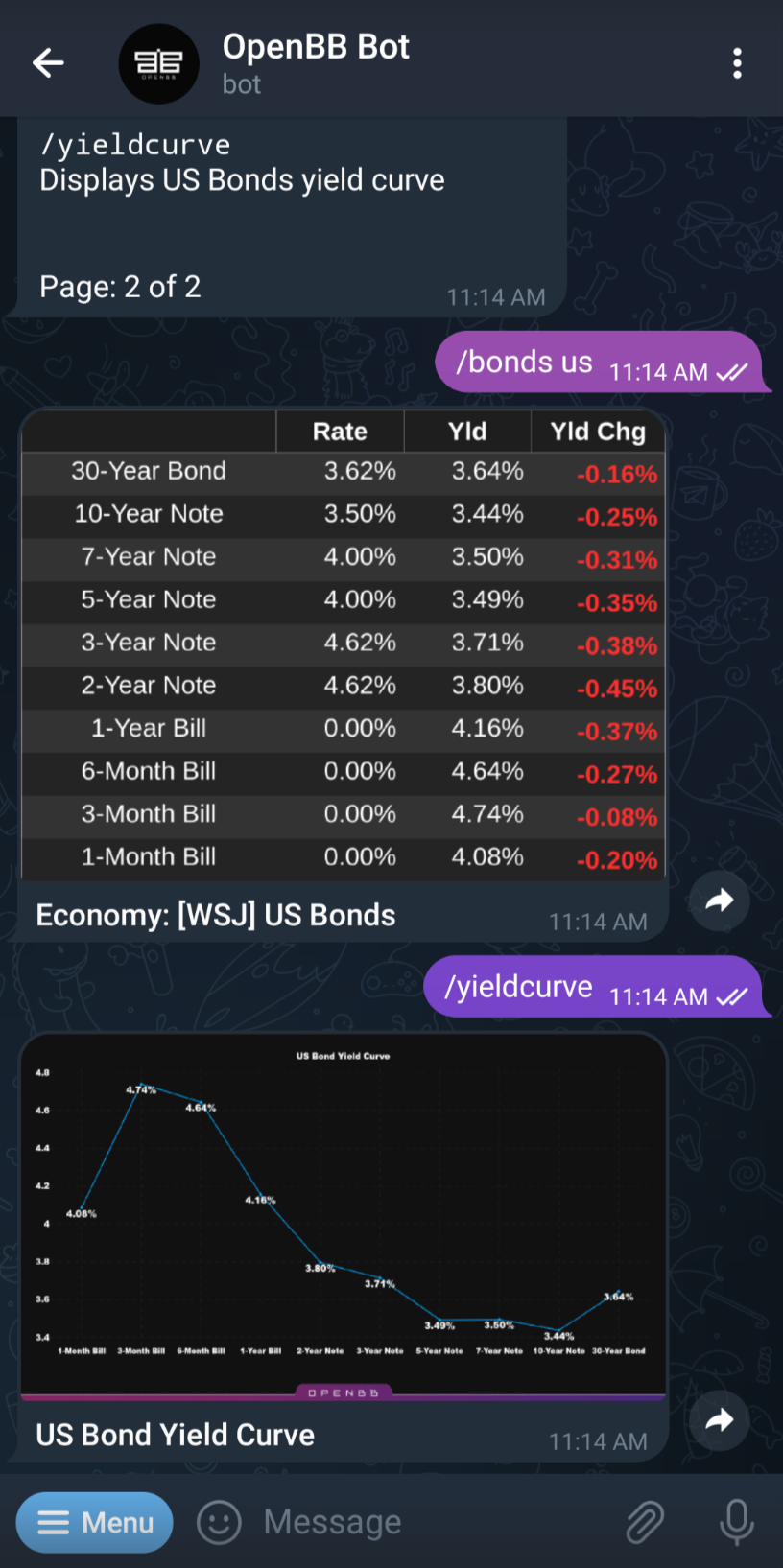
Go to your Telegram chat and click/tap on the Top Bar of the OpenBB Bot chat window.

Then, you need to click on “More” and select "Add to Group or Channel" or just click "Add to Group or Channel" and select the Telegram group you want to add the chatbot to:

Now you can verify it has the permissions required, we recommend the ones already selected, and you are ready to go!
