 757fc57174
* update Terminal about URLs and some other broken links

* ruff

* intro

* changing the heading levels

* dependency management sections

* structure

* developer guides

* structure

* contributor guides

* keywords and descriptions

* broken urls

* cool cards

* Cool cards (#5727)

* tidy up terminal/content

* some more tidy up

* fix styling for platform that was missing

* more tidy up

* improve color for dark and light mode

* create new reference card for more basic cards

* rename back to menus

* implement all index.md for terminal, except reference

* improve bot title

* more refactoring

* fix remaining index

* header styling

* more styling

* heheheheheheeh

* Revert "heheheheheheeh"

This reverts commit 7d095fcfd2.

* Ccards (#5733)

* links

* more links

* improved styling and chevron aligned to title

* fix index.mdx urls for Terminal

* update package.json

* update index.mdx

* fix generation

* spelling

* toolkit_extensions

* update data extensions

* couple of links

* add tiingo to data extensions list

---------

Co-authored-by: hjoaquim <h.joaquim@campus.fct.unl.pt>
Co-authored-by: andrewkenreich <andrew.kenreich@gmail.com>
Co-authored-by: DidierRLopes <dro.lopes@campus.fct.unl.pt>
Co-authored-by: James Maslek <jmaslek11@gmail.com>
6.7 KiB
Vendored
title, sidebar_position, description, keywords
| title | sidebar_position | description | keywords | ||||||||
|---|---|---|---|---|---|---|---|---|---|---|---|
| Commands and arguments | 2 | This documentation page includes a tutorial video that provides a short introduction on commands and arguments for the OpenBB Terminal. It further explains the help dialogue for functions, the auto-completion feature, and global commands such as help, about, support, cls, quit, exit, and reset. Also, tips for submitting support requests are provided. |
|
import HeadTitle from '@site/src/components/General/HeadTitle.tsx';
import TutorialVideo from '@site/src/components/General/TutorialVideo.tsx';
Help arguments
A help dialogue for any function at the current location is printed to the screen by typing -h or --help after the command. The information returned contains a short description of the function and all accepted arguments. For example the news command will return:
(🦋) / $ news -h

usage: news [-t TERM [TERM ...]] [-s SOURCES] [-h] [--export EXPORT] [--sheet-name SHEET_NAME [SHEET_NAME ...]] [-l LIMIT]

display news articles based on term and data sources

options:
  -t TERM [TERM ...], --term TERM [TERM ...]
                        search for a term on the news
  -s SOURCES, --sources SOURCES
                        sources from where to get news from (separated by comma)
  -h, --help            show this help message
  --export EXPORT       Export raw data into csv, json, xlsx
  --sheet-name SHEET_NAME [SHEET_NAME ...]
                        Name of excel sheet to save data to. Only valid for .xlsx files.
  -l LIMIT, --limit LIMIT
                        Number of entries to show in data.

For more information and examples, use 'about news' to access the related guide.
To search for news containing the term, "Federal Reserve", you can use this command:
(🦋) / $ news --term Federal Reserve
Auto-complete

The OpenBB Terminal is equipped with an auto completion engine that presents choices based on the current menu and command. Whenever you start typing, suggestion prompts will appear for existing commands and menus. When the command contains arguments, pressing the space bar after typing the command will present the list of available arguments. Note that a menu doesn't has arguments attached.
This functionality dramatically reduces the number of key strokes required to perform tasks and, in many cases, eliminates the need to consult the help dialogue for reminders. Choices - where they are bound by a defined list - are searchable with the up and down arrow keys.
Global commands
These are commands that can be used throughout the terminal and will work regardless of the menu where they belong.
Help
The help command shows the current menu you are in and all the commands and menus that exist, including a short description for each of these.
This is arguably one of the most helpful commands that the terminal. If you are familiar to navigating in a command line interface, it's the equivalent to ls -ll.
About
The about command opens the browser to the OpenBB documentation pages for the specific command or menu. Note that this will depend on where the user is located within the terminal.
(🦋) / $ about stocks
The command above will open a browser to Introduction to the Stocks menu.
Support
The support command allows to submit a new request for support, a general question, or a bug report. The command will pre-populate a form with key information, like the command or menu name specific to the issue. Use the up and down arrow keys to browse and select the appropriate item for the ticket.
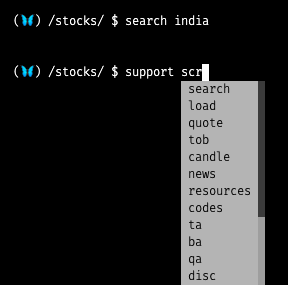
Naturally, this command has a help dialogue.
(🦋) / $ support -h

Submit your support request

options:
  -c {search,load,quote,tob,candle,news,resources,codes,ta,ba,qa,disc,dps,scr,sia,ins,gov,res,dd,fa,bt,ca,options,th,forecast}, --command {generic,search,load,quote,tob,candle,news,resources,codes,ta,ba,qa,disc,dps,scr,sia,ins,gov,res,dd,fa,bt,ca,options,th,forecast}
                        Command that needs support (default: None)
  --msg MSG [MSG ...], -m MSG [MSG ...]
                        Message to send. Enclose it with double quotes (default: )
  --type {bug,suggestion,question,generic}, -t {bug,suggestion,question,generic}
                        Support ticket type (default: generic)
  -h, --help            show this help message (default: False)
An example of a valid support ticket could be:
/stocks/ $ support search --type question --msg "How do I find stocks from India with OpenBB?"
The command opens a browser window to a pre-populated form on the OpenBB website. If you are signed-in to the Hub, all that is left to do is click Submit.
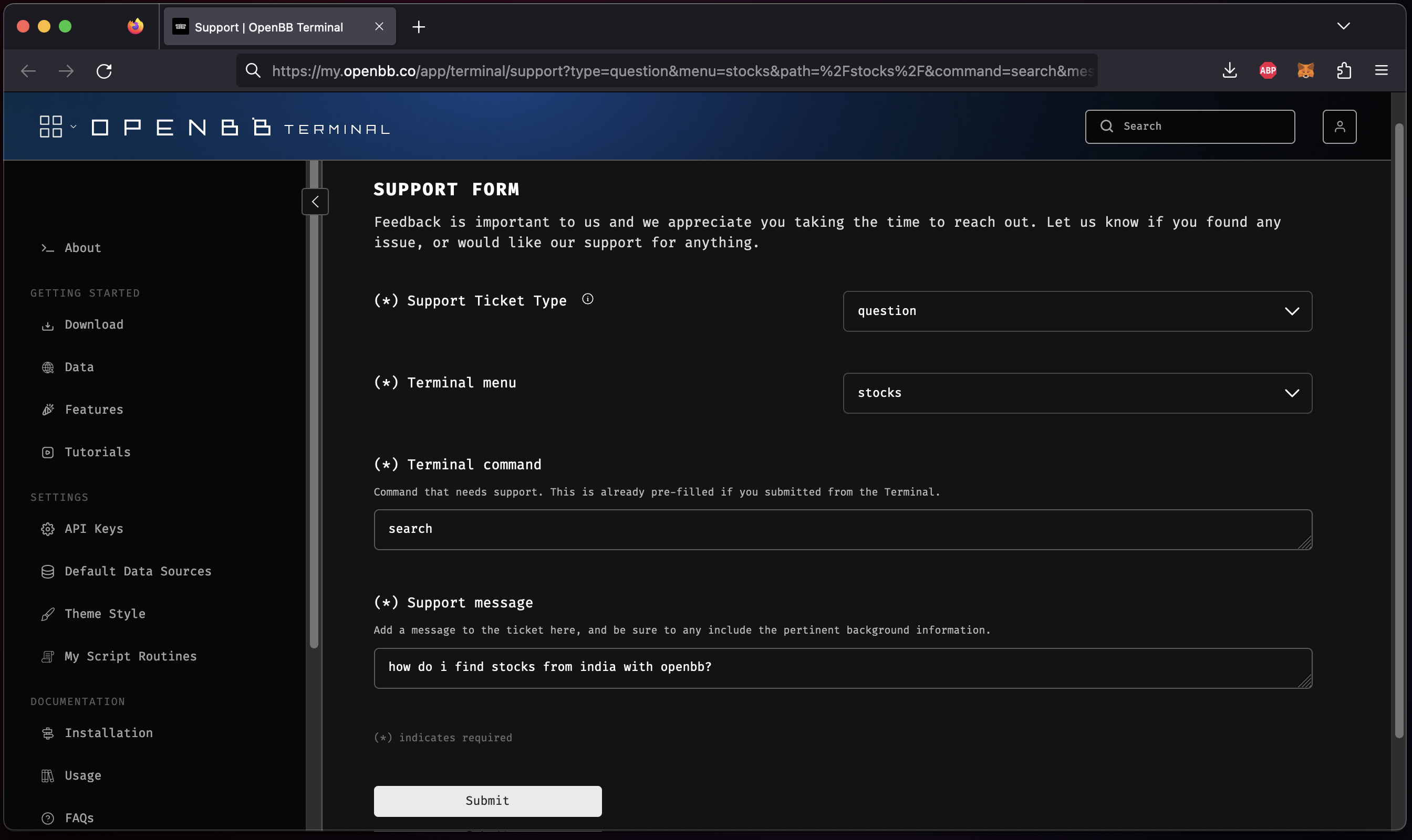
PS: The answer to this question is:
(🦋) /stocks/ $ search --country india --exchange-country india
:::note Tips for submitting a support request:
- Tell us what version number is installed.
- Tell us what operating system and version the machine has.
- What is the installation type? Installer, Source, PyPi, Docker, other?
- Tell us the command and parameter combination causing the error.
- Tell us what symbol (ticker) is, or was trying to be, loaded.
- Show us the complete error message.
- Let us know any contextual information that will help us replicate and accurately identify the problem. :::
CLS
The cls command clears the entire terminal screen.
Quit
The quit command (can also use q or ..) allows to leave the current menu to go one menu above. If the user is on the root, that will mean leaving the terminal.
Exit
The exit command allows the user to exit the terminal.
Reset
The reset command (or r) allows a developer that is using the terminal through source code to quickly test it's code changes by re-starting the terminal with the code changes. This allows to improve speed of development.
For more information on contributing to the OpenBB Terminal read our contribution guidelines.