mirror of
https://github.com/OpenBB-finance/OpenBB.git
synced 2026-10-28 13:01:38 +00:00
 7efe96c4d5
* use platform cli everywhere

* cli w same color as platform

* same colors as platform

* fix tests
76 lines
3.3 KiB
Markdown
Vendored
76 lines
3.3 KiB
Markdown
Vendored
---
|
|
title: Interactive Tables
|
|
sidebar_position: 10
|
|
description: This page explains how to navigate and utilize OpenBB's interactive tables. Understand how to sort and filter columns, hide or remove columns, select number of rows per page, freeze index and column headers, and export the data.
|
|
keywords:
|
|
- interactive tables
|
|
- PyWry technology
|
|
- sorting columns
|
|
- filtering columns
|
|
- hiding columns
|
|
- rows per page
|
|
- freeze index
|
|
- freeze column headers
|
|
- exporting data
|
|
- data visualization
|
|
- customizing tables
|
|
---
|
|
|
|
import HeadTitle from '@site/src/components/General/HeadTitle.tsx';
|
|
|
|
<HeadTitle title="Interactive Tables - | OpenBB Platform CLI Docs" />
|
|
|
|
|
|
Interactive tables open in a separate window ([PyWry](https://github.com/OpenBB-finance/pywry)). These provide methods for searching, sorting, filtering, exporting and even adapting settings directly on the table.
|
|
|
|
:::tip
|
|
All OpenBB Platform CLI results are displayed in interactive tables by default, unless the interactive model is disabled from the `/settings` menu.
|
|
:::
|
|
|
|
<details>
|
|
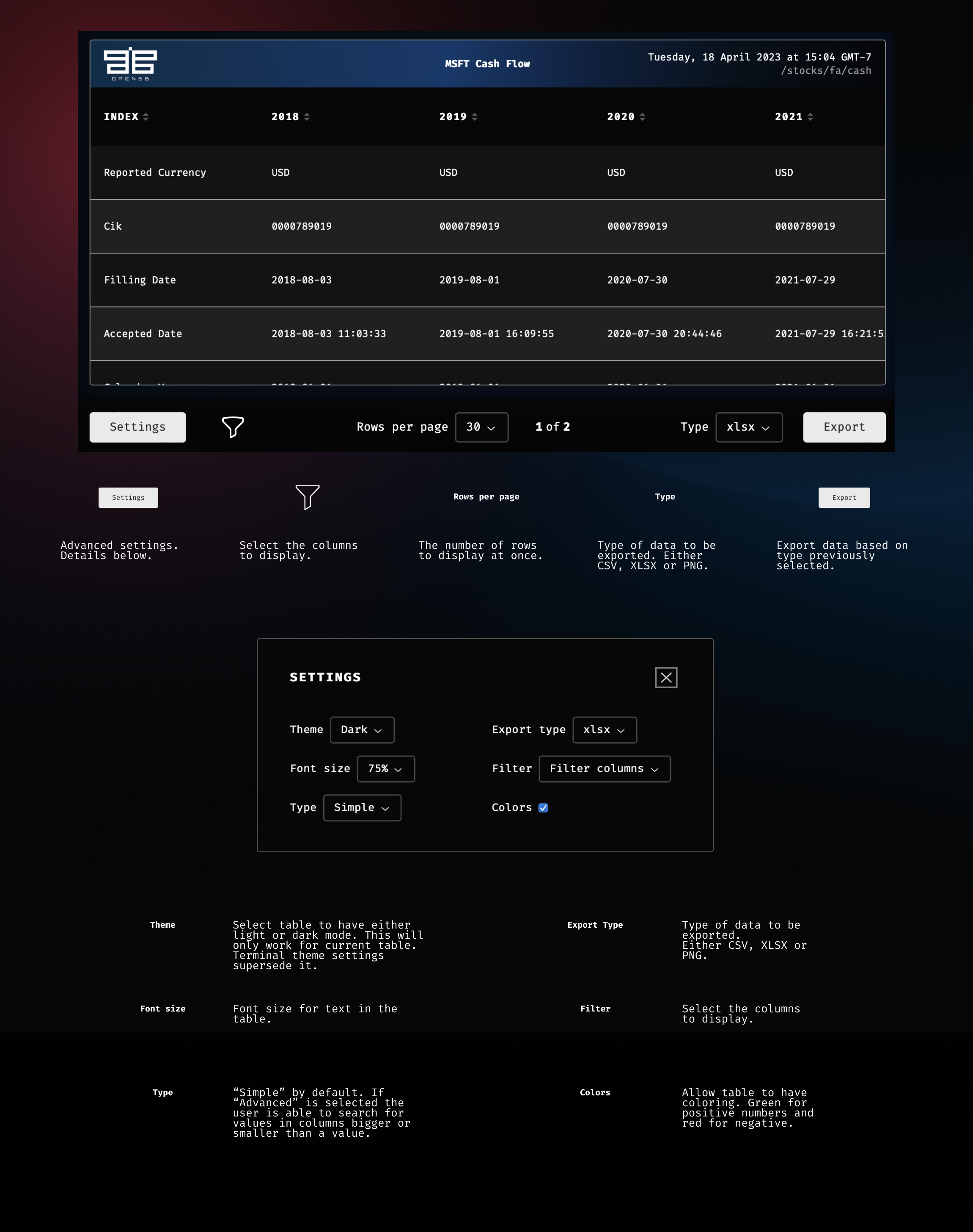
<summary>Table cheat sheet </summary>
|
|
|
|
|
|
|
|
</details>
|
|
|
|
## Sorting
|
|
|
|
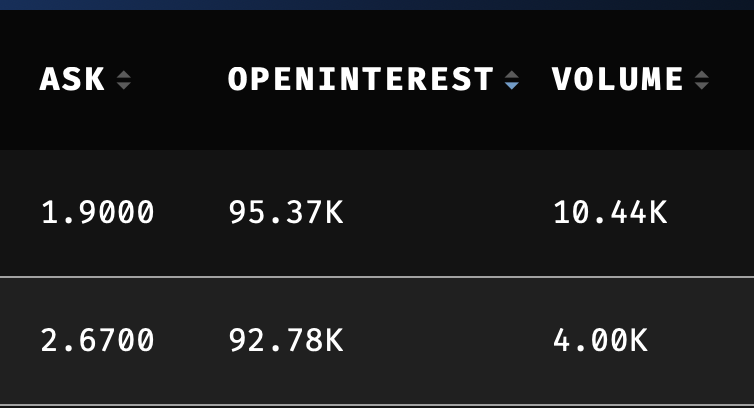
Columns can be sorted ascending/descending/unsorted, by clicking the controls to the right of each header title. The status of the filtering is shown as a blue indicator.
|
|
|
|
|
|
|
|
## Filtering
|
|
|
|
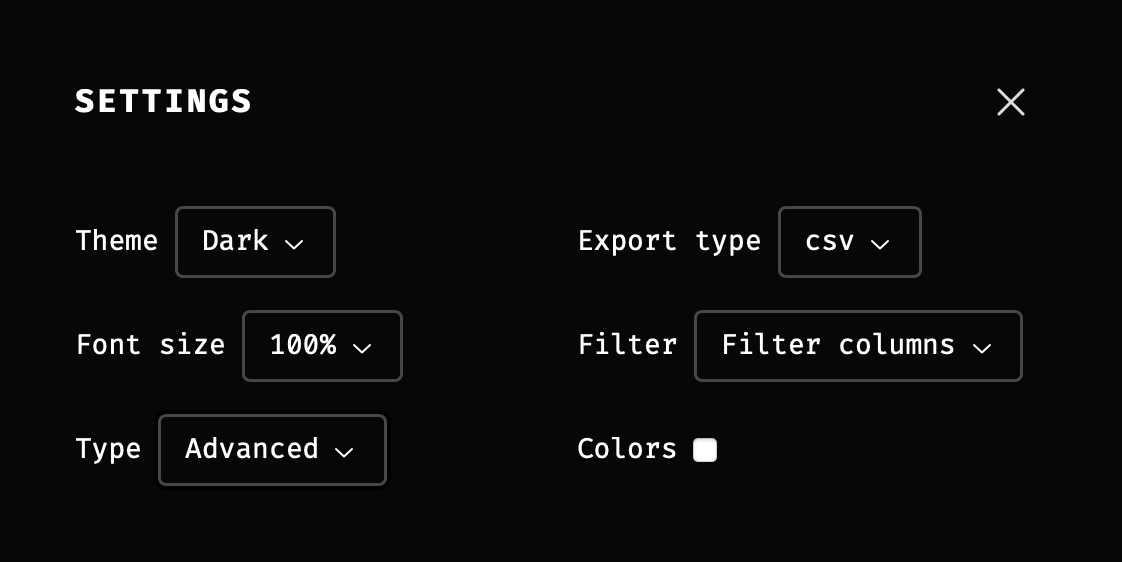
The settings button, at the lower-left corner, displays choices for customizing the table. By selecting the `Type` to be `Advanced`, columns become filterable.
|
|
|
|
|
|
|
|
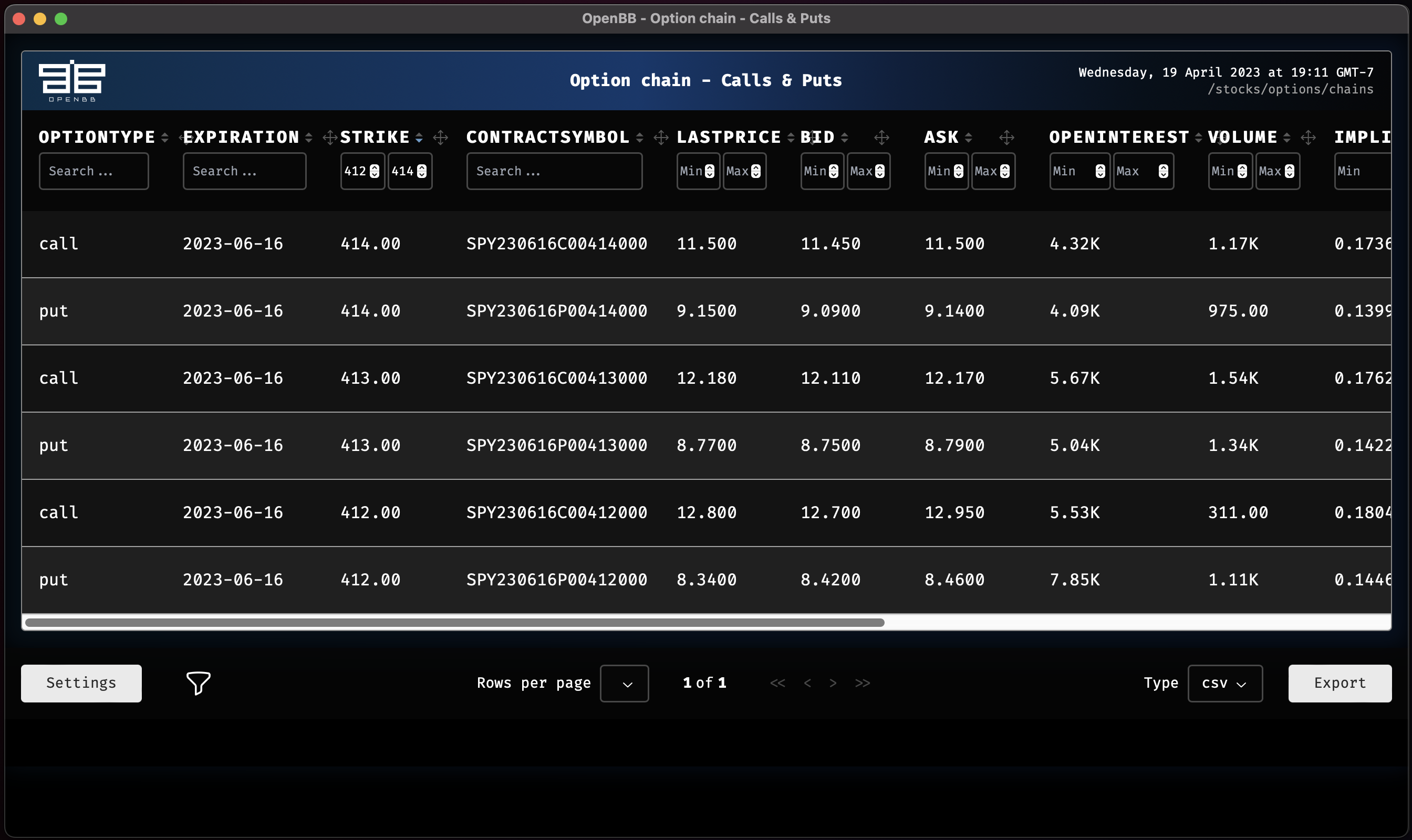
The columns can be filtered with min/max values or by letters, depending on the content of each column.
|
|
|
|
|
|
|
|
## Hiding columns
|
|
|
|
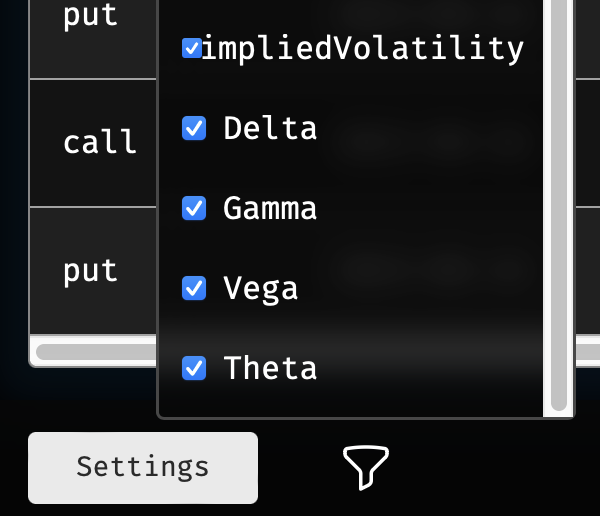
The table will scroll to the right as far as there are columns. Columns can be removed from the table by clicking the icon to the right of the settings button and unchecking it from the list.
|
|
|
|
|
|
|
|
## Select rows per page
|
|
|
|
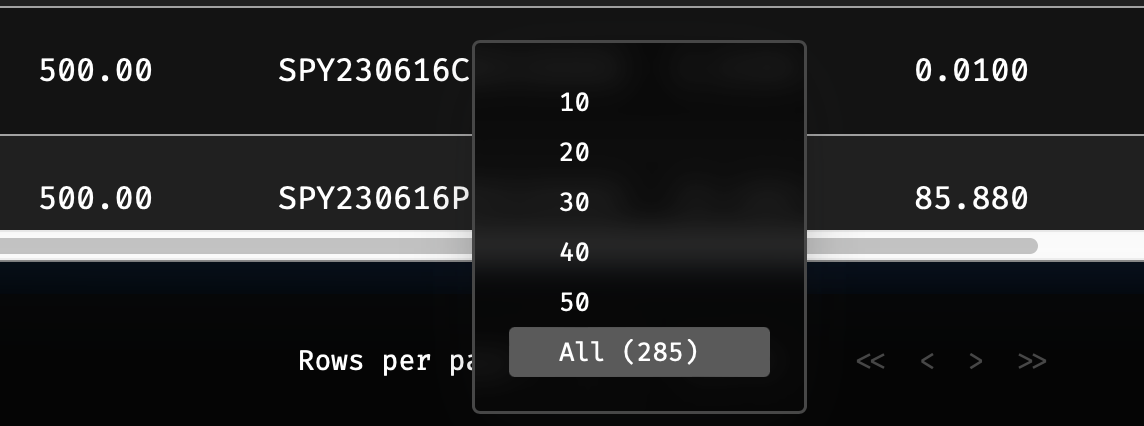
The number of rows per page is defined in the drop down selection near the center, at the bottom.
|
|
|
|
|
|
|
|
## Freeze the Index and Column Headers
|
|
|
|
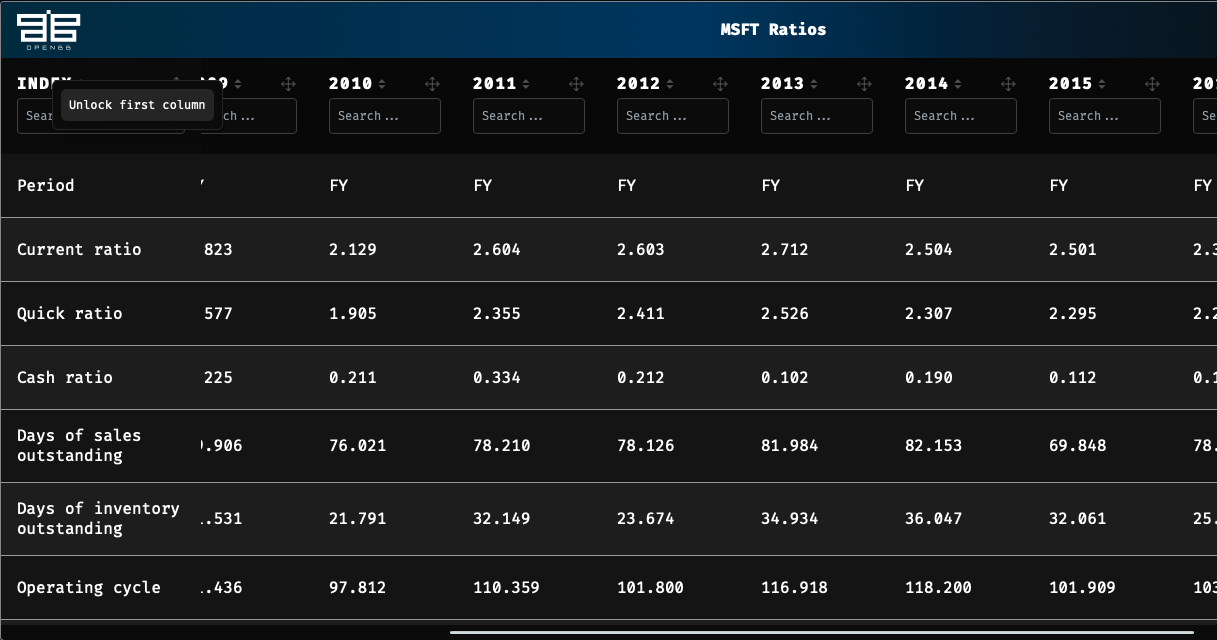
Right-click on the index name to enable/disable freezing when scrolling to the right. Column headers are frozen by default.
|
|
|
|
|
|
|
|
## Exporting Data
|
|
|
|
At the bottom-right corner of the table window, there is a button for exporting the data. To the left, the drop down selection for `Type` can be defined as a CSV, XLSX, or PNG file. Exporting the table as a PNG file will create a screenshot of the table at its current view, and data that is not visible will not be captured.
|
|
|
|

|